
You are here:
Create and Configure Your Expression Set Version
When you create an expression set, the first version is created automatically and suffixed with V1. An expression set version is a blank and usable version of your expression set. Configure variables and constants in your expression set and then create steps that call decision matrices or decision tables and perform calculations or evaluate conditions.
Required Editions
| Available in: Lightning Experience |
| Available in: Enterprise, Unlimited, and Developer Editions for clouds that have Business Rules Engine enabled |
| User Permissions Needed | |
|---|---|
| To create, update, and delete expression sets | Rules Engine Designer |
| To run expression sets in Business Rules Engine | Rules Engine Runtime |

Important Create and activate all decision matrices, decision tables, or sub
expressions that you plan to call in your expression set.
Create an expression set named StudentDiscountCalculation. This expression set calculates the fee for students based on the values that they enter in a form and the eligibility for discounted fees defined in our decision matrix.

Note Ensure that the name of an expression set and the expression set version starts with a
letter and doesn't exceed 75 characters, including spaces. Don't start names with numbers and
special characters.
-
From App Launcher (
 ), find and select Business Rules Engine.
- Click the app navigation menu, and then select Expression Sets.
- Click New.
- For name, enter StudentDiscountCalculation.
-
Select a usage type, and save the expression set.
The expression set’s first version is created by default.
-
If needed, select Initiatlize resources with default values.
If this checkbox isn't selected, expression set version resources are initialized with null values.
- To open the version in Expression Set Builder, from the Expression Set Versions area, select StudentDiscountCalculation V1.
-
Set the version’s properties:
-
Click
 , and then enter a start date time and an end date time for the expression set
version.
, and then enter a start date time and an end date time for the expression set
version.
-
Enter a rank number.
Note When more than one enabled versions match an expression set call, and the date-time periods overlap, the version with the highest rank is chosen. For example, if two enabled versions have rank values set to 1 and 2, the version with rank 2 is chosen.
- Close the Expression Set Properties panel.
-
Click
-
Create resources to use in the version steps:
-
Click
 .
.
-
Click Add Resource, and then create these resources.
Note After adding a resource, to add the next resource, click Done and New. After adding all required resources, click Done.
Variables Variable NAME Data Type Decimal StudentBirthdate Date 0 StudentAge Number 0 GPA Number 2 QuoteAmount Currency 2 QuoteAmountAdjusted Currency 2 Constants Constant Name Data Type Decimal Default Value Discount Percent 0 15 HundredPercent Percent 0 100
-
Click
-
To calculate the age of a student based on their birth date, add a Calculation step to
the version.
-
Click
 in the expression set canvas, and then select
Calculation.
in the expression set canvas, and then select
Calculation.
- In the Formula field, search for and select AGE (Date).
- Replace Date in Age (Date) with StudentBirthdate so that the Formula looks like this: Age(Birthdate).
- In the Output Variable field, search for and select StudentAge.
-
Click
-
To look up the discount eligibility of a student based on a combination of age and GPA,
add a decision matrix:
-
Click in the expression set canvas, and then add a Decision Matrix element after
the Calculation step.
-
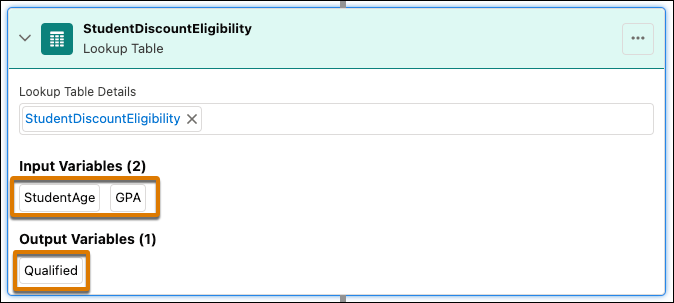
Search for and select StudentDiscountEligibility.
The variables and constants from the decision matrix appear automatically.
-
Click
-
To calculate the quoted fee, add another Calculation step:
-
Click in the expression set canvas, and then add the Calculation element after the
Decision Matrix step.
- In the Formula field, search for and select QuoteAmount.
- In the Output Variable field, search for and select QuoteAmountAdjusted.
-
Click
-
To evaluate whether a student is eligible for a discount, and then to calculate the
discounted fee, add a Conditional Group step:
-
Click in the expression set canvas, and then add the Conditional Group element
after the Calculation step.
- In the Condition element that's part of the Conditional Group, for Resource search for and select StudentDiscountEligibility__Qualified.
- For operator, select Equals.
- For Value, select true.
-
Click in the Conditional Group, and then add the Calculation element within the
conditional group.
- In the Formula field, search for and select this series of variables and operators: QuoteAmount * (HundredPercent – Discount).
- Select the Include in Outputcheckbox.
Important The Conditional Group step runs only if the condition in the group evaluates to true. -
Click
- Save the version.
Did this article solve your issue?
Let us know so we can improve!
