
Manage Assessments with the Assessment Component for Discovery Framework
Use the Assessment Library in the Assessments Lightning web component to take the assessments or send specific assessments to users. Streamline assessment management and response tracking by using the Lightning web component in your Experience Cloud site. Provide a consolidated view of all assessments to your users, making it easier to track their progress.
Required Editions
| View supported product editions. |
| User Permissions Needed | |
|---|---|
| To manage assessments: | Read and Edit permission on Discovery Framework objects Discovery Framework Platform User AND Omnistudio User permission set |
Set up the experience cloud site access to enable guest users access to Discovery Framework objects and components. Configure external user assessments to send assessment notifications.
The Assessment component shows all the available assessments and assessment envelopes in the Assessment Library tab. From the Assessment Library, support reps can send multiple assessments to contacts via email. If the contacts are registered Experience Cloud users, they can also access these assessments through the assessment component on the Experience Portal.
An assessment envelope holds assessments specific to a user. For example, you can create an envelope that includes assessments for a specific users, such as a loan applicant or a learner. You can find and start assessments or assessment envelopes from the Assessment Library tab, and use filters and sort buttons to locate specific assessments.
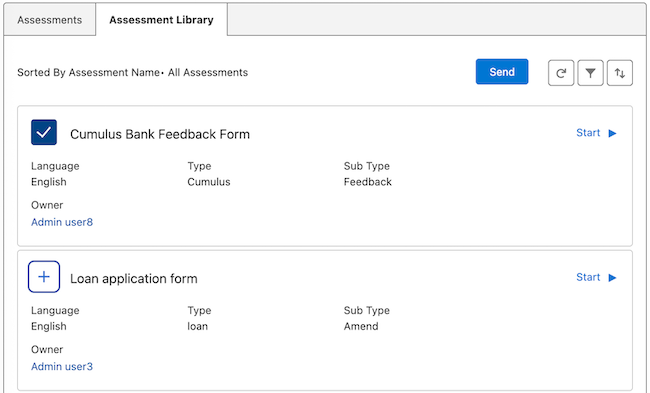
- Find assessments on a record page or an app home page.
- To see all the available assessments, click the Assessment Library tab.
- Use the filter and sort buttons to narrow down the assessments.
- Support reps can start or resume assessments on behalf of the end user.
-
Ask the questions on the assessment and record the answers. Click
Submit when complete.
If some assessment questions are prefilled with data from previously submitted responses, verify the information. After you submit an assessment or save it as draft, it will appear on the Assessments tab. To view a completed assessment, click the
 and then select View.
 -
To share the assessments with users, select the recipient, and set the expiration date
and click Send.
The recipient can be a registered Experience Cloud user, or an unauthenticated guest user. Users receive an email with the link to complete the assessment. Use the assessment component in the Experience Cloud site, enabling authenticated users to access the assessments. You can also configure the email template to send the assessments.
In the assessments tab of the Assessments Lightning web component, you can view all assessments related to the record in one place. View responses for each assessment and complete any assessments that are saved as drafts. You can further filter available assessments based on whether they’re:
- Not Started: awaiting a response
- In Progress: Respondent has paused and saved the assessment as a draft
- Completed: Respondent has submitted the assessment
- Expired: not submitted before the expiration date
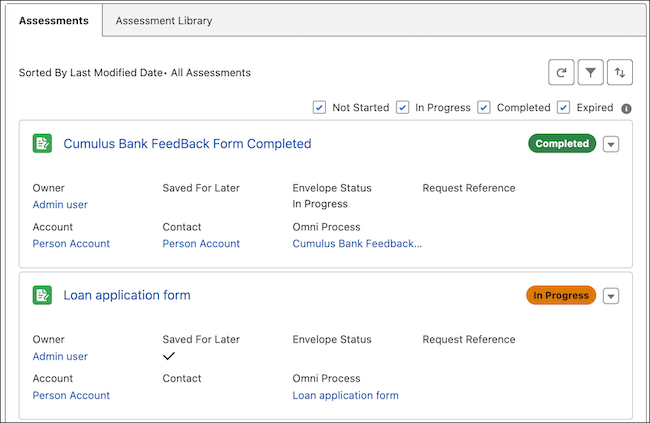

When you view the responses, the Assessment component triggers the Omniscript and populates the responses. However, if the assessment was submitted using an inactive version, the Assessment component won't display the responses.
