
Prefill Assessment Questions with Previously Submitted Responses in a Discovery Framework Omniscript
Save your respondents the time and effort of entering responses to specific questions more than one time. Collect new responses for certain questions on assessment forms, and prefill other questions with data retrieved from previous assessment responses. To access data from previously submitted responses, activate the prefill assessment question decision table and the prefill with decision table integration procedure. Then set up Omniscripts to determine whether to prefill questions.
Required Editions
| View supported product editions. |
| User Permissions Needed | |
|---|---|
| To enable Prefill Assessments: | Customize Application |
| To edit omni process assessment question version records and Omniscripts: | OmniStudio Admin permission set |
| To create, edit, and activate a decision table: | System Administrator profile |
| To assign permission sets: | Assign Permission Sets AND View Setup and Configuration |
Keep in mind that:
- On Experience Cloud sites, assessments show prefilled questions only for authenticated users, not for guest users.
- To use prefilled questions, community users must have Read access to the Account, Case, Contact, Omni Process, and Response Context fields on the Assessment object. If you don’t want community users to have Read access to these fields, remove the corresponding filters from the GetAssessmentIdForContext Omnistudio Data Mapper.
- Questions are prefilled only on newly opened assessments.
- To prefill a question, the prefill with decision table integration procedure (DiscoveryFramework_PrefillWithDecisionTable) uses the response from the most recently completed assessment.
To prefill all the questions for which data is available, rather than specific questions, you use a different integration procedure and no decision table. See Use Data from Previously Submitted Responses in a Discovery Framework Omniscript.
Explore and Learn
Watch this video to learn how to prefill data from previously submitted assessments.
If you aren’t able to watch the view in full screen, open the
video on a new tab:  Learn How to Prefill Data from
Previously Submited Assessments.
Learn How to Prefill Data from
Previously Submited Assessments.
Enable Prefill Assessment Questions
Turn on the Prefill Assessment Questions feature so that for specific questions, your users can verify auto-populated data from their previous assessment responses.
Before you enable Prefill Assessment Questions, make sure decision tables are available in your org.
- From Setup, in the Quick Find box, enter Prefill, and then select Prefill Assessment Question Settings.
- Enable Prefill Assessment Questions.
- Follow the guided setup steps to set up prefill assessment questions and assign permissions for decision tables.
Set Up Prefill Questions
Omni process assessment question version records represent questions in assessments. In the records that correspond to questions to prefill, select the Prefill checkbox.
-
Open the omni process assessment question version record that corresponds to a question to
prefill and a related Omni process ID.
In the Omni Process Assessment Question Version list view, make sure you select the correct version record. If you have multiple versions of an Omni process, the same question can appear in all of them, but there’s a unique omni process assessment question version record ID for each question version.
- Select Prefill.
- If you activated the Prefill Assessment Question decision table previously, refresh it. You must refresh the decision table after you modify a question version’s Prefill setting.
Activate the Prefill Assessment Question Decision Table
The Prefill Assessment Question decision table is automatically created when you turn on Enable Prefill Assessment Questions. The table determines whether to prefill assessment questions based on prefill settings in Omni Process Assessment Question Version records.
If you want to evaluate other business rules before a question is prefilled, update the Prefill Assessment Question decision table or create a custom decision table.
- From Setup, in the Quick Find box, enter Decision Tables, and then select Decision Tables.
- Click Prefill Assessment Question.
- To use the decision table as is, activate it. You can skip the next step.
-
If you want to evaluate other business rules before a question is prefilled, customize the
decision table.
- Deactivate the decision table.
- Add inputs and outputs. If you add outputs, you must also customize the PrefillAssessmentWithDecisionTable Integration Procedure.
- Save your changes.
- Activate the decision table.
-
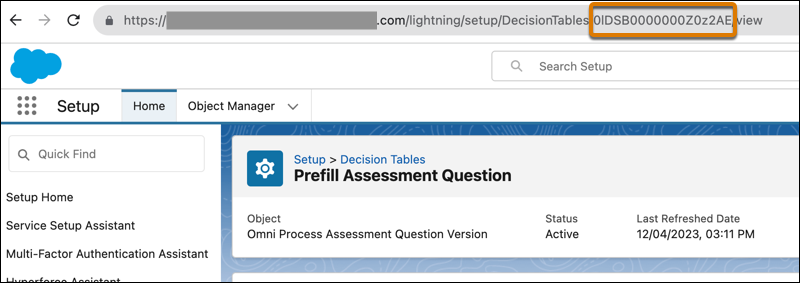
Copy the ID of the decision table from the URL of the decision table page. You need the ID
when you add the decision table property to Omniscripts later.
The decision table ID is the string of characters that appears in the URL after DecisionTables/.
Add the Decision Table Property to Omniscripts
Specify the ID of the Prefill Assessment Question decision table in Seed Data JSON. The table ensures that the correct assessment questions are prefilled.
- In an Omniscript, click Setup.
- In the Seed Data JSON section, click +Add New Key/Value Pair.
-
For Key, enter PrefillDecisionTableId. For Value, enter the ID of the Prefill Assessment
Question decision table you activated.
To find the decision table ID, open the decision table. The decision table ID is the string of characters that appears in the URL after DecisionTables/.
- Repeat these steps for each Omniscript that launches an assessment with questions to prefill.
Add the Prefill Integration Procedure to Omniscripts
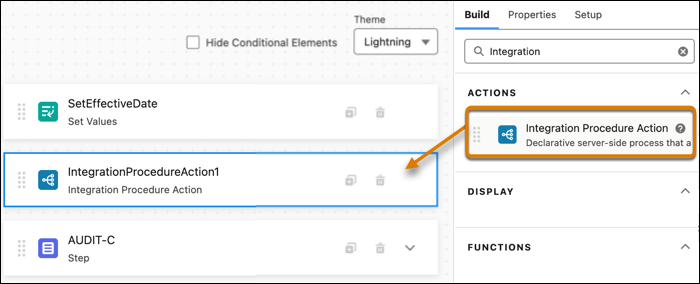
Use the DiscoveryFramework_PrefillWithDecisionTable Integration Procedure to prefill assessment questions. Activate the Integration Procedure and then add the Integration Procedure action to Omniscripts that launch assessments with questions to prefill.
- In the Omnistudio Integration Procedures list view, under DiscoveryFramework/PrefillWithDecisionTable, open PrefillAssessmentWithDecisionTable.
- Activate the Integration Procedure.
- Open an Omniscript that launches an assessment with questions to prefill.
-
Drag the Integration Procedure action to the canvas. Place it before the element that shows
the assessment questions so that the Omniscript evaluates the prefill setting values before it
displays the assessment questions.
-
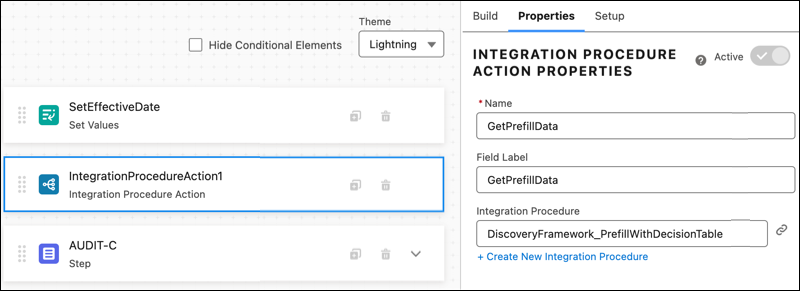
Click the Integration Procedure action and then enter the properties.
- For Name, enter a descriptive name for the action, for example GetPrefillData.
- For Integration Procedure, select DiscoveryFramework_PrefillWithDecisionTable.
- To test prefilled responses, click Preview. Enter a context ID such as an account ID or contact ID and confirm questions are prefilled as expected.
Assign Permissions for Decision Tables
Finally, update the relevant profiles or permission sets for users who complete assessments so that they can invoke the decision table that prefills assessment questions.
- From Setup, in the Quick Find box, enter Users, and then select Users.
- Assign the appropriate users a profile or permission set with the Run Decision Table permission enabled. See User Permissions.
