You are here:
Create a Custom Generate Document Button
Generate documents from any object such as a contract, order, quote, work order, or opportunity by integrating Omniscript into a custom button. This example uses the fndSingleDocxLwc Omniscript to generate single client-side documents from Microsoft Word .docx or Microsoft PowerPoint .pptx templates.
To configure a custom button, perform these steps:
-
Retrieve Lightning URL from the fndSingleDocxLwc Omniscript.
- Open the fndSingleDocxLwc Omniscript.
- From the Actions dropdown list, click How to Launch.
-
Scroll to Lightning, and then copy the URL starting from
/lightning/cmp/omnistudio.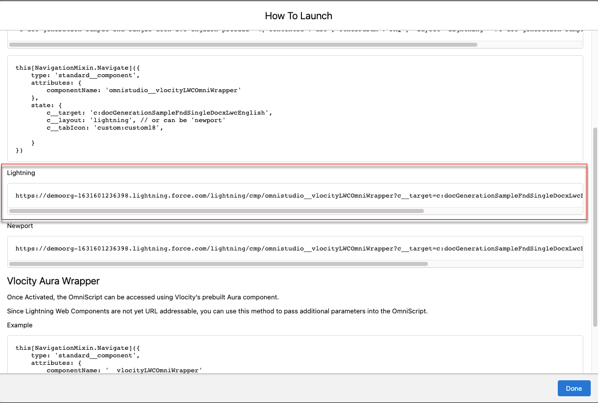
Here's an example.
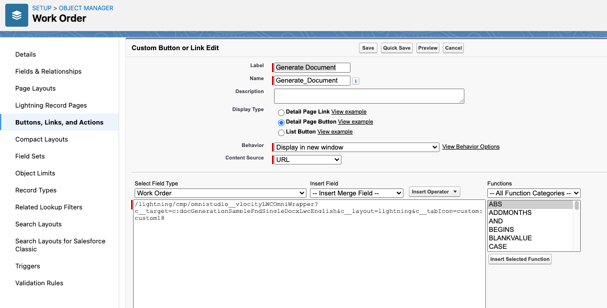
/lightning/cmp/omnistudio__vlocityLWCOmniWrapper?c__target=c:docGenerationSampleFndSingleDocxLwcEnglish&c__layout=lightning&c__tabIcon=custom:custom18 - Click Done.
-
Create a custom Generate Document button.
- In Setup, click Object Manager.
- Click the object for which you want to create the custom Generate Document button. For example, Work Order.
- Click Buttons, Links, and Actions.
- Click New Button or Link.
- Enter these details:
- Save your work, and then click OK.
-
To add the template type as a parameter, enter
&c__TemplateType=MicrosoftWord at the end
of the URL.
Here's an example.
/lightning/cmp/omnistudio__vlocityLWCOmniWrapper?c__target=c:docGenerationSampleFndSingleDocxLwcEnglish&c__layout=lightning&c__tabIcon=custom:custom18&c__TemplateType=MicrosoftWord - To add the Object ID as a parameter, at the end of the URL, enter &c__ObjectId=.
-
From the Insert Field dropdown list, select the object work ID to add
the custom Generate Document button to your object. For example, Work
Order ID.
The object work ID parameter is added to the URL.
Here's an example.
/lightning/cmp/omnistudio__vlocityLWCOmniWrapper?c__target=c:docGenerationSampleFndSingleDocxLwcEnglish&c__layout=lightning&c__tabIcon=custom:custom18&c__TemplateType=MicrosoftWord&c__ObjectId={!WorkOrder.Id} Note During the document generation process the work ID parameter is replaced with an actual work ID.
 - Save your work.
-
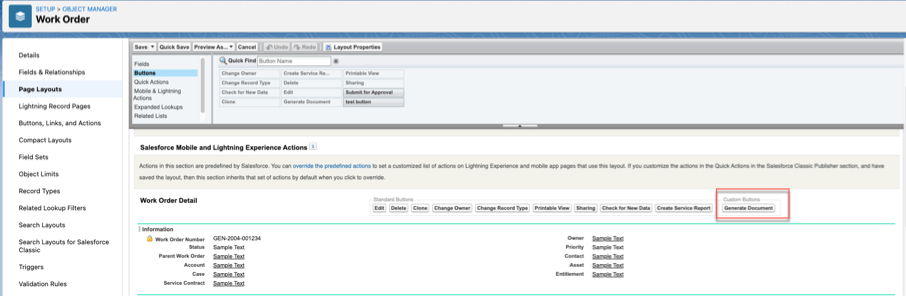
Add the Generate Document custom button to the object.
- In Setup, click Object Manager.
-
Click yourobject > Page
Layouts > yourobjectLayout
> Buttons.
For example, Work Order > Page Layouts > Work Order Layout > Buttons.
- Select Generate Document, and then drag it to the Custom Buttons section.
-
Save your changes.
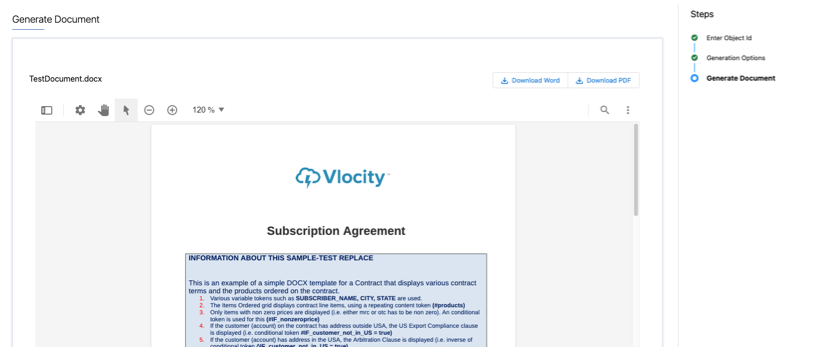
You can now directly generate documents from your object by using the Generate Document custom button.
-
Generate the Microsoft Word .docx document.
- On your object page, from the Actions dropdown list, click Generate Document.
- Click Next.
-
Select a template, and then click Next.
Note
To hide the Pick a template window and to customize the fndSingleDocxLwc Omniscript, see Customize fndSingleDocxLwc Omniscript.
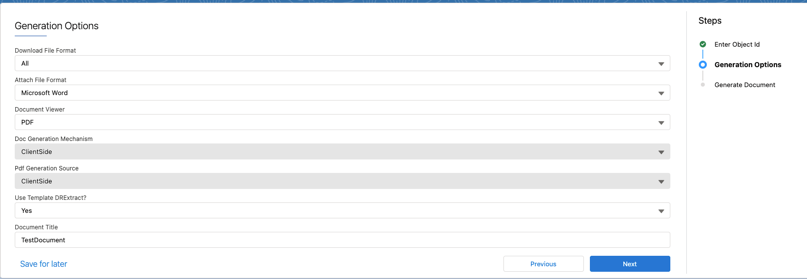
- Select the generation options, and then click Next.