
You are here:
Dynamic Rich Text for Client-Side Document Generation
Using rich text tokens in a Microsoft Word document template, you can insert rich text content in generated .docx and .pdf files. With dynamic rich text tokens, you can display the product details as a block of information with its original formatting in your generated document. The product details are stored in a rich text field of a Salesforce object.
The rich text token must start with RTB_. The token format is {{RTB_<richtexttokenname>}}, for example, {{RTB_HeaderRichText}}. Place rich text tokens anywhere within a document template, such as in a paragraph, table, text box, header, or footer. Rich text tokens must be placed in a new line. In Text Area (Rich) field, you can undo, redo, bold, italicize, underline, strike-out, modify alignment, add a numbered or non-numbered list, indent, outdent, and hyperlinks.
The rich text field supports right-to-left languages, and custom fonts for client-side generation. Rich text can pass through the rich text tokens using Omnistudio Data Mapper Transform, Custom Class, and Omniscripts.
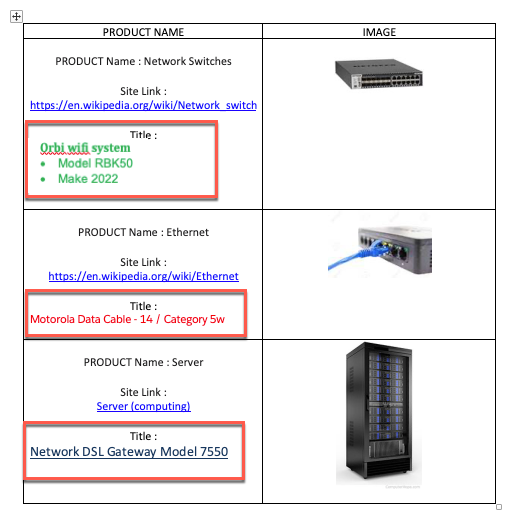
The image shows an example of a Word document with a list of products, their names, and their images. For each product, a rich-text list is inserted that describes the product details, such as model and make.
-
Document Generation Font Source is a custom contract type setting. It specifies the source of the font used for rendering values during document generation. Document Generation Font Source field is applicable only for Contract Lifecycle Management in Salesforce Industries.
 Note Using the App Launcher access Contract Types, click Default, and go to the Related tab. Open the Document Generate Font Source Setting, and enter Rich Text Editor Font or Document Font.
 -
Document Generation Font Source is an input parameter setting in the generations options page for LWC Omniscripts such as single-DocxLwc, multiDocxLwc, and singleDocxLwcGuestUser. It specifies the source of the font used for rendering values during document generation. Values include Rich Text Editor Font and Document Font. The default value is Rich Text Editor Font. This parameter is applicable for Omnistudio Document Generation and Contract Lifecycle Management in Salesforce Industries.
NoteIf the document font is selected during document generation, the application overwrites the fonts used in the rich text field and takes the token font from the document template.
To insert rich text into a generated document:
Rich Text Token Mapping
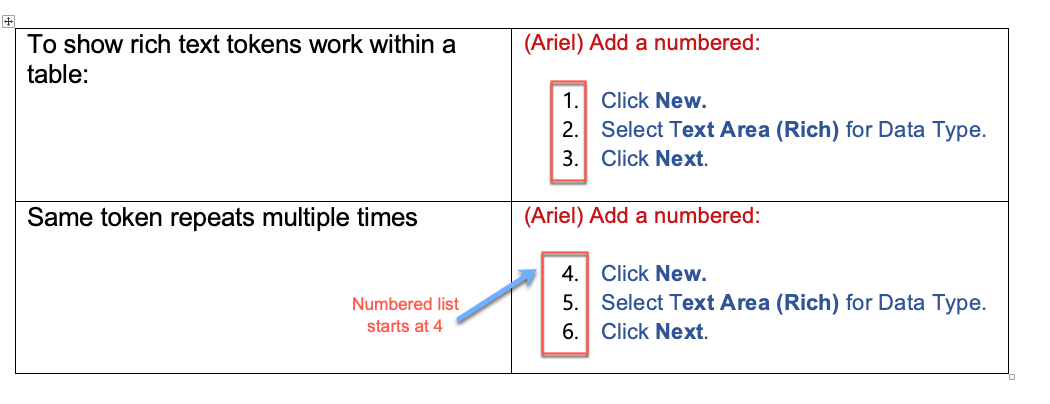
If the same rich text token is used more than once in a document template and the rich text field has a numbered list. The numbering of the second instance of the numbered list doesn't start at 1. Instead, it shows as a continued numbered list in the generated document as shown in the image.
- Create Custom Rich Text Fields for Your Object in Omnistudio Document Generation
You can create a custom rich text field for any object. Map the rich text field in your object using Omnistudio Data Mappers to render the rich text content in the generated document. - Add Content in a Rich Text Field in Omnistudio Document Generation
After you create a custom rich text field in an object, add and format the content. You can undo, redo, bold, italicize, underline, strike-out, add a hyperlink, modify alignment, add a numbered or non-numbered list, indent, and outdent. - Map Rich Text Tokens in Omnistudio Data Mapper for Omnistudio Document Generation
Use rich text tokens in Microsoft Word document templates, to insert rich text content in the generated DOCXand PDF files. The rich text token format is {{RTB_<richtexttokenname>}}, for example, {{RTB_Header}}.
