You are here:
Process Dynamic Hyperlinks During Client-Side Document Generation
Using hyperlink tokens in a Microsoft Word or Microsoft PowerPoint document templates, you can now insert dynamic URLs in generated .docx and .pdf files.
For example, with dynamic hyperlink tokens, you can insert a hyperlink for every product ordered that directs you to the product specification web page. The hyperlink token format is {{HYP_<hyperlinktokenname>}}, for example, {{HYP_Salesforce Website}}.
Why: You can place hyperlink tokens anywhere within a document template, such as in paragraphs, tables, and text boxes. Use a token in a header or footer or within a repeating content section to pass an array of hyperlinks. A text for the URL can be defined in the Omnistudio Data Mapper Transform. If a text isn't provided for the hyperlink, the URL appears blue and underlined in the generated document. The font of the hyperlink token defines the hyperlink font in the generated document. You can use hyperlinks in a generated quote. For example, you can use a hyperlink for every product that directs you to the product specification web page.
Where: This feature is available to all customers (new and existing) who upgrade to Summer '22.
Who: To design document templates, users need DocGen Designer or Contract Admin permissions. To generate documents, runtime permissions are needed.
How: To insert dynamic hyperlinks into a generated document, first create custom text fields in the object (standard or custom). Add the URL links in the custom fields. Add hyperlink tokens in the document templates. Map the hyperlinks fields in the Data Mappers (Extract and Transform), and then generate the document with dynamic URLs.
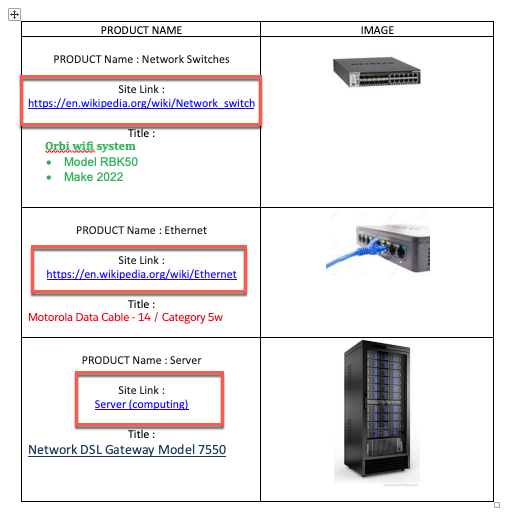
This image shows an example of a Word document with a list of products, their names, and their images. For each product, a dynamic hyperlink is inserted that takes you to the product web page.