You are here:
Set Up Document Generation Partner Community User
Perform these tasks to set up the partner digital experience user. This topic applies to both Omnistudio Document Generation and Salesforce Document Generation.
For server-side Omnistudio document generation to work, the execution mode for Integration Procedure must be set to Synchronous. Otherwise, document generation will fail for digital experience users.
Enable Salesforce Digital Experience for Omnistudio Document Generation Partner Community User
Enable Salesforce Digital Experiences, configure a domain name, and then enable standard external profiles.
- From Setup, in the Quick Find box, enter Digital Experiences.
- Click Settings.
- Select the Enable Digital Experiences checkbox.
- Enter the domain name and then click Check Availability.
- Click Save, and then click OK.
- From Settings, scroll to Role and User Setting, and then select Allow using standard external profiles for self-registration, user creation, and login.
- Click OK, and then click Save.
Create a Partner Account for Omnistudio Document Generation Partner Community User
Create an account to associate it with a contact.
- In the App Launcher, search for and open Accounts.
- Click New, add required details, and then save the account.
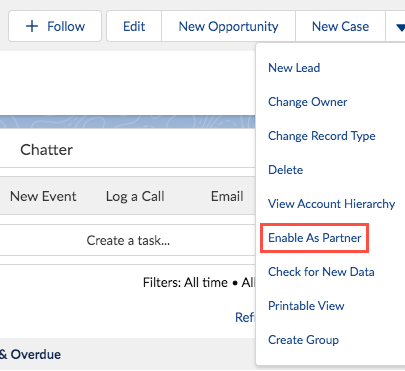
- Open the new account, and from the dropdown menu, select Enable As Partner.
Create an Omnistudio Document Generation Partner Community User
Create a contact and enable it as partner.
- In the App Launcher, search for and open Contacts.
- Click New.
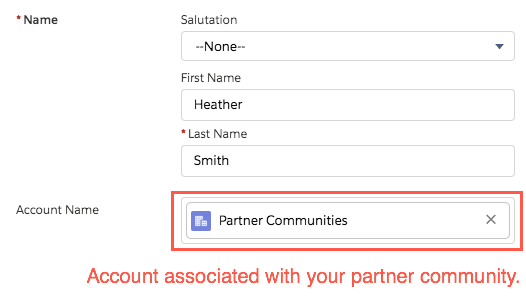
- In the Partner Account field, select the account that you created for your partner community.
- Save the contact.
- Open the new contact that you created, and then select Enable Partner User.
- In the New User page, select these items:
- Define other required fields, such as email and nickname.
- Select Salesforce CRM Content User.
-
Click Save, and then click OK.
 Important
If you receive a Portal Account Owner has No Role error, assign a profile to the owner of the partner account. Then repeat this procedure.

Clone and Configure a Partner Profile for Omnistudio Document Generation Partner Community User
On the Profile Setup page, to create a custom profile you must clone an existing profile.
If you want to use custom profiles for your partner users, Salesforce recommends that you clone the user profile linked to your user license and customize that profile.
- From Setup, in the Quick Find box, enter Profiles, and then select Profiles.
- Click the name of a profile that’s similar to the one that you want to create, and then in the profile page, click Clone.
- Enter a profile name.
- Click Save.
- Click Edit, next to the cloned profile name.
-
From Standard Object Permissions section, select access level as
read for these objects:
-
Omni Data Transformations
-
Omni Data Transformation Items
-
Omni Processes
-
-
From the General User Permissions section, select these options:
-
Enables consumers and partners to execute Omniscripts, DRs, Cards through a Community or off platform.
-
Enables Customers and Partners to generate documents via communities.
-
- From the Administrative Permissions section, select API Enabled.
- Click Save.
Create a Digital Experience Site for Omnistudio Document Generation Partner Community User
Configure a name and a URL for the digital experience site.
- From Setup, in the Quick Find box, enter Digital Experiences.
- Click All Sites I New.
- Select a Lightning template (next to the lightning icon) or click Build Your Own I Get Started.
- In the Name field, enter a name for the digital experience site, such as PartnerSite.
-
In the optional part of the URL field, enter the same name you entered in step
4.
Important
Although marked as optional, this field is mandatory. Omnistudio Document Generation requires that you set up your partner community URL.
- Click Create.
Create a Permission Set for Omnistudio Document Generation Partner Community User
To grant the licenses and permissions, create a Permission Set for Digital Experience partner community users.
- From Setup, in the Quick Find box, enter Perm then select Permission Sets.
- Click New.
-
Enter a label, such as, Omnistudio Runtime for Communities.
By default, the API Name is the same label.
-
Click Save.
A prompt appears listing dependent permissions.
- Click Save.
Add Apex Class Access and Visualforce Page Access to Permission Set for Document Generation Partner Community Profile
After you create the permission set, add the apex class access and Visualforce page access to the partner community profile. You can add the apex class access directly from the partner community user profile or from the permission set that you created. This topic applies to both Omnistudio Document Generation and Salesforce Document Generation.
- Open the custom permission set that you created, such as, Omnistudio Runtime for Communities.
- Click Apex Class Access.
-
Move these classes from the Available Apex Classes list to
the Enabled Apex Classes list:
Client-Side - omnistudio.DocgenAppHandler
- omnistudio.DocGenObjectMappings
- omnistudio.DocGenUtility
- omnistudio.DocumentServiceClient
- omnistudio.DocxGenUtil
- omnistudio.ObjectDocumentCreationDocxController
- omnistudio.ObjectDocumentCreationDocxHandler
- omnistudio.ObjectDocumentCreationDocxService
Server-Side - omnistudio.ComponentController
- omnistudio.BusinessProcessDisplayController
- omnistudio.NewportUtilities
- Click Save.
- Open the custom permission set that you created, such as, Omnistudio Runtime for Communities.
- Click Visualforce Page Access.
-
Move these classes from the Available Visualforce Pages
list to the Enabled Visualforce Pages list.
Client-Side - omnistudio.DocTemplateList
- omnistudio.DocumentTemplate
Server-Side - omnistudio.DRHome
- omnistudio.DRMapper
- omnistudio.OmniDesignerCustomLabelDeployer
- omnistudio.OmniLwcCompile
- omnistudio.OmniLwcDesignerTinyMceEditor
- omnistudio.OmniscriptDesigner
- omnistudio.OmniscriptDocuSignReturnPage
- omnistudio.OmniscriptHome
- omnistudio.OmniscriptInstancePage
- omnistudio.OmniscriptLwcDocuSignViewPdf
- omnistudio.OmniscriptLwcPreviewPage
- omnistudio.OmniscriptPreviewPage
- omnistudio.SessionPage
- Click Save.
Assign Permission Sets to Omnistudio Document Generation Partner Community User
Assign DocGen runtime community user permission set and the custom permission set that you created.
- From Setup, in the Quick Find box, enter Users, and then select Users.
-
Click the name of the partner user.
Don't click Edit.
- From the Permission Set Assignments section, click Edit Assignments.
-
Assign these permission sets:
- DocGen Runtime Community User
- The new permission set that you created in the previous step, such as Omnistudio Runtime for Communities.
- Click Save.
Configure Partner Community Digital Experience Site for Omnistudio Document Generation Partner Community User
Activate the partner community digital experience site and associate the site to the cloned partner community profile, assign the relevant permission sets.
- From Setup, in the Quick Find box, enter Digital Experiences.
- Click All Sites.
- Find the partner community that you created, and then click Workspaces I Administration.
- In Settings, click Activate. Click OK.
- In Preferences, select the Show All Settings in Workspaces check box, and then click Save.
- In Members, select Partner from the Search dropdown.
-
Select the profile that you cloned earlier from Available Profiles, and then
click Add to move the profiles to the Selected Profiles list.
Click Save.
Important
You can either use custom profiles or permission sets for members of the partner community. For more information on permission sets, see Set Up Document Generation Partner Community User.
- Return to the Digital Experiences All Sites page.
- Close the window.
Add Docgen Document Template Library for Omnistudio Document Generation Partner Community User
To generate document versions, you must add the partner community user as a member to the library.
Add every new user for the community to the Docgen Document Template Library. Or, you can create a public group and add the group to the Docgen Document Template Library, so that you can add new users to that group.
- In the App Launcher, search for and open Files.
- Click Libraries.
- Click Docgen Document Template Library.
- Click Manage Members.
- Select the partner community user and then enable the Library Administrator access for the user.
- Click Add.
- Close the window.
Define Sharing Rules for Document Generation for Omnistudio Document Generation Partner Community User
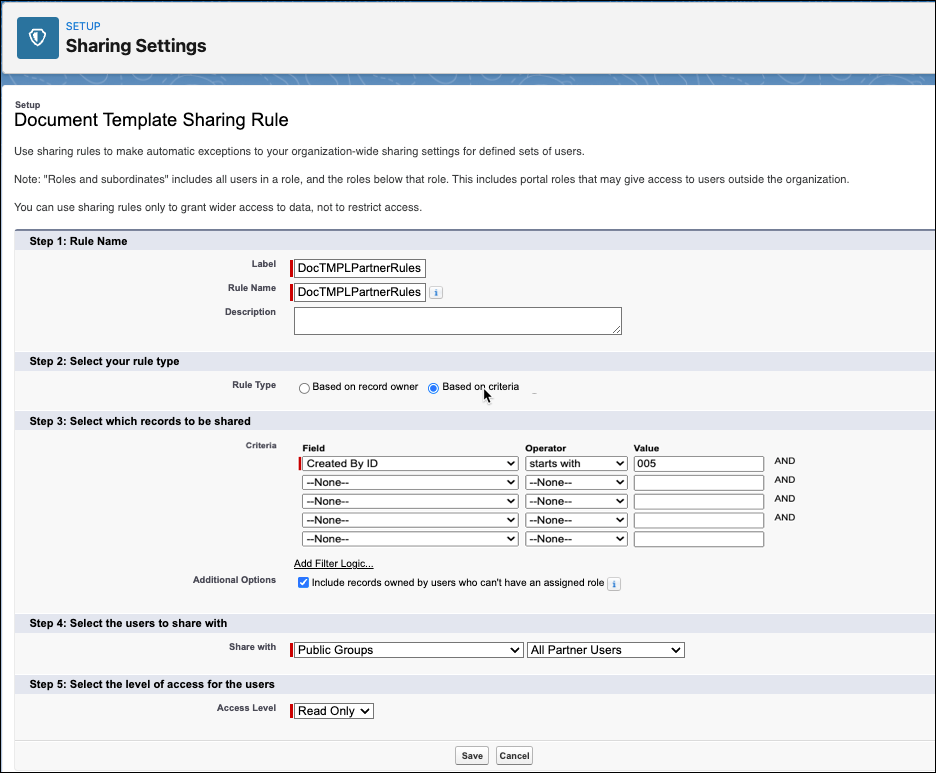
Sharing rules grants partner community users read access to records. The documents that can be accessed depend on the rule. You can create sharing rules based on your business needs. For document generation, create sharing rules for Document Templates, Omni Data Transformation, and Omni Process.
- From Setup, in the Quick Find box, enter Sharing.
- Click Sharing Settings.
- To set up the sharing rules for Document Templates, Omni Data Transformation, and Omni Process, scroll to the relevant Sharing Rules section, and then click New.
- Define required fields, such as label, rule name, rule type, and share with.
-
Set up the sharing rules:
See these examples for more details.Document templates: Document templates don't contain sensitive data, and aren't specific to any customer. You can design a sharing rule that shares only the document templates that partner users require.
- Click Save.
- Repeat steps 3–6 for Omni Data Transformation Sharing Rules and Omni Process Sharing Rules.
Enable Partner Community Users to Generate Documents via an Experience Site
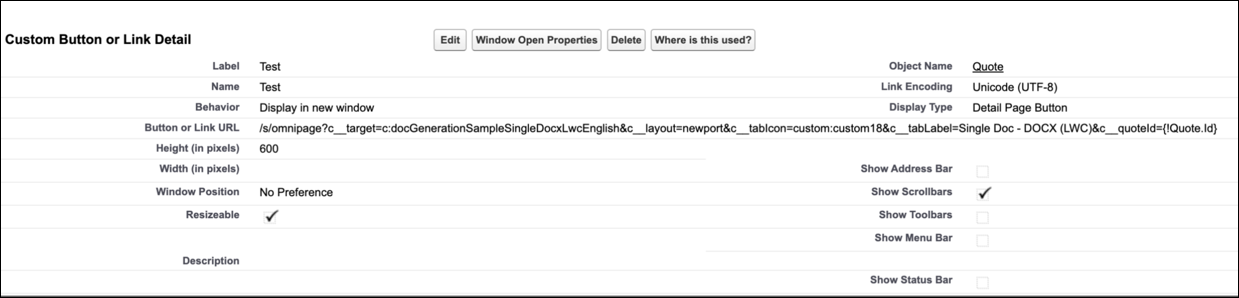
To invoke an Omniscript from a partner site, integrate the Omniscript with an experience page and configure a custom button to launch the Omniscript. Retrieve and append the Omniscript Lightning URL to make sure that the Omniscript is accessible within the partner site. For a seamless and personalized user experience, include dynamic parameters in the URL to pass object-specific data.