
You are here:
Upload a Document
Use the Received Documents view to add submitted documents to your collection.
When you receive a fax, your fax vendor converts it to a digital file and delivers it to you. For these steps, let's assume the digital file is on your local computer.
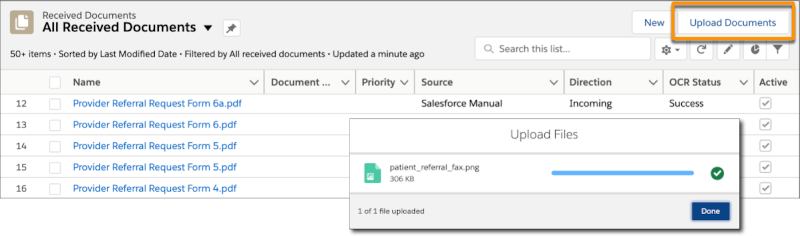
- From the App Picker, click Received Documents.
-
Click Upload Documents and find the electronic file on
your computer.
 Note Document upload is supported only for users, not groups. Document upload isn’t supported in Firefox.
 -
From the Received Documents list view, open the document you just
uploaded.
Give the document a descriptive name, along with whatever other data your processes call for.Note Your Salesforce admin may have set up flows to populate some of the data automatically, such as the document number.
That's it: you've just received a document and you're ready to work with it. If your org has Intelligent Form Reader enabled, Salesforce has extracted the data and stored it in your Salesforce database.
Did this article solve your issue?
Let us know so we can improve!
