
You are here:
Run a Data Processing Engine Definition in Flows
After you activate a Data Processing Engine definition, run it as part of a business flow or create a flow to run only a definition. You can also run a definition in a scheduled flow.
Required Editions
| View supported editions. |
| User Permissions Needed | |
|---|---|
| To create a business flow: | View permissions information. |
| To run a Data Processing Engine definition: | View permissions information. |
You can’t start two runs of a definition with the same input variable values simultaneously. If your definition doesn’t contain input variables, you can't start two simultaneous runs.

See Also
Learn About User Context for Running Definitions as Part of Automated Processes
When a definition is run using the custom Data Processing Engine invocable action from a flow or from resources such as Connect APIs and Apex, permissions to run the definition and the permissions to write back results come from two distinct users.
| Run Method | User Context to Run Definition | User Context to Write Back Results |
|---|---|---|
| Flow |
To change a default worklow user, see Identify Your Salesforce Org’s Default Workflow User. |
|
| Invocable action | The definition is run with the permissions of the user that invoked the action. |
|
When running a definition, Data Processing Engine doesn't verify whether the users have the required access to the data source objects or the writeback objects of the definition. For both users, make sure that the users have the required access to the data sources and the writeback objects. To learn about the permissions required to run definitions and write back results, see Data Processing Engine Setup.
Add Data Processing Engine Action in Flows
- From Setup, in the Quick Find box, enter Flows, and then select Flows.
- Click New.
- In the New Flow window, select a flow type.
- Select a layout.
- Drag the Action element onto the canvas.
-
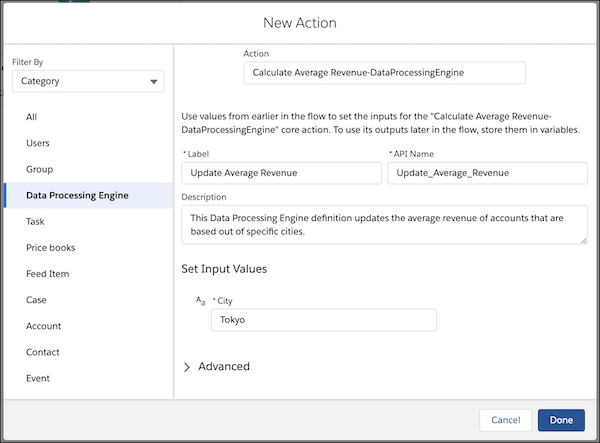
In the New Action window:
- In the Category section, select Data Processing Engine.
-
Enter the Data Processing Engine definition that you want to run, and then select
it.
The name of each definition is appended with the name of the process type selected when creating a definition. The process type determines how the definition processes data. The license associated with each process type decides how Data Processing Engine must process data in your definition.
- Specify the value of the input variables that you defined in the Data Processing Engine definition.
- Click Done.
- Save your work, and name your flow.
- Activate your flow.
-
If your flow isn’t scheduled, run the flow by clicking
Run.
If your flow is scheduled, the definition runs based on the schedule you set.
After the definition runs, use Monitor Workflow Services to track its progress and status.
