
You are here:
Write Related Records from Multiple Objects Together
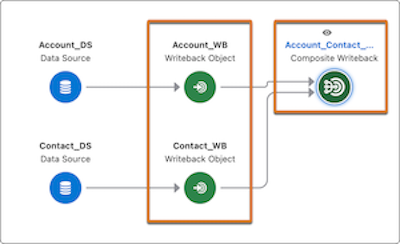
Use the composite writeback node in your Data Processing Engine definition to collate related records from multiple writeback objects. Then write back all the interrelated records together to the target objects, so that you maintain data integrity and avoid any inconsistencies in case of failures.
Required Editions
Write Related Records by Using Group By Field
To group records from two or more parent writeback nodes based on a common mapped field, use the Group By field, and then write back the related records together by using a composite writeback node.
Specify the Group By field in the Level 1 writeback node.
- In the node canvas, click New Node and select Composite Writeback as the node type.
- Enter a name for your composite writeback node. The API name automatically populates from the name. Optionally, enter a description.
-
Save the node. The composite writeback node appears on the node canvas.

- On the Configuration tab, in Writeback Sequence, specify a whole number to indicate the processing order for the composite writeback node when the definition is run.
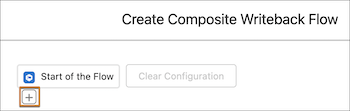
- Select Edit Configuration. The Create Composite Writeback Flow page appears.
-
Under Start of the Flow, click the plus sign (
 ) to add a Level 1 writeback node.
-
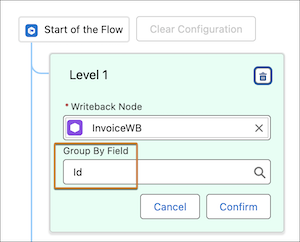
In the Level 1 node, select a writeback node in Writeback Node and
select a group by field in Group By Field. Click
Confirm to save the Level 1 node.
The Group By field is optional if you have only one Level 1 node.
- Repeat step 6 again to add another Level 1 writeback node.
-
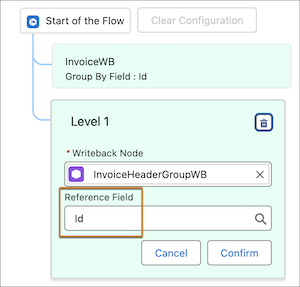
In the Level 1 node, select a writeback node in Writeback Node and
select a reference field in Reference Field. Click
Confirm to save the Level 1 node.
- To add one or more writeback nodes at the same level, repeat steps 6 and 7.
- Click Done to save the composite writeback flow.
- Save the composite writeback node.
Write Related Records by Using Relationship Name
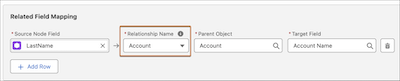
To write back related records of two or more writeback nodes that have a parent-child relationship, use the relationship name in the child writeback node of your composite writeback configuration.
Specify the source node field, relationship name, parent object, and target field in the Related Field Mapping section of the child writeback node.
- In the node canvas, click New Node and select Composite Writeback as the node type.
- Enter a name for your composite writeback node. The API name automatically populates from the name. Optionally, enter a description.
-
Save the node. The composite writeback node appears on the node canvas.
- On the Configuration tab, in Writeback Sequence, specify a whole number to indicate the processing order for the composite writeback node when the definition is run.
- Select Edit Configuration. The Create Composite Writeback Flow page appears.
-
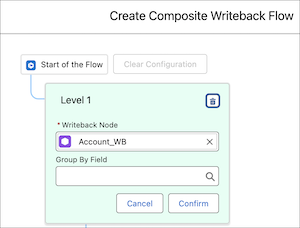
Under Start of the Flow, click the plus sign () to add a Level 1 writeback node.
-
In the Level 1 node, select the parent writeback node in Writeback
Node and select a group by field in Group By Field.
Click Confirm to save the Level 1 node.
The Group By field is optional if you have only one Level 1 node.
-
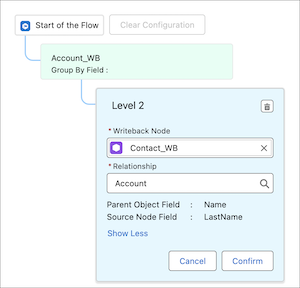
Click the plus sign () under the parent writeback node at Level 1 to add a child writeback node at
Level 2.
-
In the Level 2 node, select the child writeback node in Writeback
Node and select the relationship name in Relationship.
Click Confirm to save the Level 2 node.
- If you need to add child writeback nodes at Level 3 or Level 4, repeat steps 8 and 9.
- Click Done to save the composite writeback flow.
- Save the composite writeback node.
