
You are here:
Define Field and Attribute Mapping
Define how Dynamic Revenue Orchestrator (DRO) maps fields and attribute data between products. DRO uses this mapping to copy or transform commercial order data to the data that fulfillment systems or processes require.
Required Editions
| Available in: Salesforce Classic (not available in all orgs) and Lightning Experience |
| Available in: Enterprise, Unlimited, and Developer Editions |
| User Permissions Needed | |
|---|---|
| To define field and attribute mapping: | Fulfillment Designer OR DRO Admin User |

To create a mapping for fields and attributes, follow these instructions:
- From the App Launcher, find and select Dynamic Revenue Orchestrator.
- From the app navigation menu, select Products.
- Click a product.
- Click the Decomposition tab and select a decomposition rule.
- In the side panel, click More and then click Field & Attribute Mapping.
- Click Create Mapping.
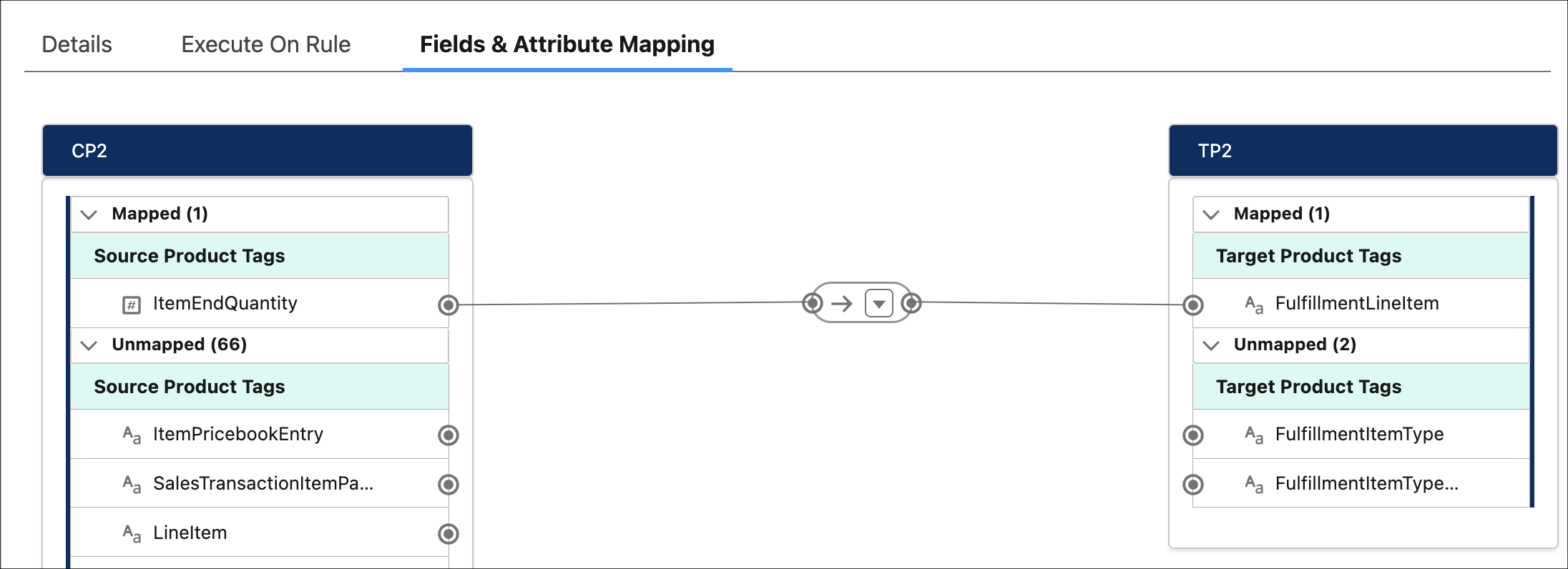
- Click a source attribute or tag, and then click the target attribute or tag that you want to map to.
-
If in-flight amendments are enabled for DRO, select a Rule Enforcement:
- To include amended or canceled in-flight orders, select All Fulfillment Requests.
- To exclude amended or canceled in-flight orders, select Initial Fulfillment Request.
-
For Mapping Type, select As Is, List
Mapping, or Expression Set Based Mapping
- As Is mapping copies the exact value from the source product to the target product.
- For information about List Mapping, see Configure List Mapping.
- For information about Expression Set Based Mapping, see Configure Expression Set Based Mapping.
- Save your work.
A line is drawn between the two items to show the mapping. When the commercial product decomposes, the target product is enriched with data from the source of the mapped pair. When you map a source product tag to a target product tag that points to a reference field, the data enriches only if the two fields are compatible. If they don't match, the enrichment process fails, and the Decision Explainer Service (DES) records the error in a log. See the Explainability Action Logs section in Submit Order Action and Action Logs.
- Configure List Mapping
Use list mapping to set up pairs of source and destination values. For example, a list of cities that pair with post code values. When the source value is a city name, the target receives the post code of that city. Configure list mapping from the Fields & Attribute Mapping section of a decomposition rule. - Configure Expression Set Based Mapping
Use expression sets to perform complex transformations on the source product's fields and attributes and use the output variables of the expression sets to enrich the target product's fields and attributes. For example, set delivery priority in the target product based on the order value and the delivery zipcode.
