You are here:
Monitor Fulfillment During Order Orchestration
Act on steps or learn more about how the fulfillment process is progressing directly from the orchestration plan.
Required Editions
| Available in: Enterprise, Unlimited, and Developer Editions |
You can see the entire process of an order from the orchestration plan. Search for steps, see their dependencies, and even change their status.
The Plan as a Whole
An orchestration plan shows you the fulfillment steps and their dependencies. You can see at a glance the state of each step, their dependencies, and even whether they're on time. You can quickly see whether a step has finished, is still pending, or has failed. Large orchestration plans load partially with options to add more steps to the plan viewer and to show them everything at once.

Plan States
Orchestration plans are generated and executed based on the submitted order and their states change as the fulfillment process progresses:
- Not Started: The plan has not yet begun.
- In Progress: The plan is currently running.
- Freezing: The plan is paused but one or more steps in the plan are in progress. You can’t submit in-flight change requests when the plan is in a Freezing state.
- Frozen: All steps in the plan are completed or in a Pending state. To amend or cancel an in-flight order, the plan must be in this state.
- Completed: The entire plan has successfully finished.
Search for a Step
To find a step, enter a term in the Search field. The step is highlighted and you're brought directly to the term in the plan. You can also zoom the plan in or out, and refresh the plan as fulfillment progresses.
To see a list of filtered steps, click  . To filter the steps by category, click a category:
- Manual Tasks: Act on tasks or learn more about the upcoming and overdue tasks directly from the order details page.
- Fatally Failed
- In Progress
- Pending
- At Risk (this tab appears only if a step is at risk)
See the Details of the Step
Click  on a step to open a panel that shows information about the step.
- The Details tab: See general information about the step, including the Execute On rule that defines when the step runs.
- The Step Dependencies tab: See the dependencies related to the step. Click a dependency to highlight it in the plan.
To highlight a step's dependencies, hover over the step.
Act on the Step
Click  on a step to see various actions that you can take, such as marking a step as
complete, or retrying an auto task or callout. If you can't take an action, then the button
isn't available.
on a step to see various actions that you can take, such as marking a step as
complete, or retrying an auto task or callout. If you can't take an action, then the button
isn't available.
View the Cross-Plan Dependencies
Click  on a step to open the panel showing the External Dependencies tab. See the external
step dependencies related to the step. Click a step or plan to open its details page, and
take actions such as edit or complete a step.
on a step to open the panel showing the External Dependencies tab. See the external
step dependencies related to the step. Click a step or plan to open its details page, and
take actions such as edit or complete a step.

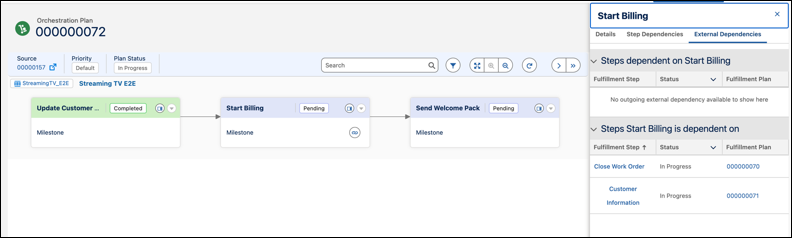
Choose the Cross Plan scope when you're defining the dependency between step groups. See Set Dependencies Between Fulfillment Steps and Cross-Plan Dependencies.
Fulfillment State
Depending on their state, steps are different colors. For example, the green steps are in the Completed state, and the blue ones are in the Pending state. The state of a step is also written on the step.
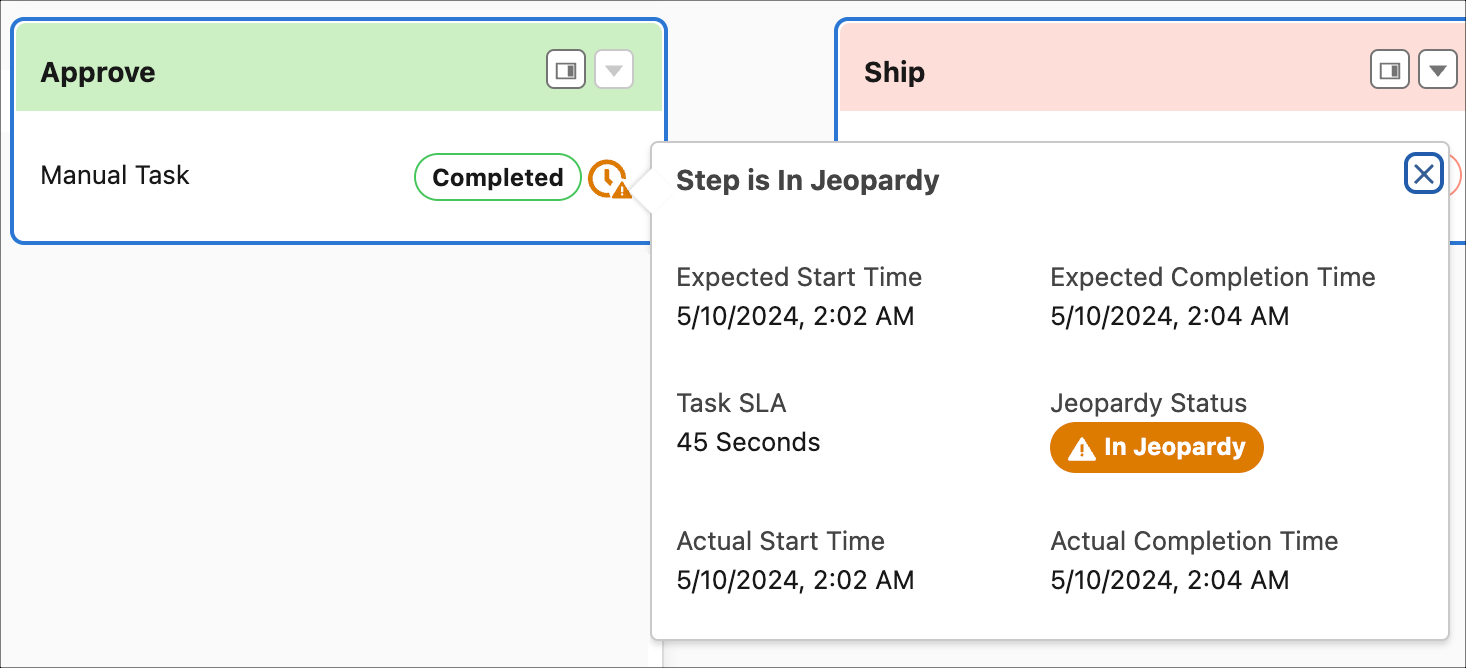
The Jeopardy and SLA Clock: 
The color of the clock indicates whether a step is running on time (blue), late (orange), or is overdue (red). If the step is already completed, then the color indicates whether it was completed on time, in jeopardy, or late.
To see more details, hover over .