
You are here:
Familiarize Yourself with the Contact Center Console User Interface
The Energy & Utilities Contact Center Console user interface gives you a 360-degree view of your customer. Learn how to use the interface to resolve customer issues quickly and efficiently.
The Energy & Utilities Contact Center Console consists of multiple panels and tabs which provide a personalized view of each customer that includes case history, digital conversations, interactions or related records, and more.
Console Panels
The left panel of the Energy & Utilities Contact Center Console provides a summary of customer account details, for example, the Imperial Autos account.
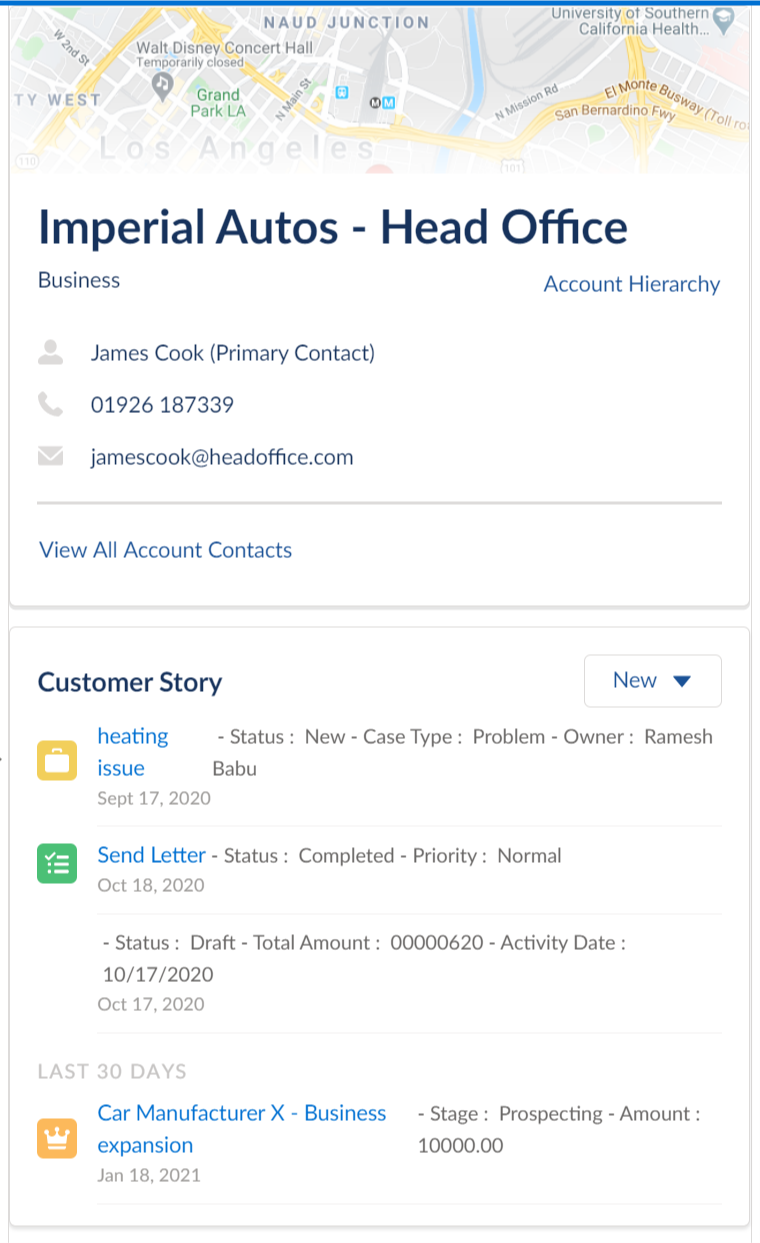
The left panel includes:
-
The customer's account type. For a B2C customer, Consumer is displayed and for a B2B customer, Business is displayed.
 Note
NoteOnly Consumer and Business account types are listed in the summary panel.
-
Account hierarchy listing the parent and child relationships between the related accounts. You can click on any account to navigate to the related account details page.
-
The customer's primary contact, service address, email, and phone number.
-
List of all the customer's contacts.
-
A map of the customer's address. Salesforce has integrated the Google Maps™ mapping service API into the Console to enable this feature. If the customer relocates to a new house, the map updates with the new address information.
-
The Customer Story section provides information about customer conversations, related case tickets, and more. It pulls data from different components such as cases, activities, opportunities, and tracking services within the customer account and displays that information. For example, you can view a list of all cases related to the customer account in the Customer Story section.
The middle panel of the Energy & Utilities Contact Center Console displays customer information in several tabs such as Overview, Billing, Usage, Profile, Relationships, Contracts, Opportunities, and Service Points.
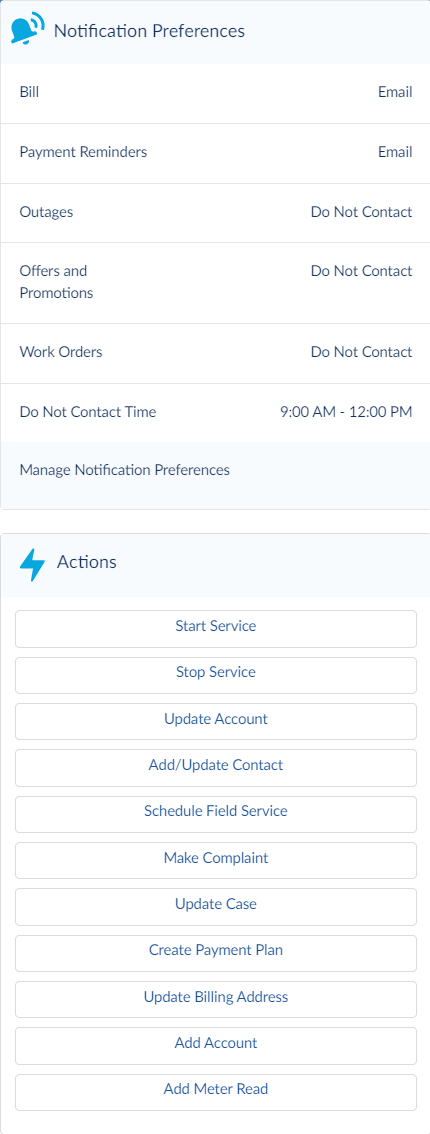
The right panel of the Energy & Utilities Contact Center Console includes notifications and actions.
The Needs Attention section lists the outages currently active nearby or at the customer premises. Each outage or emergency notification includes the location address, the date and time when it was initiated, and the date and time by which the resolution is expected. Click View All to list all the active outages or emergency services reported near or at the customer premises.
The Notification Preferences section lists the customer's chosen mode of communication for categories such as bill notifications, payment reminders, and notifications, outage notifications, offers and promotions, work order notifications and do not contact time. Click Manage Notification Preferences if you want to change these settings.
The Actions section displays a list of actions you can perform for a customer request.
Overview Tab
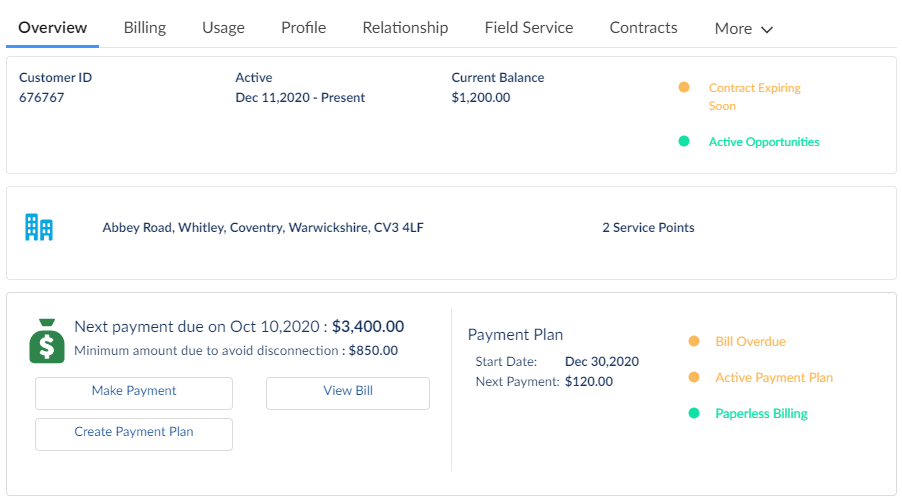
The Overview tab in the middle panel displays the business account summary, premises details, billing information, and a list of services that the account holder is using such as electric, water, and gas.
The summary at the top provides a high-level overview of the business account such as customer ID, active status, current outstanding balance, and any open opportunities.
The premises provide information about the premises associated with the account, the address, and the number of service points for each premises.
The billing section displays the next payment due and a due date. It also lists the various billing options available to the customer such as making a payment, viewing bills, or creating a payment plan for the outstanding bill amount.
The services section lists the services that the account holder is using such as electric, water, and gas. For each service, you can initiate account services such as a move-in or move-out process, create monthly payment plans, and enter meter readings.
Using the drop-down menu for each service, you can add specific actions to that service.
Billing Tab
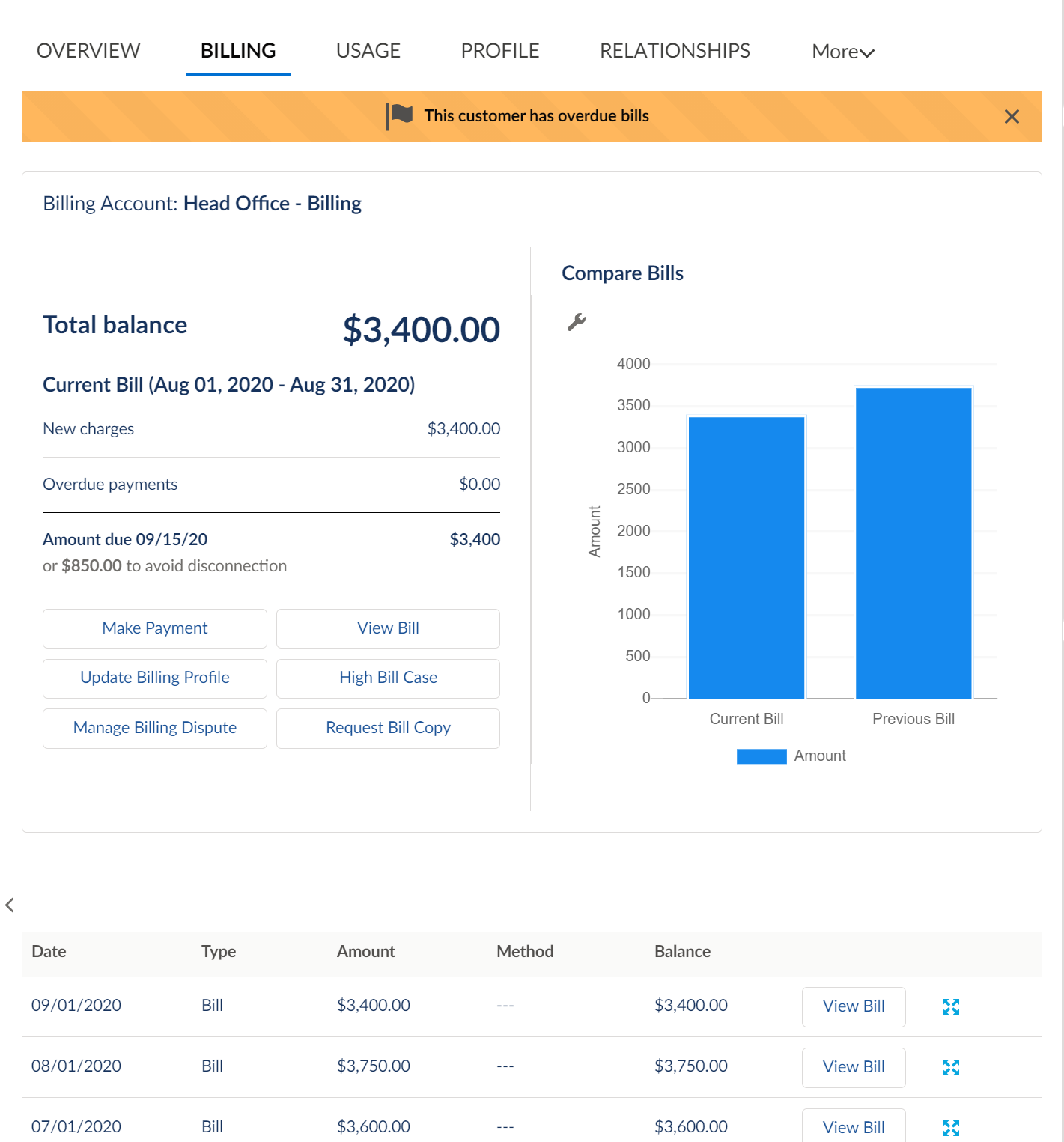
The Billing tab provides details about billing information and allows the service agent to view and pay the customer bill, update the customer billing profile, investigate high bills, send a bill copy, and manage billing disputes.
You can view details of the most recent bill of the customer's account, including current balance, new charges and overdue payments, and payment due date. Using chart.js, it displays a graphical view comparing the current bill, previous bill, and bill for the same period last year.
The billing details table provides information by date, type, amount, payment method, and balance due. You can sort the information by columns. You can also view the bill image for each record in the table using a link to a pdf version of the bill. Click View More to display all the customer service points along with the corresponding usage and amount that make up the total bill.
Usage Tab
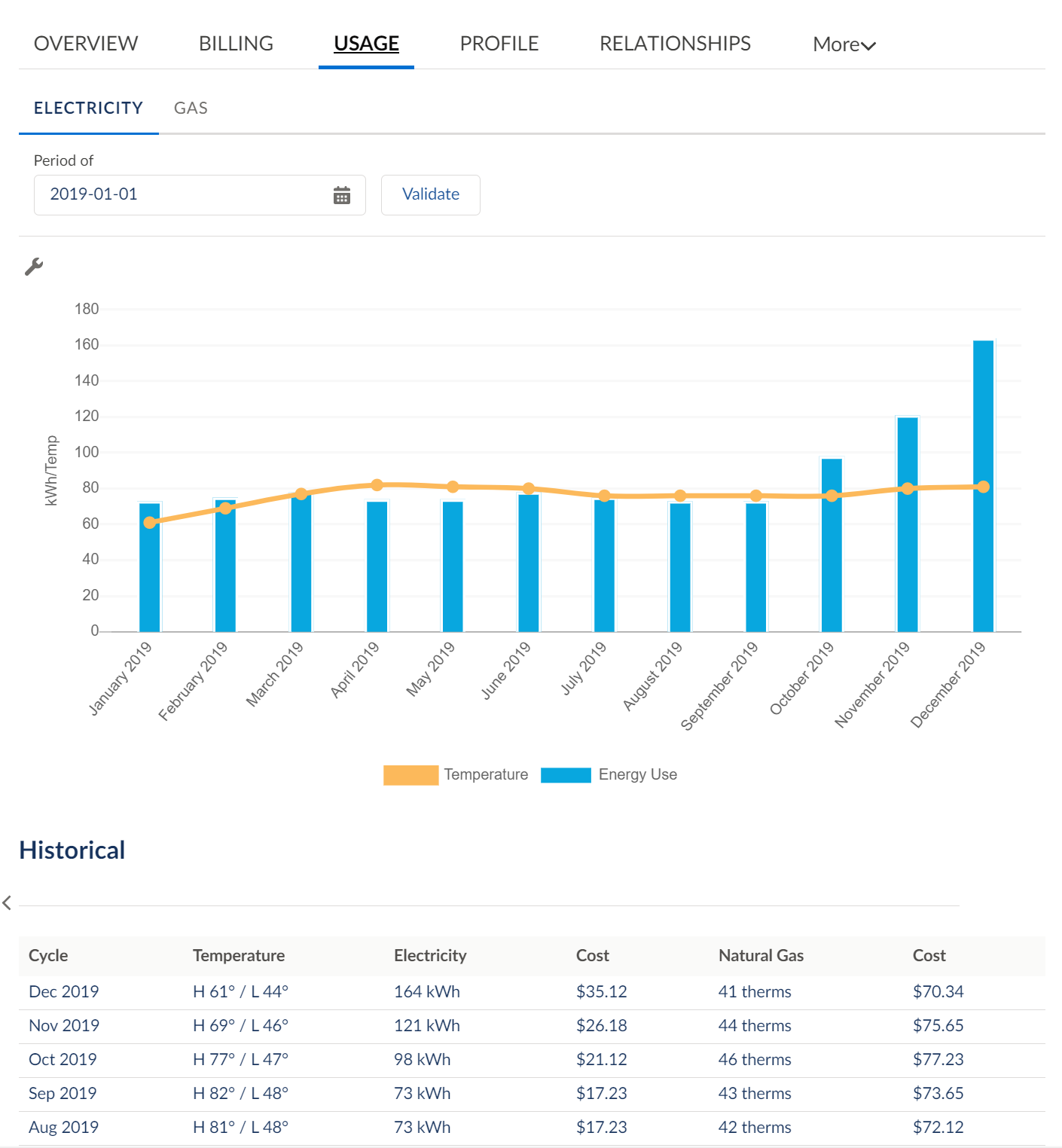
The Usage tab provides details about energy usage for each service and utility. Using Vlocity chart.js, you can use the usage chart to see the kilowatts of energy consumption against the temperature for electricity or therms for natural gas. The usage details table provides information by billing cycle, temperature, electricity, cost of electricity, natural gas, and cost of natural gas. You can sort the information in the table in any order.
Profile Tab
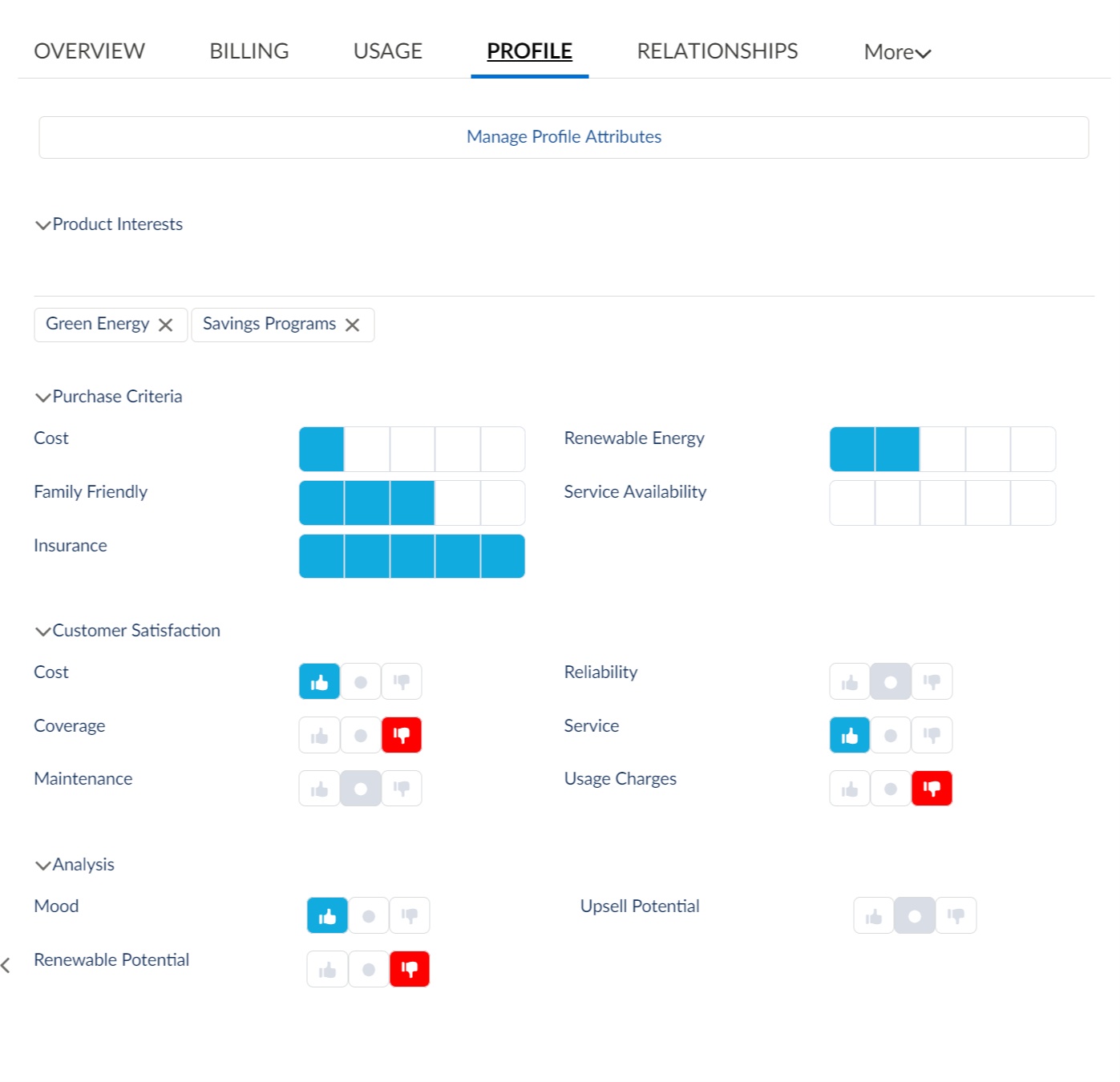
The Profile tab provides details about the customer's interests in specific energy-saving products or services, factors that impact their purchasing criteria, and their current satisfaction level. Agents can use this information to analyze customer behavior, and determine if the customer has any renewable or upsell potential.
Relationships Tab
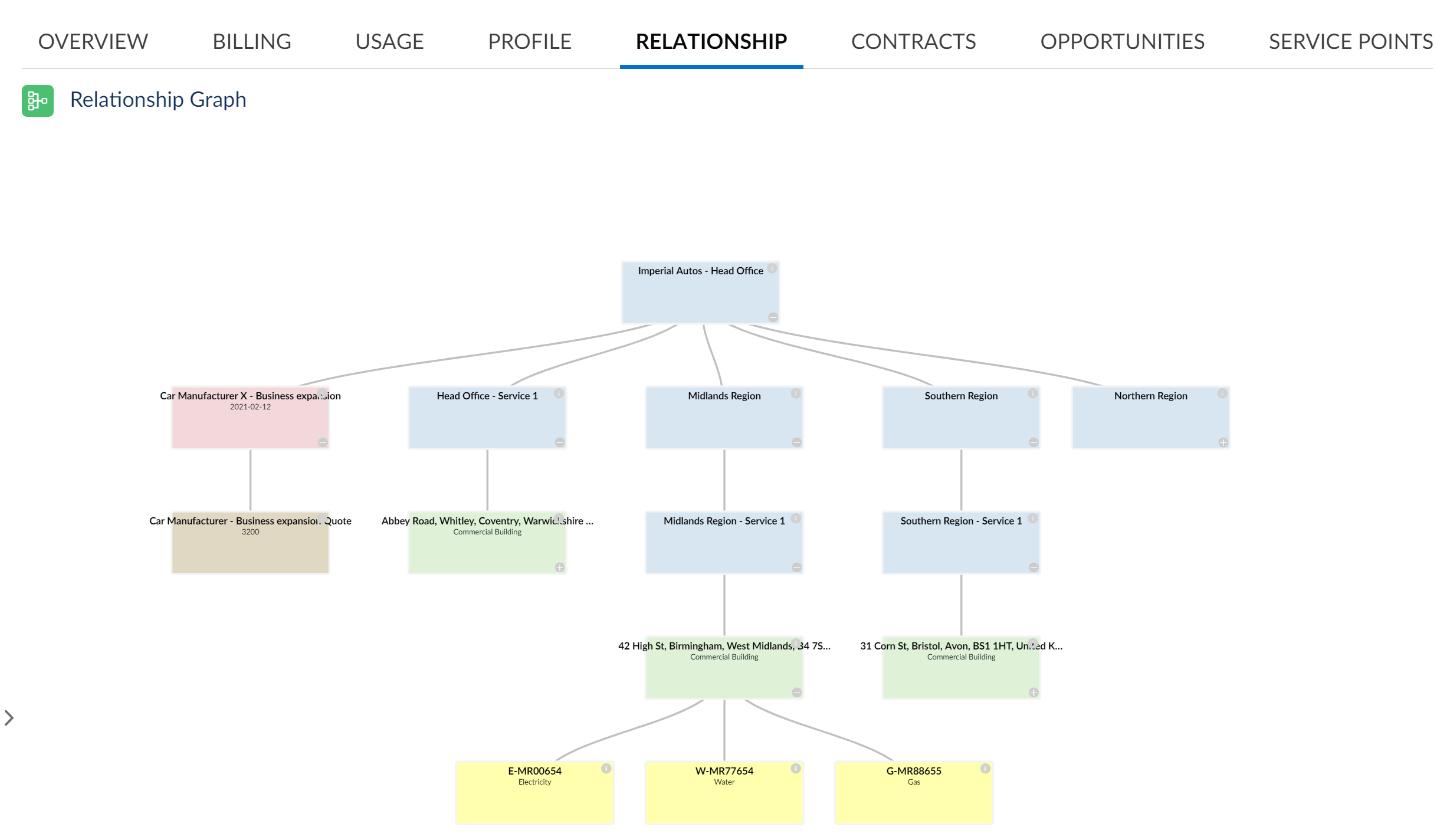
The Relationships tab provides details about the relationships the customer has with other account holders. It displays a business account hierarchy with the current customer account as the starting point. It then drills down to list premises and linked service points, open opportunities, and generated quotes associated with an account or a sub-account. Each of the boxes displayed in the hierarchy is color-coded to identify the object that it represents.
Color |
Object Represented |
|---|---|
Blue |
Accounts or sub-accounts |
Green |
Premises associated with the account |
Yellow |
Service points linked to the premises |
Pink |
Open opportunities |
Brown |
Quote generated for the account |
Contracts Tab
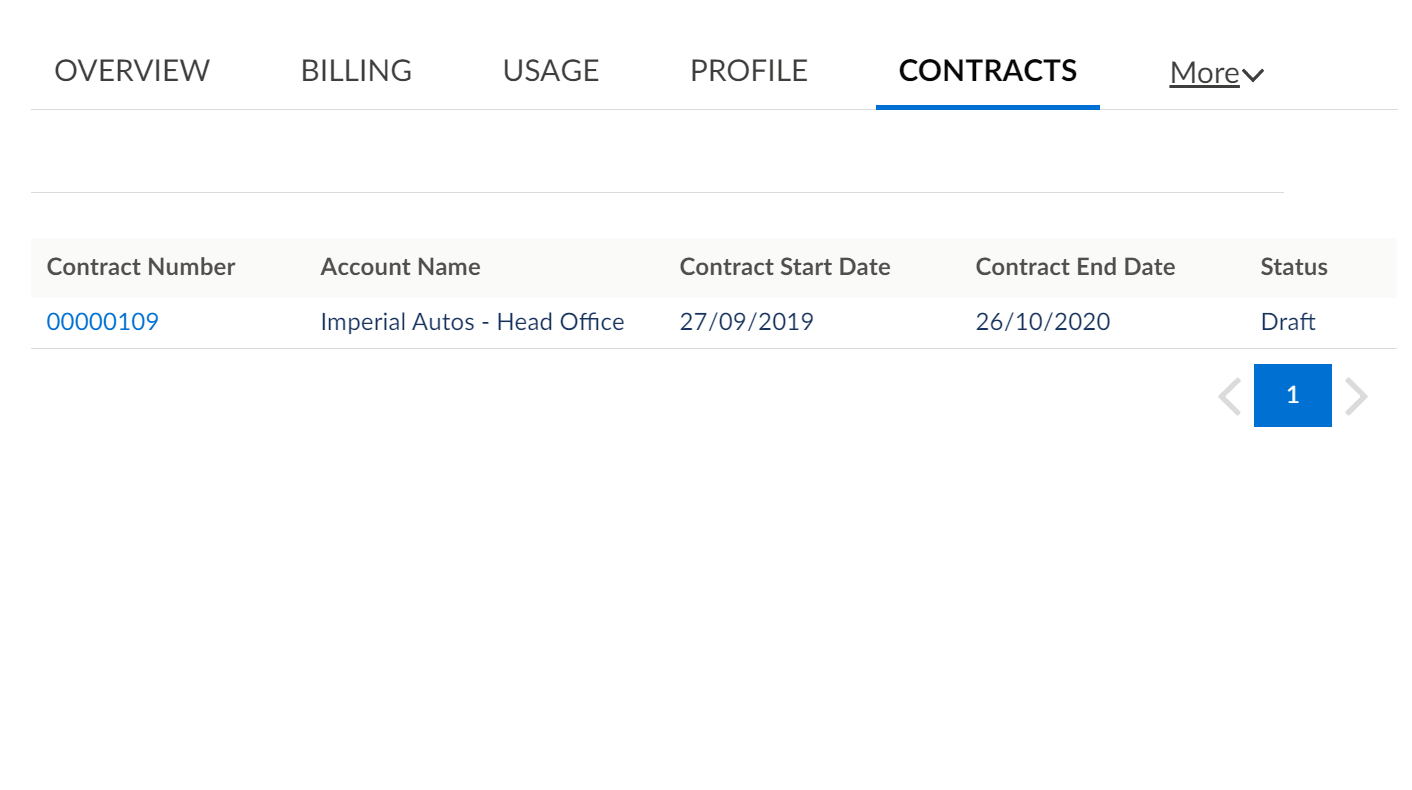
The Contracts tab displays all contracts currently associated with the selected business account. You can click on a contract to display the details on a standard Salesforce Contract record page.
Opportunities Tab
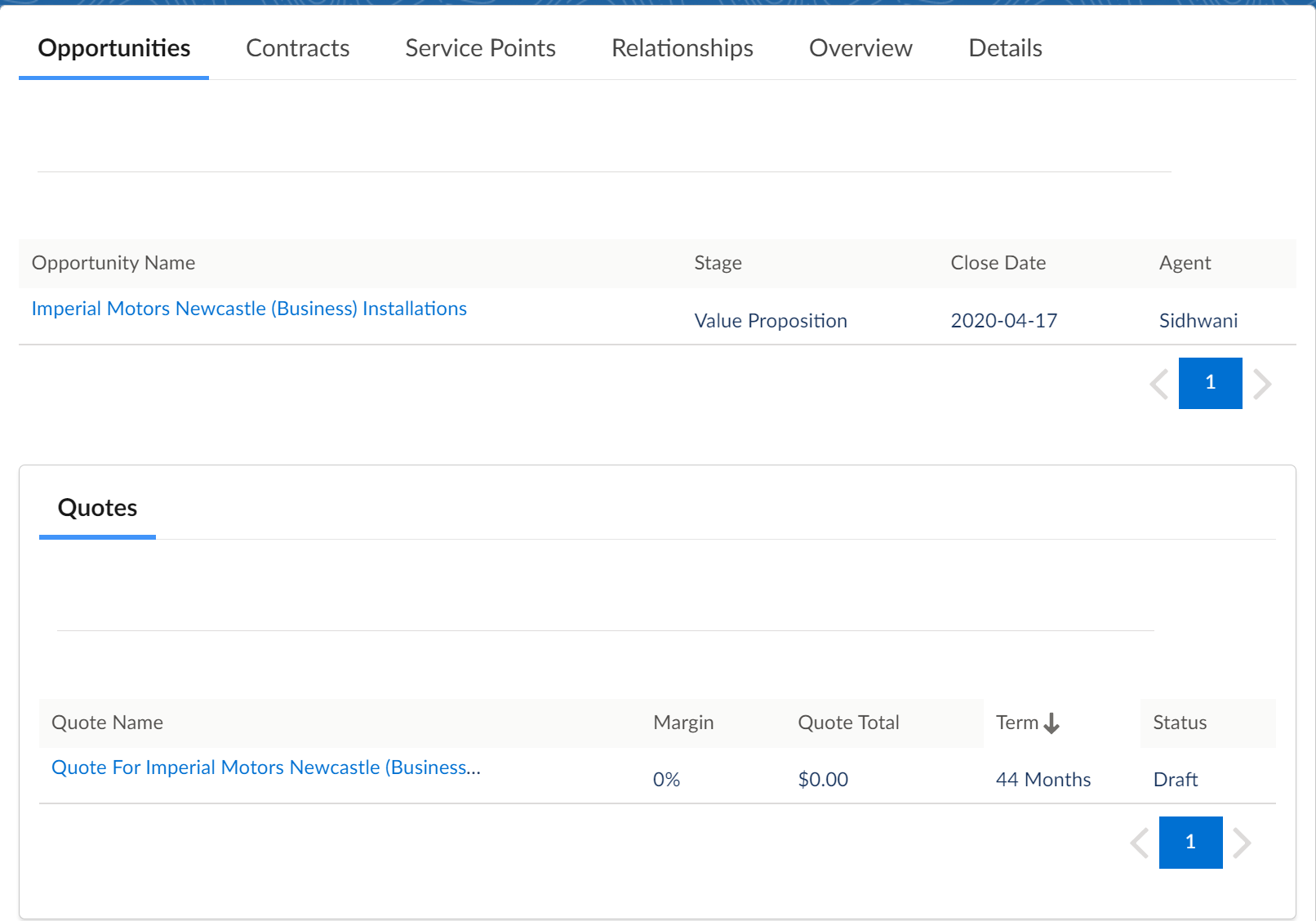
The Opportunities tab lists all the opportunities related to the selected business account. Click the opportunity name to open the standard Salesforce Opportunity record page. Click on View More to find if there are any quotes associated with the opportunity. The quote details can also be viewed on the standard Salesforce Quote record page.
Service Points Tab
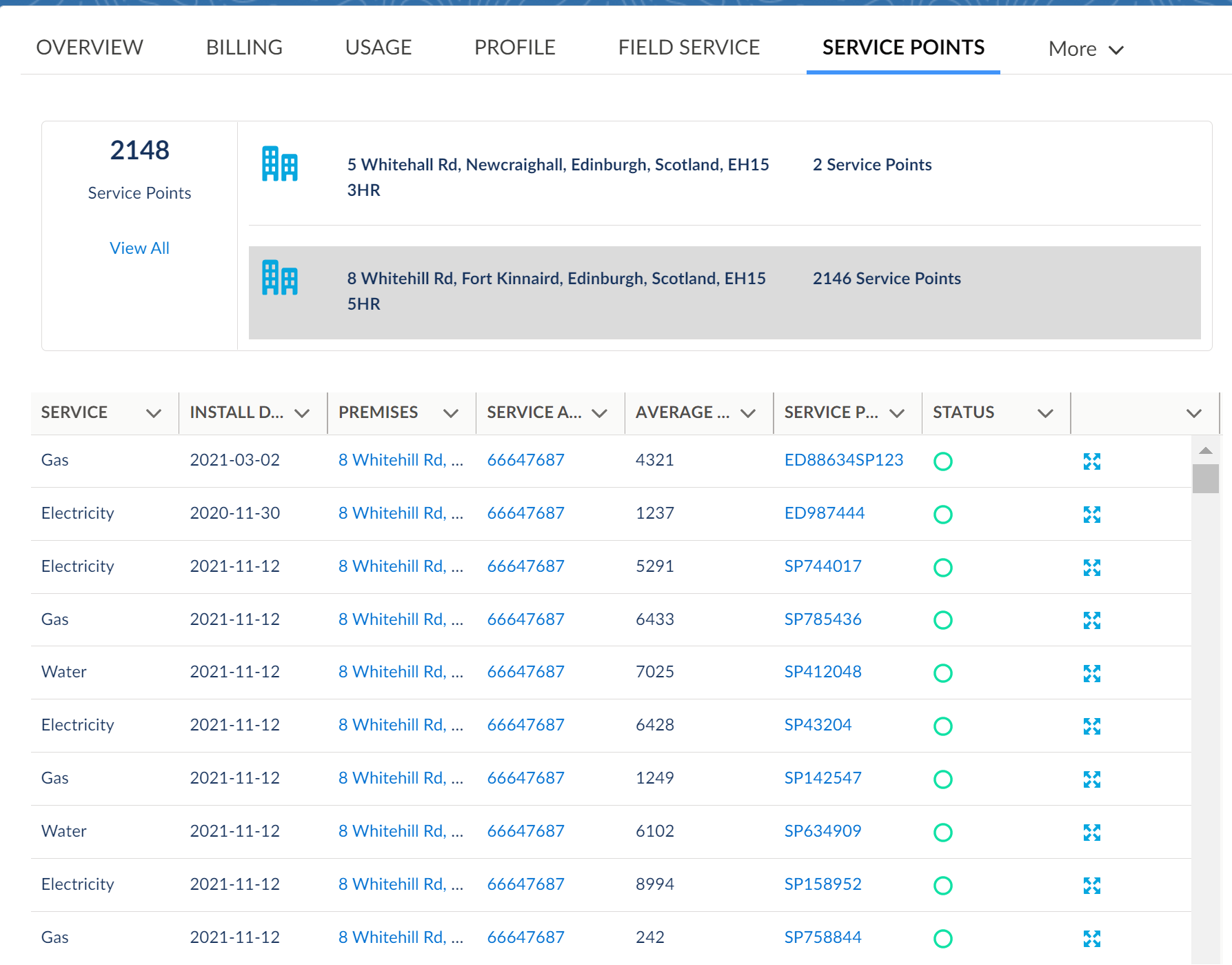
The Service Point Tab provides information about each service point of the customer. A warning in red is displayed at the top for any service points outages.
The upper section of the page displays the total number of customer service points, a list of all the customer premises along with the associated number of service points. If you select individual premises address, the table in the lower section of the page displays all service points associated with it. To view all the customer service points, click View All.
The lower section provides details about each service point associated with the customer premises. Each row displays service point details such as Service Point Type, Install Date, Premises, Service Point ID, Service Account, Average Usage, Service Point ID, and Status. The status of an active service point is shown in green and an inactive one is shown in orange. You can also learn more about the service point by clicking View More. You can also change the associated product for each service point.
A maximum of 2000 service points for the selected customer premises can be displayed in the details table.
Field Service Tab
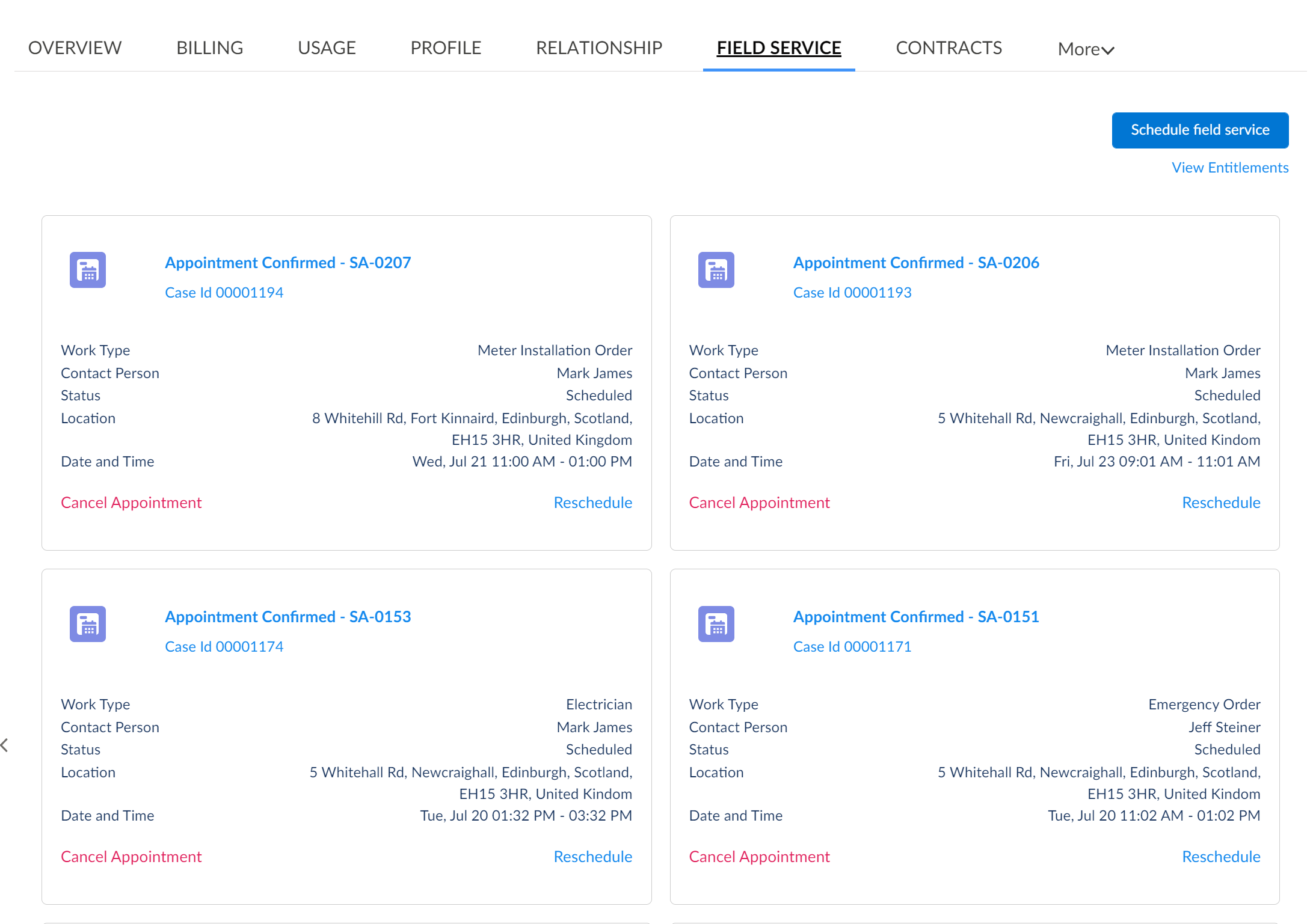
The Field Service Tab provides details about field service appointments scheduled for your customer. You can use this tab to view a list of scheduled service appointments, cancel an existing appointment, or schedule a new service appointment. You can also verify if a customer is qualified to schedule a field service appointment by viewing their entitlements.
Each confirmed service appointment appears as an individual tile. The tile provides details such as the service location, the work type, the name of the contact person, the time when the appointment was scheduled, and the current status. Closed and completed service appointments aren't shown in the list. However, you can configure the Field Service Tab to display the appointments based on your customer requirements. For more information on configuring tabs, see Lightning App Builder.
Additional Energy & Utilities Processes
For additional implementation samples and ideas, visit Energy & Utilities Cloud Processes in the Salesforce Industries Process Library.
