
You are here:
Considerations for Creating Action Plan Templates
Before you create action plan templates, review these considerations.
Required Editions
| Available in: Lightning Experience |
| Available in: Automotive Cloud, Consumer Goods Cloud, Education Cloud, Financial Services Cloud, Government Cloud with Lightning Scheduler, Health Cloud, Manufacturing Cloud, Nonprofit Cloud, and Public Sector Solutions. View edition availability. |
- Create action plan templates for accounts, contacts, leads, or other supported objects, or for custom objects that have activities enabled. You can create action plans for any account record type, such as a person, individual, household, business, institution, and custom record types.
- By default, action plans generated from a template can only contain the same list of items specified in the template. To let users add tasks or other items to a generated action plan, enable Let users add items to plans when creating the action plan template.
- You can add a maximum of 100 tasks or other items to an action plan template.
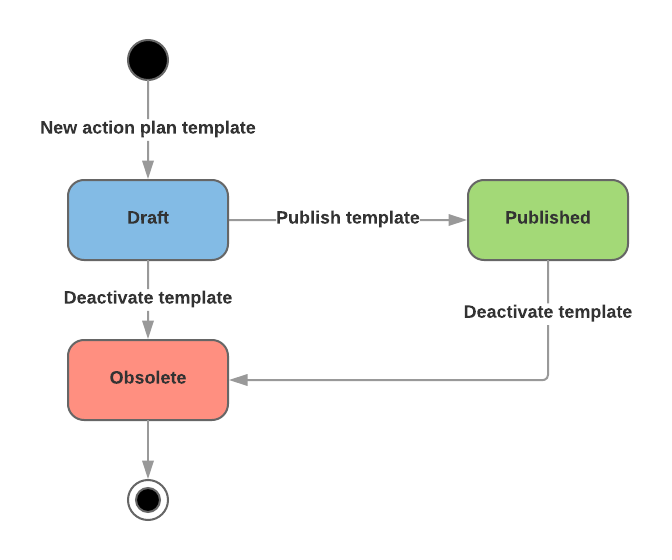
- In the UI, an action plan template has a status lifecycle. You can update an action plan template with a Draft status to Published or Obsolete. You create action plans from a Published template. After you publish a template, you can’t change it, and you can’t return it to Draft status. You can deactivate a Published action plan template to make it Obsolete. You also can’t revert a deactivated template to Draft or Published status.
- You can specify the number of days (date offset) available to complete a task beginning from the start date of an action plan. The maximum value you can set is 1,000 days. If you select Skip Nonwork Days, nonwork days are added to this count.
- Priority is used to set the priority of the task created from the template.
- You can set a task so it’s assigned to:
- a specific person.
- the person creating the action plan, the plan owner.
- a queue.
- a role from the Account team
 Note This option is only displayed when the account teams option is enabled.
 - a role from the Opportunity teamNote This option is only displayed when the opportunity teams option is enabled.
- a role from the Case teamNote This option is only displayed when case team roles have been implemented.
Role resolution only supports a single team assigned to a case. Role resolution for case team members doesn't work when there are multiple case teams involved.
- You can add document checklist items to an action plan template. Document checklist items can’t be assigned to people or given a deadline, but they can be marked as required. You must add Document Types before you can reference them as document checklist items in an action plan template.
- You can create action plan templates for a new object only after the object is cached. So, if a new object isn’t listed in the Target Object dropdown of the New Action Plan Template dialog box, try again later.
- Manual sharing of action plan templates is supported in Lightning Experience. For the record that you want to share, click Sharing. Manually add any users who aren’t included in sharing rules and share any related records.
- If you’re an admin or you own an action plan template record, you can change the ownership of published and draft versions of action plan templates to another user. On the Action Plan record page, from the page-level action menu, click Change Owner. Then select the new owner.
- You can delete templates if their status is Draft or Obsolete and they don’t contain any related action plans. On the Action Plan Templates page, click Delete Template.
- Don’t create multiple versions of an action plan template by using APIs. A single version of an action plan template ensures that its status is unique. The status field of an action plan template depicts the status for a single version of the action plan template.
- Provide action plan templates to users whenever you share an action plan.
- An error occurs when deploying action plan templates in a sandbox created from a partial or developer copy of the production org. This error is caused due to existing ActionPlanTmplPkgConfig records which are copied into the sandbox by default. To fix the error, delete the cloned ActionPlanTmplPkgConfig records in the sandbox and then create the action plan templates.
Did this article solve your issue?
Let us know so we can improve!
