
You are here:
Add Financial Services Cloud Components to Salesforce Mobile
Help users be more productive by adding Financial Services Cloud Lightning Components to the Salesforce mobile app.
First, enable a page in your app for the Phone form factor so that page can appear on mobile devices. Then use Lightning App Builder to add Financial Services Cloud components to the mobile-enabled page.
- From Setup, enter Lightning App Builder in the Quick Find box, and then select Lightning App Builder.
- Click New.
- Select Record Page and click Next.
- Enter a Label for the record page, such as AccountSummaryMobile.
- Select an object for the page, such as Account, and click Next.
- From the list of page templates, choose one that supports the Phone form factor, such as Grouped Header and One Region, and click Done.
-
To add Financial Services Cloud components to your mobile app page, drag them
from the left-hand Components list into the empty regions on the page.
A small icon appears next to a component name to indicate whether the component works with the desktop or phone form factor, or both.
-
For example, drag the Highlights Panel component into
the empty region that says, “Add Component(s) to Grouped Header Region Here”.
Then drag the component named Financial Summary - Financial Services
Cloud into the lower region.
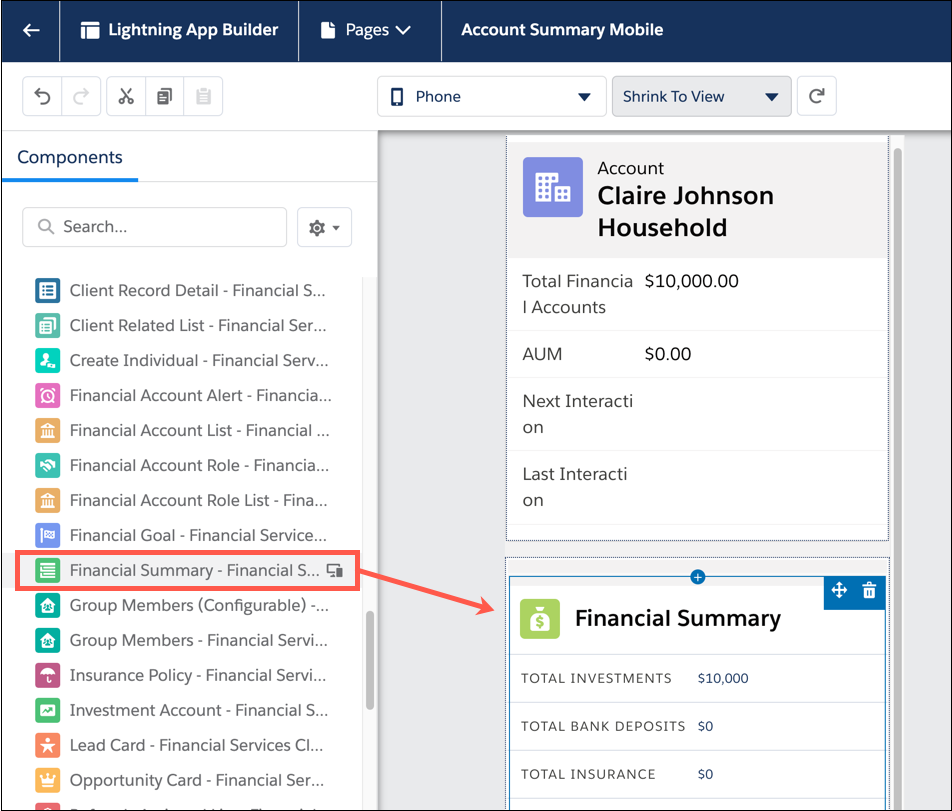
- After a component has been placed in a page region, click the component to see or change its properties in the right-hand side panel.
- Click Save when you’re done editing your page.
After a page is saved, it must be activated before users can see it in the app. For more information about activating and previewing Salesforce mobile apps, see Preview Mobile App Pages in Lightning App Builder.
Did this article solve your issue?
Let us know so we can improve!
