
You are here:
Remove Access to Data Granted through Compliant Data Sharing
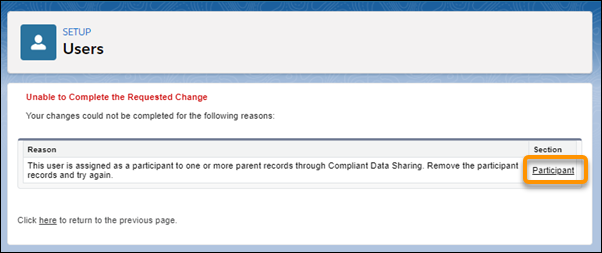
A user with object participant or participant group member records can’t be deactivated until their associated records have been deleted. If you attempt to deactivate the user before deleting these records, you see an error message linking to one of the records that must be deleted.
Required Editions

Important To maintain compliance with regulations and company policies:
- If a user leaves the team or no longer needs access to data delete their participant record or mark it as inactive, and remove the user from participant groups.
- If a user leaves your organization delete their participant record, remove the user from participant groups, and deactivate the user.
| Available in: Lightning Experience |
| Available in: Professional, Enterprise, and Unlimited Editions in Financial Services Cloud |
| Available in: Enterprise, Unlimited, and Developer Editions with Nonprofit Cloud |
| Available in: Enterprise, Performance, Unlimited, and Developer Editions with Public Sector Solutions |
| User Permissions Needed | |
|---|---|
| To remove access to data: | Configure Compliant Data Sharing System Permission AND Use Compliant Data Sharing System Permission |
-
Ensure that participant records are deleted before user deactivation.
- From Setup, in the Quick Find box, enter Compliant Data Sharing, and then select General Settings.
- Select Delete participant records before deactivating a user.
- Save your changes.
-
Freeze the user.
- From Setup, in the Quick Find box, enter Users, and then select Users.
- Click the name of the user to deactivate.
- Click Freeze.
- Proceed to Step 3 or Step 4.
-
Manually delete participant and participant group member records.
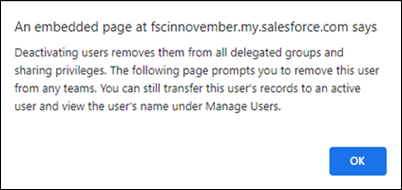
- Click Edit.
- Deselect Active.
- Click OK.
- Save your changes.
- Click Participant.
- On the participant page, click Delete, and click Delete in the confirmation window to complete the deletion.
- Repeat step 2 until all records are deleted and changes save without error.
-
Deactivate the user.
- From Setup, in the Quick Find box, enter Users, and then select Users.
- Click the name of the user to deactivate.
- Click Edit.
- Deselect Active.
- In the window that opens, click OK.
- Save your changes.
Did this article solve your issue?
Let us know so we can improve!
