Set Org-Wide Sharing Defaults for Compliant Data Sharing
To get the benefits of Compliant Data Sharing, set org-wide sharing settings for
supported objects to Private or Public Read-Only.
Required Editions
Available in: Lightning Experience
Available in: Professional, Enterprise, and Unlimited Editions in
Financial Services Cloud
Available in: Enterprise, Unlimited, and Developer Editions with
Nonprofit Cloud
Available in: Enterprise, Performance, Unlimited, and
Developer Editions with Public Sector Solutions
Compliant Data Sharing works when a supported object’s org-wide sharing default is Private or
Public Read-Only. If the sharing default is set to Public Read/Write, everyone can access that
object and Compliant Data Sharing has no effect on a participant’s access to a record.
Note Before changing an org-wide sharing setting away from Public Read/Write, consider the
impact on current business processes. Changing to Public Read Only or Private prevents some
users from seeing or editing records until Compliant Data Sharing setup is complete and
participant roles are assigned.
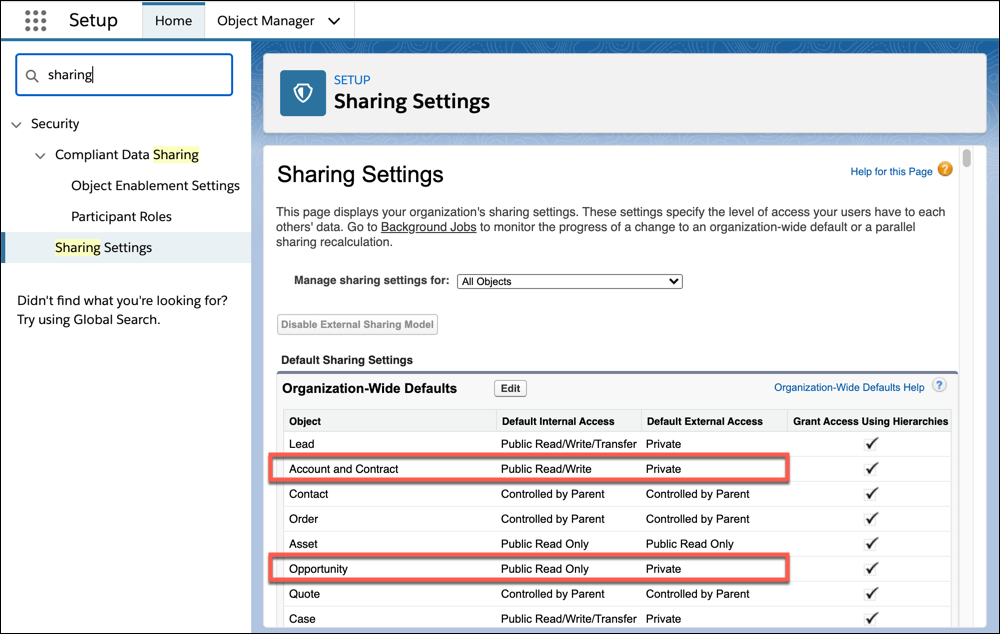
To review and update org-wide sharing settings for the Account and Opportunity objects:
From Setup, in the Quick Find box, enter Sharing, and then select
Sharing Settings.
Under Organization-Wide Defaults, review the access levels for the Account, Opportunity,
custom objects, and objects provided by your cloud. By default, the sharing setting for Account
and Contract is Public Read/Write, and the sharing setting for Opportunity is Public Read Only.
To change an access level, click Edit.
For each object, select the default access you want to use.
We use three kinds of cookies on our websites: required, functional, and advertising. You can choose whether functional and advertising cookies apply. Click on the different cookie categories to find out more about each category and to change the default settings.
Privacy Statement
Required Cookies
Always Active
Required cookies are necessary for basic website functionality. Some examples include: session cookies needed to transmit the website, authentication cookies, and security cookies.
Functional Cookies
Functional cookies enhance functions, performance, and services on the website. Some examples include: cookies used to analyze site traffic, cookies used for market research, and cookies used to display advertising that is not directed to a particular individual.
Advertising Cookies
Advertising cookies track activity across websites in order to understand a viewer’s interests, and direct them specific marketing. Some examples include: cookies used for remarketing, or interest-based advertising.