Customize the Relationship Group List Component’s Contact Details (Managed Package)
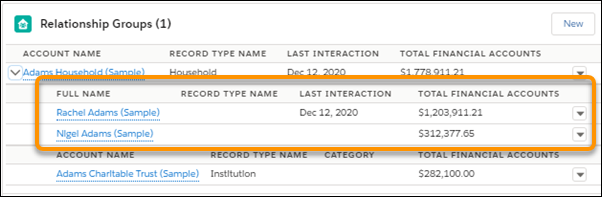
Create or edit the WM_Client_Relationship_Group_Members Contact field set to customize
the first subsection of the expanded view of the Relationship Group List - Financial Services
Cloud component. The component is displayed on a person account or individual profile’s
Relationships ta Pub /templateb.
Required Editions
Available in: Lightning Experience
Available in: Professional, Enterprise, and Unlimited
Editions
This is a Financial Services Cloud managed package feature.
The Relationship Group List - Financial Services Cloud component displays a table of
account information for members of a relationship group. The first subsection displays contact
information for relationship group members.
Create or edit the WM_Client_Relationship_Group_Members field set on the Contact
object to customize the columns displayed for each relationship group.
Note The
WM_Client_Relationship_Group_Members Contact field set is created by default for new orgs.
From Setup, open Object Manager.
In the Quick Find box, type contact, and then click
Contact.
Select Field Sets, and then click
New.
To create the field set:
Click New.
Enter the Field Set LabelRelationship Group Members.
Enter the Field Set NameWM_Client_Relationship_Group_Members.
For Where is this used?, enter Client profile's
Relationship Group’s table.
Save your changes.
Skip to step 6.
To edit the field set:
In the Quick Find box, enter
WM_Client_Relationship_Group_Members.
Click the field label for Relationship Group Members.
Drag the fields that you want to display from the object palette to the In
the Field Set container.
Drag the Name field from the object palette to the
In the Field Set container.
NoteContact
is selected by default in the object palette.
Select Record Type Id in the object palette.
Drag the Name field from the object palette to the
In the Field Set container.
Select Account Id in the object palette.
Drag the Last Interaction and Total Financial
Accounts fields from the object palette to the In the Field
Set container.
Add any additional fields that you want to display for Contact group members in the
Relationship Group List component.
To delete fields from the field set, hover over the field in the Field Set container,
and click the minus icon.
Click Save on the object palette.
Did this article solve your issue?
Let us know so we can improve!
Loading
Salesforce Help | Article
Cookie Consent Manager
General Information
Required Cookies
Functional Cookies
Advertising Cookies
General Information
We use three kinds of cookies on our websites: required, functional, and advertising. You can choose whether functional and advertising cookies apply. Click on the different cookie categories to find out more about each category and to change the default settings.
Privacy Statement
Required Cookies
Always Active
Required cookies are necessary for basic website functionality. Some examples include: session cookies needed to transmit the website, authentication cookies, and security cookies.
Functional Cookies
Functional cookies enhance functions, performance, and services on the website. Some examples include: cookies used to analyze site traffic, cookies used for market research, and cookies used to display advertising that is not directed to a particular individual.
Advertising Cookies
Advertising cookies track activity across websites in order to understand a viewer’s interests, and direct them specific marketing. Some examples include: cookies used for remarketing, or interest-based advertising.