Flow Screen Input Component: Section Summary View
Displays selected mortgage objects based on the Unified Residential Loan Application (URLA). All objects in the collections variable for the Section Summary component must be API names of Mortgage objects.
Required Editions
| Available in: Lightning Experience |
| Available in: Professional, Enterprise, and Unlimited Editions |
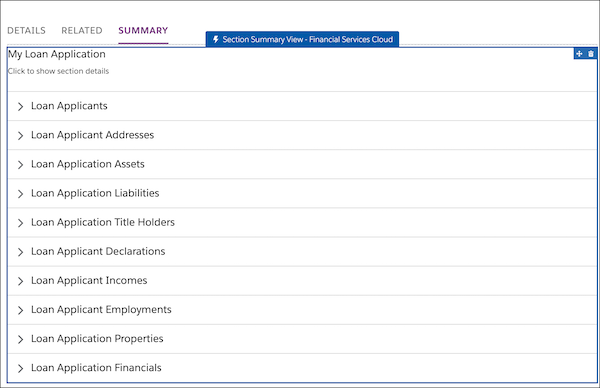
Establish the access mode (read only, view/edit) for section records.
Select which sections to display and the order in which they’re presented in the Section Summary panel.
For information about adding screen components to your flow screen, see Screen.

Configure the Section Summary View Component
| Attribute | Description |
|---|---|
| Choice Labels | Add a text collection variable containing choice labels to this component. You can’t reorder choices or select the same choice twice. |
| Choice Values | Add a collection variable containing API values that correspond to the choice labels for this component. |
| Help Text | Give your users more context for this screen component. The text you enter is available in an info bubble next to the component. |
| Label | User-friendly text that displays above the component. |
| Required | Requires users to select a value before they can move to the next screen. |
| Selected Value | A variable containing default choice value. |
Store the Section Summary View Component in the Flow
All attributes are available to store in flow variables, but the Selected Value attribute is the most likely attribute to store. The value is assigned when the user navigates to the next screen.
To store the user’s action, map the Selected Values attribute to a variable. This collection variable contains the API names of the summary sections to display to the flow user at run time.

