You are here:
Add Interest Tags to Interaction Summaries
Your users can add interest tags to interaction summaries. Instead of sifting through meeting notes to find relevant interactions, your users can filter interaction summaries by interest tags to quickly find the required interactions.
Required Editions
| Available in: Lightning Experience |
| Available in: View product and edition availability. |
| User Permissions Needed | |
|---|---|
| To add interest tags to interaction summaries: | Financial Services Cloud Extension OR Financial Services Cloud Foundations OR FSC Sales |
Enable and Set Up Interest Tags
Before you can add interest tags to interaction summaries, enable Topics, Interest Tags, and complete the following setup tasks.
- Enable Topics for the Interaction Summary object.
- Assign Interest Tags permissions to profiles and then create and assign a permission set.
-
Enable the setting that turns on Interest Tags.
See Enable Interest Tags.
- Create tag categories to organize the tags you want to use on your interaction summaries.
-
Create interest tags to assign to interaction summaries.
See Create Interest Tags.
- Add the Interest Tags component to the Interaction Summary record pages so that your users can search for and assign interest tags to client records.
Assign Interest Tags to Interaction Summaries
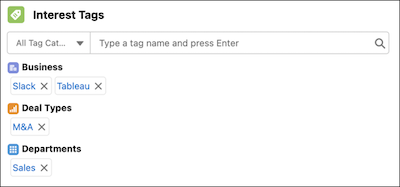
On the interaction summary record pages where you added the Interest Tags component, your users can assign interest tags to capture client needs, interests, and prospect opportunities.
- On the Interest Tags component, click All Tag Categories, and then select a tag category by which you want to filter.
- Enter an interest tag name, and then press Enter to search.
-
To add an interest tag, select the required tag.
All interest tags that are assigned to the record are organized by tag categories.
Assign Interest Tags by Using the Interaction Summaries Component
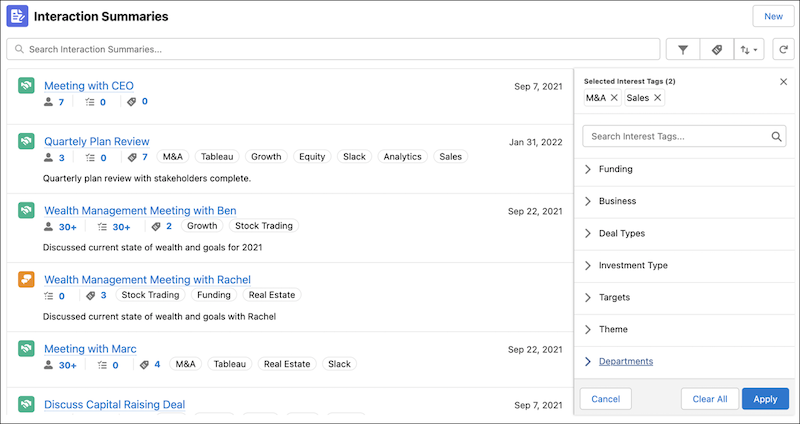
When you add the Interaction Summaries component to the account record page or home page, your users can assign interest tags to interaction summary records from the component itself. To quickly find the required interactions, users can also filter interaction summaries by interest tags.
-
On the Interaction Summaries component, click the interest tags icon (
 ) for the interaction summary record for which you want to assign interest
tags.
- Enter an interest tag name, and then press Enter to search.
- Select an interest tag to add. All interest tags that are assigned to the record are organized by tag categories.
-
If the tag with the entered name doesn’t exist, press Enter to create an interest tag
with that name, and then assign it to the interaction summary record
- Enter a tag name and description.
- Select a tag category.
-
Save your changes.
This step assigns the new interest tag to the interaction summary record.
-
To filter interaction summaries by interest tags:
-
At the upper-right corner of the component, click the filter by interest tag icon
().
- Search for and select interest tags based on which you want to filter interaction summary records.
- Click Apply.
-
At the upper-right corner of the component, click the filter by interest tag icon
(

