
Use Analytics for Wealth Management (Managed Package)
Analytics for Wealth Management gives financial advisors, personal bankers, and managers a complete customer intelligence solution.
Required Editions
| Available in: Lightning Experience |
| Available in: Professional, Enterprise, and Unlimited Editions for an extra cost |

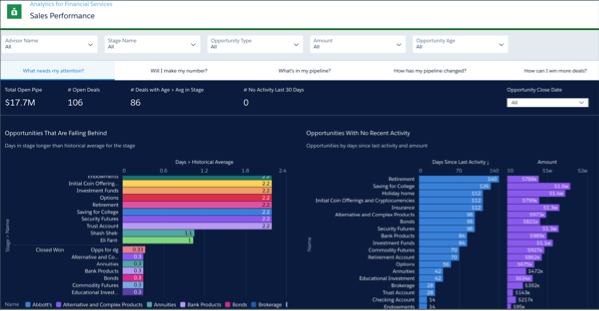
Analytics for Wealth Management’s prebuilt dashboards offer actionable insights about your book of business. They visualize the metrics advisors can use to stay on top of client goals and satisfaction, leads, and referrals. Its license provides complete access to CRM Analytics Plus platform features. It includes Einstein Discovery, which you use to create automated AI models on any dataset without writing code.
The CRM Analytics for Financial Services license also gives you access to the Analytics for Insurance, Analytics for Retail Banking, Consumer Banking Starter Analytics, and Wealth Starter Analytics templates. Your Salesforce admin can create apps from them to help you take the first steps of your Analytics journey.
Open the app.
- From the app picker
 , select CRM Analytics
Studio to open the CRM Analytics home page.
, select CRM Analytics
Studio to open the CRM Analytics home page. - Under Browse in the left column, select All Items.
- Select the Apps tab, then click your app to open it. If you can’t immediately find it, consult your Salesforce administrator to find out the name they gave it when creating the app.
Click Dashboards to view all app dashboards. Click an element in any of the charts at the top of a dashboard page to see details in the list view below the chart.
After clicking an element in a dashboard, you’ll see Modified and a
revert icon at the top of the dashboard, next to its title, like this  . Click the revert icon to return the dashboard to its original state.
In dashboard pages with a details table, take action from the table by rolling the cursor over an item in the Name column. Then, click the disclosure triangle at the right and select an action from the menu that appears.
Dashboards for Financial Advisors and Personal Bankers
View these dashboards by clicking Financial Advisor Home. Advisors and personal bankers start here for summary metrics about the state of the business. Click Open Dashboard beneath the summaries to drill into details behind the summary metrics.
Client Acquisition dashboard. Target high-opportunity leads for immediate action and provides insights into leads/referral sources, conversion rates, and trending. Organized into these pages.
- What needs attention? Identifies leads that have stalled, or have had no activity, for immediate action.
- Lead/Referral Sources. Identifies high opportunity leads and referrals.
- Tracking leads/referrals. If the leads haven’t converted yet, visualizes what’s happened to leads and how far they’ve proceeded.
- Conversion. Shows the kinds of leads and referrals you’ve had most success with by product, time, and number of touches or activities.
- Lead pipeline trending. Provides insight into how leads have changed over time and flow of leads in and out of the pipe in between those two snapshots. Select different dates in the filters at left to change the time period.
Client Interactions dashboard. Identify clients who require immediate action and track and understand the results of client management activities. Organized into these pages.
- Overview. Shows clients that have been neglected and their importance according to assets under management (AUM) or other metrics. Also shows days since last contact with clients, clients whose AUM has dropped, and clients with overdue tasks.
- Activity History. Shows how an advisor has spent their time according to activity type and time period.
- Activity Outcomes. Shows the results of activities. Click any week to see clients that you met that week and metrics for those clients, including AUM, deposits, wallet share, and assets under advisement.
Events and Seminars dashboard. Track the performance of events and seminars. Start by visualizing attendance across events over time, and then drill into event performance by costs, response rates, and conversion rates. Data comes from the Campaign object, where campaign type is Event.
My Book of Business dashboard. Start with an overview of your financial book of business and how it has changed over time. Includes alerts to changes compared to last month, quarter, and year. Drill into data through these pages.
- Product Portfolio Mix. Provides insight into which products provide the opportunity to boost sales based on current and historic mix.
- Transactions. Shows the net inflow to and outflow from your portfolio and identifies clients who have added or withdrawn from their accounts.
- Earnings and Fees. Visualizes advisor commissions and fees and revenues for the entire organization
My Clients dashboard. Identify clients for appropriate action based on recency of interactions with them, attrition risk, or portfolio value. Organized into these pages.
- Who needs my attention? Single out clients at risk of possible attrition or who need extra attention. Shows clients who have withdrawn funds, lost funds in the market, or logged cases with customer service.
- Who are my top clients? Organizes specific clients based on their wallet share and length of relationship with the company so you can see which ones require most attention.
- What demographics do I serve? Helps you better understand the profile of a typical client and high-net-worth clients. Categorizes clients by net worth, length of relationship, geography, and other criteria.
- Are clients reaching their goals? Identify clients who need help with progressing toward their financial goals. Shows progress toward goals by client type, percent completion of goals, and size of goals.
My Households dashboard. Similar to My Clients, except focused on households. Not all metrics from accounts roll up to the household level, so shows separate pages for only top households and demographics.
Sales Performance dashboard. Visualize progress toward sales goals over time. Organized into the pages.
- What needs my attention? Highlights high-value opportunities that require immediate action from the team. Shows opportunities that have stayed in a stage longer than the average for the stage, and ones where there's no recent activity.
- Will I make my number? Shows your team's progress toward quota, including your target and the number of business days left in the period. View quarter-over-quarter and year-over-year historic comparisons and select new or existing customers. View contributions of individual team members by selecting them from the Advisor Name global filter at the top.
- What's in my pipeline? To help you zero in on high-opportunity segments of the pipeline, shows open pipe by stage, market segment, and opportunity type. Also shows total open pipe and open deals.
- How has my pipeline changed? Trends your pipeline, showing how it has changed between two dates (for example, quarter to date) for opportunities that are forecast to close within a specific time period. Change the Pipeline Start and End Date filter to view deals for a preset period (year, quarter, month, and so on), or select a custom period.
- How can I win more deals? Visualizes how and why advisors, bankers, and managers can win more deals (or lose them) by market segment and opportunity type, and over time.
Dashboards for Executives and Managers
Managers and executives start here to evaluate the performance of the performance of advisors and bankers who report to them at the team/office and regional levels. Team key performance indicators include assets under management, closed won business, and leads/referrals. Click Open Dashboard beneath the summaries to drill into details behind the KPIs. The dashboards assume a structure of State → City → Advisor, with filters for each category. You can customize them to reflect your own hierarchy if it’s different.
Team Book of Business dashboard. Provides a team view of the book of business. Organized into these pages.
- Team Leaderboard. The default page, ranking team members according to total AUM, total financial accounts, and new AUM.
- Regional View. Ranks performance by geographic location.
- Drivers of Success. View correlations between performance and activities. Select performance metrics such as $AUM or #Clients and see the correlation with progress metrics related to any activity, lead, or opportunity.
- Comparative Trend. Review advisor progress over time so you can see how each team member performs in their first few months or as compared to their peers.
- 1-on-1 Helper. Provides performance metrics and rankings for your personal bankers.
Team Sales Performance dashboard. Evaluate each advisor's performance with focus on whether they make their quotas. Rank team members using three different metrics and track performance of each advisor for the quarter. And drill down to individual opportunities in the details table. Select Opportunity Processing to evaluate advisor efficiency.
Team Client Acquisition dashboard. Evaluate advisor effectiveness at bringing new clients into the business. The main chart shows how each team member’s leads progress through the pipeline. The secondary charts show conversion rates and number of touches required to convert leads and referrals. Select Events and Seminars to view the effectiveness of those activities at a regional and office level based on attendance, costs, conversion rates, and other KPIs.
Dashboards for Embedding
CRM Analytics for Financial Services includes dashboards that can be embedded and accessed in Lightning Experience pages. Your Salesforce administrator can embed the dashboards for your organization.
Home. Intended for providing top-level metrics and insights to advisors through the Financial Services Cloud Wealth Management application. It can be embedded anywhere you want to view CRM Analytics insights. It includes these tabs.
- Current Clients. Shows key client metrics, such as number of clients, households, balances, and AUM, for the current and previous month. Also displays clients with the larges and smallest AUM change over the past seven days.
- Growing My Business. Shows you the number of open leads/referrals and helps you determine if you can make your quarterly sales numbers.
Financial Account. Shows an account’s history and assets under management, total financial assets, and client net worth. Intended for access through a financial accounts record page.
Goal. Shows a client’s progress toward a financial goal, for example saving for college education or retirement. Includes the target amount, percent completion, and elapsed time. Intended for access through a financial goals record page.
Lead & Referral. Intended for access through a lead or referral record page. Includes a carousel with four cards.
- Lead Source. Shows your success converting leads from a particular source. Includes the source of the lead and the percentage completion rate of leads from that source. Also shows comparison to your average conversion rate for leads from all sources.
- Product Interest. Shows your success converting leads for a particular product.
- Is this lead/referral receiving enough attention? Shows length of time a lead has been open and activities for the lead compared with activities for all leads.
- Is this lead/referral progressing as expected? Indicates whether a lead is ahead of or behind the overall conversion rate for all leads from the source.
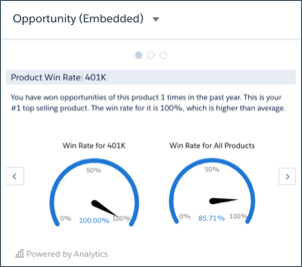
Opportunity. Intended for access through a product record page. Includes a carousel with three cards. Intended for access through a product record page.
- Product Win Rate. Helps you gauge the opportunity for selling the product. Shows the win rate for a product in comparison to the win rate for all your products. Also tells you the rank for that product’s win rate compared to all your products. (Shown for a 401 K.)
- Total Closed Business. Shows closed business for the product.
- Opportunity Progress: Age in Stage. Shows the progress of the opportunity through stages in your selling process.
- Use the My Book of Business Dashboard (Managed Package)
Financial advisers: Start with an overview of your financial book of business and how it has changed over time. Get alerts about changes compared to last month, quarter, and year. And dig deeper to see which of your products are used the most, deposits and withdrawals over time, and earnings by product and over time. - Use the My Clients Dashboard (Managed Package)
Financial advisors can use this dashboard to identify clients for appropriate action based on recency of interactions with them, attrition risk, or portfolio value. Start by viewing client activities that indicate they need attention from you. Then dig deeper to see your top clients, profile your client population, and see if clients are reaching their financial goals. - Use the Client Acquisition Dashboard (Managed Package)
Target high-opportunity leads for immediate action and get insights into leads/referral sources, conversion rates, and trending. - Use the Client Interactions Dashboard (Managed Package)
Financial advisors: Make sure you’re taking the actions that retain clients by getting instant insight into the results of your client management activities. Learn how you’re spending time, see who’s overdue for attention, and understand which activities have the most positive results. Use the dashboard’s KPIs to identify clients who need immediate action from you to keep them loyal and satisfied. - Use the Events and Seminars Dashboard (Managed Package)
Understand the impact of events and seminars on your business. Metrics across the top show top-level numbers for your events, including average conversion rate and cost per conversion for event attendees and average attendance rate. - Use the My Households Dashboard (Managed Package)
Identify households for appropriate action based on portfolio value. Start by viewing households by their wallet share and the length of time they’ve worked with you. Dig deeper to view households sorted by their AUM category and size. Not all metrics from accounts roll up to the household level, so the dashboard shows separate pages for top households and demographics. - Use the Sales Performance Dashboard (Managed Package)
Visualize progress toward sales goals over time. Start by learning which opportunities could use your attention to move them along the sales process. Then get insight into whether you’re going to be able to make your quota and evaluate your pipeline to learn about opportunities you can accelerate. Finally evaluate ways to turn more opportunities into wins. - Use the Team Book of Business Dashboard (Managed Package)
Provides a team view of the book of business. Start with a top-level view of total and per-client/per-advisor average assets under management (AUM), value of accounts, number of clients, and average wallet share. Filter by city, state, and advisor to refine your view. Then dive into details in the dashboard’s pages. - Analytics for Wealth Management Dashboard Glossary (Managed Package)
Learn the contents and use of metrics, filters, and other common dashboard elements. Keep this glossary open in a separate window as you use the dashboards.
