
Create and Assign Guest User Permissions for Discovery Framework Access
Enable guest users to access Discovery Framework–based Omniscript assessments on Experience Cloud sites.
Required Editions
| View supported product editions. |
| User Permissions Needed | |
|---|---|
| To create permission sets: | Manage Profiles and Permission Sets |
| To edit permission set assignments: | Be a member of the site AND Create and Set Up Experiences OR Be a member of the site AND View Setup and Configuration AND an experience admin, publisher, or builder in that site |
Create an Omnistudio Permission Set
Create an custom permission set provides to read-only Ominstudio access to Experience Cloud site guest users.
Create an Industries Assessment Permission Set
Create a permission set that provides Discovery Framework access to Experience Cloud site guest users.
- From Setup, enter Perm in the Quick Find box, then select Permission Sets.
- Click New.
-
Enter a Label.
For example, Industries Assessment Guest User. By default, API Name is the same as the Label.
-
Select the appropriate license for your cloud.
For example, select Industries Assessment for Nonprofit cloud. See Discovery Framework Editions and Permissions
- On the Permission Set Overview page, click System Permissions, then click Edit.
- Select Grant access to Discovery Framework-specific objects and fields, then click Save.
-
Edit Object Permissions for Assessment, Assessment Question, and Assessment Question
Response objects.
- From Setup, in the Quick Find box, enter Digital Experiences, and then select All Sites.
- On the All Sites page, click Builder next to the site for which you want to configure guest access.
-
In Experience Builder, click
 .
.
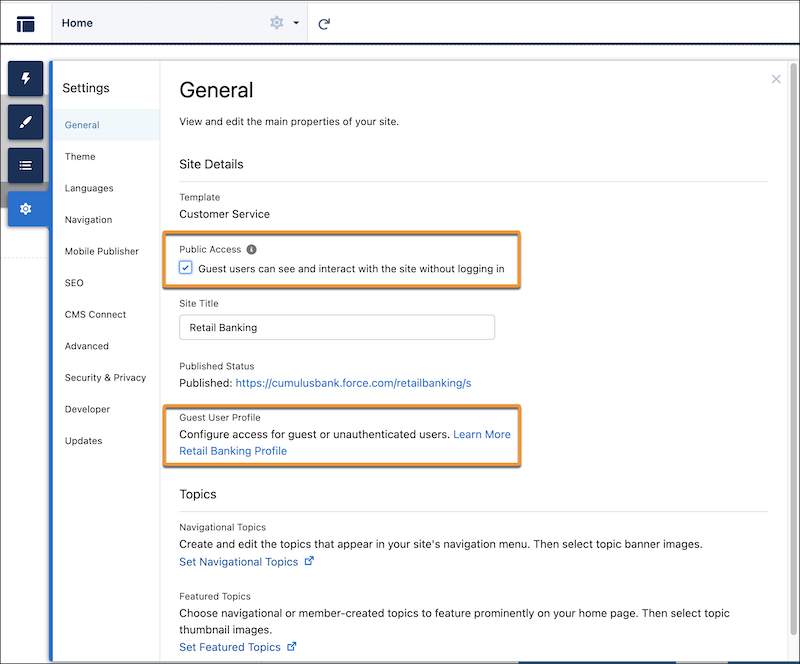
- Under Settings, select the General tab, and then under Public Access, select Guest users can see and interact with the site without logging in.
-
Under Guest User Profile, click the guest user profile link.
- Click Edit.
-
Under Standard Object Permissions, assign these access levels for the assessment
objects:
Object Name Permissions Assessments Read, Create Assessment Questions Read Assessment Question Responses Read, Create - Save your changes.
 Note You can grant create or read access to records, but they will not be able to see or interact with those records unless sharing rules are enabled for the objects.
Assign the Permission Sets to Site Guest Users
Assign the Omnistudio Guest User and the Industries Assessment permission sets to Experience Cloud Site guest users so that they can use Discovery Framework components.
- From Setup, enter All Sites in the Quick Find box, then select All Sites.
- Click Builder for the site you want to grant access to guest users.
- Select the settings icon in the navigation panel, and click General.
- In the Public Access section, select Guest users can see and interact with the site without logging in.
- In the Guest User Profile section, click the link to the guest user profile.
- On the user profile page, click View Users.
- Select the name of the guest user.
- In the Permission Set Assignments section, click Edit Assignments.
- From the Available Permission Sets list, select the permission sets and to move them to the Enabled Permission Sets list.
- Click Save and confirm assignment under the Permission Set Assignments section of the user profile page.
