
You are here:
View Events Using Enhanced Timeline in Health Cloud
The Enhanced Timeline component shows key events relating to a person or a resource in one place, so your users can see information from a single source of truth.
Required Editions
Available in: Lightning Experience Available in: Enterprise and Unlimited Editions |
- How Enhanced Timeline Works in Health Cloud
A timeline lets users see data from objects as a sequence of events happening over time. You determine what information shows on the timeline by choosing the base (or primary) object and the related objects. You can use standard objects or custom objects. - Set Up a Enhanced Timeline in Health Cloud
Configure interactive timelines that provide access to information about patients. - Add Enhanced Timeline to a Record Page
To let your Health Cloud users see the Timeline and its data, add it to a Lightning record page. - Add Enhanced Timeline to Your Experience Cloud Site
To let people use Timeline without logging in to Health Cloud, add it to your Experience Cloud site.
How Enhanced Timeline Works in Health Cloud
A timeline lets users see data from objects as a sequence of events happening over time. You determine what information shows on the timeline by choosing the base (or primary) object and the related objects. You can use standard objects or custom objects.
A user’s profile permissions determine access to timelines. You can assign a user multiple timeline configurations.
Before you start configuring a timeline, identify your requirements. At a minimum, decide which objects are required for the timeline and the information you want it to show.
Set Up a Enhanced Timeline in Health Cloud
Configure interactive timelines that provide access to information about patients.
Companion org users can use the Data Cloud engagement events. To enable and access Data Cloud features from your companion org, see Access Data Cloud One from a Companion Org.
| User Permissions Needed | |
|---|---|
| To access a Timeline: | Health Cloud Platform permission set license |
| To configure a Timeline: | Read and edit access for objects you’re including on the Timeline |
- From Setup, in the Quick Find box, enter Timeline, and then select Timeline.
-
Turn on Timeline Configuration.
 Note Enabling Timeline is a one-time task. After you enable Timeline in your org, you can’t disable it.
 -
Click New Timeline.
- Enter a name for the timeline.
- Enter an API name for the timeline, or accept the name that's automatically generated.
-
Select an object that serves as the basis for the timeline.
You can base your timeline on any Salesforce object (standard or custom). You can add related objects to the timeline later.Note If you use a custom object on your timeline, ensure that it displays correctly by making sure it has a custom tab. See Create a Custom Object Tab for more information.
- Click Save.
-
On the Global Settings page, turn Show Age on to show how old a
record of the base or primary object was when an event occurred, along with the date of
the event.
-
If you chose to show age along with the timestamp, choose the field to use for
calculating age.
To show the age of the patient, select the Birthdate field.
- Click Next.
-
On the Timeline Related Objects page, click Add Related
Object.
-
Select a related object (standard or custom) that contains information you want to
display on the timeline.
You can add up to five related objects per base object. If an object has record types, you can select up to three record types by default. Contact Salesforce Support if you want to increase the record type limit to five.A related object for a Timeline anchor object must have a direct lookup to the anchor object.
-
Select the field that associates the related object with the base timeline object,
then click Next.
If a related object has only one lookup to the base object, then the field is auto-selected and can’t be changed.Note Enhanced Timeline doesn't support encrypted fields. Make sure any field you choose isn’t encrypted.
-
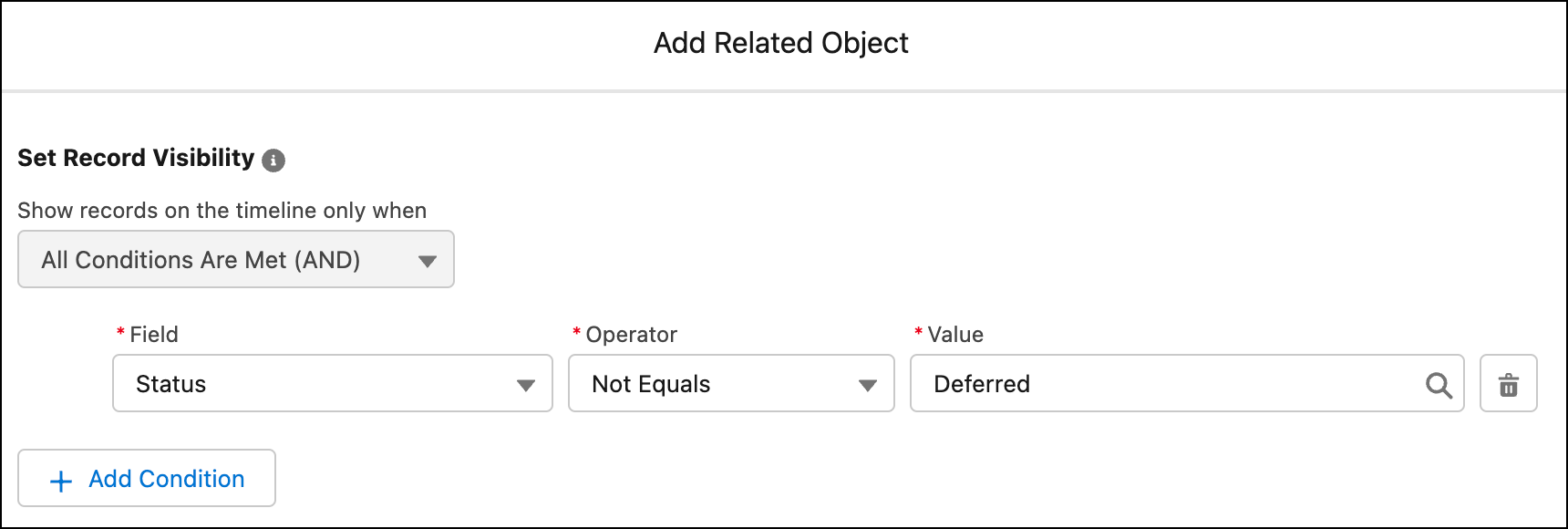
Add conditions for showing records on the timeline. You can add conditions only for
indexed fields. Then click Next.
For example, you can show tasks that aren’t canceled or deferred.
-
Select the Title, Subtitle, Timestamp, and Summary Field fields for the timeline
events, and select whether to let users create records from the timeline. Then click
Next.
Every event on a timeline has a title, an optional subtitle, a timestamp, and an optional summary, which are sourced from fields in the related object.
- Title
- You can use something like a Subject field.
- Subtitle
- You can use something like a Description field.
- Timestamp
- Select a field that’s likely to have a value. You can only use fields that are indexed, such as Created Date. See Indexes for information on how to create custom indexes on other fields. The timestamp appears alongside the event on the timeline. Events without a timestamp don’t appear on the timeline.
- Summary Field
- Select a field that contains the summary that you want to show on Timeline. You can select only the string, text, and text area fields. Users, for example contact center agents, can read the summary to get a quick overview of an event and provide personalized support to customers. To see the Summary Field field, see Enable Summary. If you don't select a field, the summary card doesn't appear on Timeline.
If you select Let users create records from timeline, users with the required permissions can click New to create a record directly from the timeline. -
Select the fields and related lists that you want to show on the timeline, and then
click Add.
The selected Summary Field field isn't available for selection on the Fields tab.If a selected field isn't visible on the page layout of the object it belongs to, it will not appear on the Timeline.
-
Select a related object (standard or custom) that contains information you want to
display on the timeline.
-
To save the timeline and make it available for use, click
Activate.
Note To update the timeline configuration, deactivate the timeline, make your updates, and then activate the timeline again. For example, if you enable the Translation Workbench in your org, and you change the language for a user, you must deactivate and reactivate any existing timeline configurations to reflect the translations in the timeline for the user.
-
Preview the timeline you’ve configured by selecting a base object record in the View
Timeline On field.
Add Enhanced Timeline to a Record Page
To let your Health Cloud users see the Timeline and its data, add it to a Lightning record page.
| User Permissions Needed | |
|---|---|
| To access a Timeline: | Health Cloud Platform permission set license |
| To configure a Timeline: | Read and edit access for objects you’re including on the Timeline |
- Go to the record page of the object on which you created a timeline.
- Select the gear icon on the top-right corner of the page and then click Edit Page.
- Drag the Timeline component to the editable content area.
-
To select the timeline configurations you want to make available to users, click
Select in the component properties panel.
Only active timeline configurations are available for selection.
-
In the Timeline window, select the required configurations and then click
OK.
You can select up to 5 timeline configurations.
- Save and activate your changes.
Add Enhanced Timeline to Your Experience Cloud Site
To let people use Timeline without logging in to Health Cloud, add it to your Experience Cloud site.
| User Permissions Needed | |
|---|---|
| To access a Timeline: | Health Cloud Platform permission set license |
| To configure a Timeline: | Read and edit access for objects you’re including on the Timeline |
- From Setup, in the Quick Find box, enter All Sites and select All Sites.
-
Click Builder for the site in which you want to add Enhanced Timeline.
You can add Enhanced Timeline to only those sites that support record detail pages.
- Select the required record page from the Home menu.
- Drag the Timeline component from the Components menu to the relevant content area.
- In the Timeline properties panel, click Select….
-
In the Timeline window, select the required configurations and then click
OK.
You can select up to five configurations.
- Publish your changes.
