
You are here:
Implement Volume-Based Pricing
Calculates the product price based on the discounts configured for the quantities purchased. For example, create pricing rules for a product that’s eligible for a 25% discount for 100 or more products. And a customer orders 140 products.
- From the App Launcher, find and select LookupTables.
- Click New.
- From Lookup Table Type, select Decision Table.
- Click Next.
-
Specify the decision table details.
- Name: VolumebasedPricingDM
- Type: Standard
-
Create a decision matrix version.
- From the App Launcher, find and select LookupTables.
- Click the link of the CMEAttributeBasedPricingDM decision matrix for which you're creating another version.
- On the record page of the matrix, on the Related tab, click New.
-
Enter a name and a version number for your
new decision matrix version.
For more information on how to create a decision matrix version, see Create a Version of a Standard Decision Matrix.
- Activate the decision matrix version.
-
Add the decision matrix to the active pricing
recipe.
- In Setup, find and select Pricing Recipes.
- Choose the recipe that you want to add to your lookup tables.
- On the Price Adjustment Matrix tab, click Modify.
- Select the CMEAttributeBasedPricingDM lookup table.
- Select Price Component Type as Custom Discount.
-
Add constant resources.
For more information on constant resources, see Prerequisites to Build Pricing Procedures.
- From the App Launcher, find and select Pricing Procedures.
- Open the CMEPricingProcedure in Pricing Procedure Builder.
- Click the default version of the CMEPricingProcedure V1 pricing procedure. If the default version is active, deactivate the pricing procedure before making any edits, or use the Save As option to create and edit a new version of the pricing procedure.
-
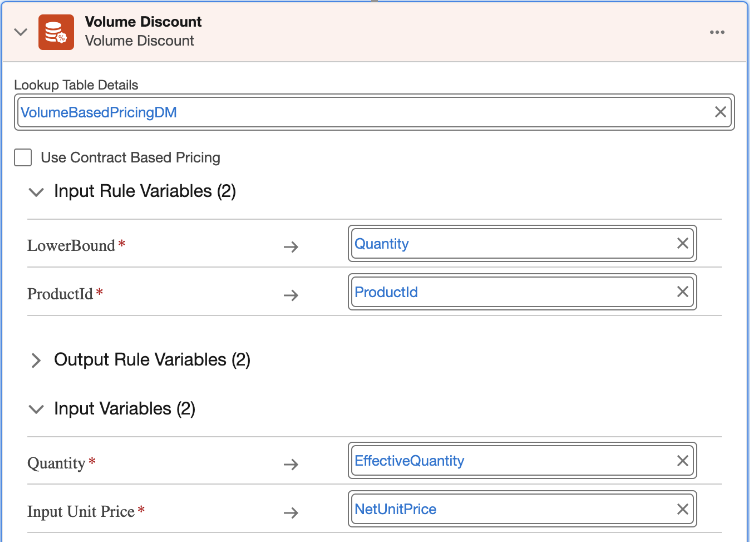
Add the Volume Discount element.
After the Price List element and before the Aggregate element, add a pricing element of type Volume Discount. For more information on Volume Discount, see Volume Discount.
- Click Add elements icon, and select the Volume Discount element from the list.
- In the Lookup Table Details field, search for and select your Custom Price Adjustment Matrix.
-
Map all your variables with the context
tags.
- Save and activate the pricing procedure.
Did this article solve your issue?
Let us know so we can improve!
