
You are here:
Show Assigned and Past Provider Badges
Often, a number of care providers and healthcare practitioners are involved in a patient’s care. To easily schedule appointments with the required practitioner, such as the primary care physician, you must display assigned and past provider badges on the provider’s card.
Required Editions
Available in: Lightning Experience Available in: Enterprise and Unlimited Editions with Health Cloud |
| User Permissions Needed | |
|---|---|
| To provide access to features not covered under the Health Cloud Standard permission set: | Health Cloud Permission Set License |
If you’re bringing in patients from an external system, such as an EHR system, make sure you create an Intelligent Appointment Management URL Configuration. See Connect to the External Scheduling System.
-
Configure Intelligent Appointment Management to use standard objects.
- From Setup, in the Quick Find box, enter Health Cloud Settings, and then select Health Cloud Settings.
- Enable Standard Objects for Account and Contact Relations.
-
Map relationships between contacts, households, and business accounts by using objects in
the group membership model.
- To represent household members and relationships between business accounts and households, use Contact Contact Relationship and Party Role Relationship records.
- Complete the prerequisites for Group Membership, and then enable Group Membership Settings. From Setup, in the Quick Find box, enter Group Membership, and then select Group Membership Settings. Turn on group membership.
For details about the group membership model, see Group Membership and Households. -
From the App Launcher, select Healthcare Practitioner Facility, then go to a record
associated with a Primary Care Physician.
- Make sure the checkbox for Primary Care Physician is selected. See Connect Healthcare Practitioners with Facilities.
- If you're using Salesforce Scheduler, make sure the provider is referenced in the Service Territory Member field.
- If you haven’t already done so, add the Healthcare Appointment Scheduler component to the patient’s Person Account page layout and select the Show provider badge attribute. See Add the Intelligent Appointment Management Component to Record Pages .
-
Show assigned and past providers in the Appointments tab. The Past Provider badge
automatically appears when the patient's medical data for the last year includes providers the
patient has received care from.
- From the App Launcher, find and select Accounts to list the Person Accounts that represent patients.
- Open the record for a patient by clicking the name.
- In the Appointments tab, select a visit type.
- Select your preferences for the provider. Select the day and time when you want to schedule the appointment, the provider, their specialty, and the facility they’re associated with.
-
Select Search.
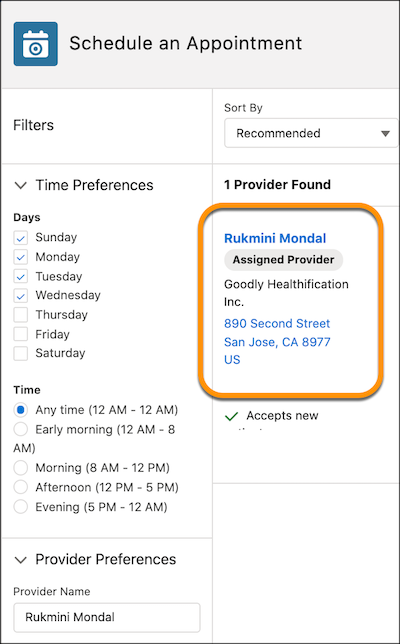
Assigned and past providers show assigned and past provider badges in the search results.
Did this article solve your issue?
Let us know so we can improve!
