
You are here:
Broker Digital Experience Site
Your network of agents and brokers who sell your insurance products need access to specific features and functions to service their accounts. The Broker Experience site on the Experience Cloud can give them that access.
We provide you with an Experience template and a set of components to get you started with creating your own Broker Experience site. These are a combination of standard Salesforce Experience components, a few custom components used elsewhere in Vlocity Insurance, plus a number of custom components we've created especially for the Broker Experience site.

You can brand the components with your colors, fonts, logo, and other styles. You can also customize the substance of the components by adding or removing data, changing the data source, adding new elements, and more. To learn how, see Digital Experience Site Component Customization Overview.
After you've customized the components, you can set up your site. To learn how, see Create Your Experience Site.

We recommend that you use the Experience Builder to create and save your own custom template for your Broker Experience.
What Agents and Brokers Can Do in the Broker Site
When a broker logs in to the site, they see the Home Page. Out of the box, the Home page looks like this:
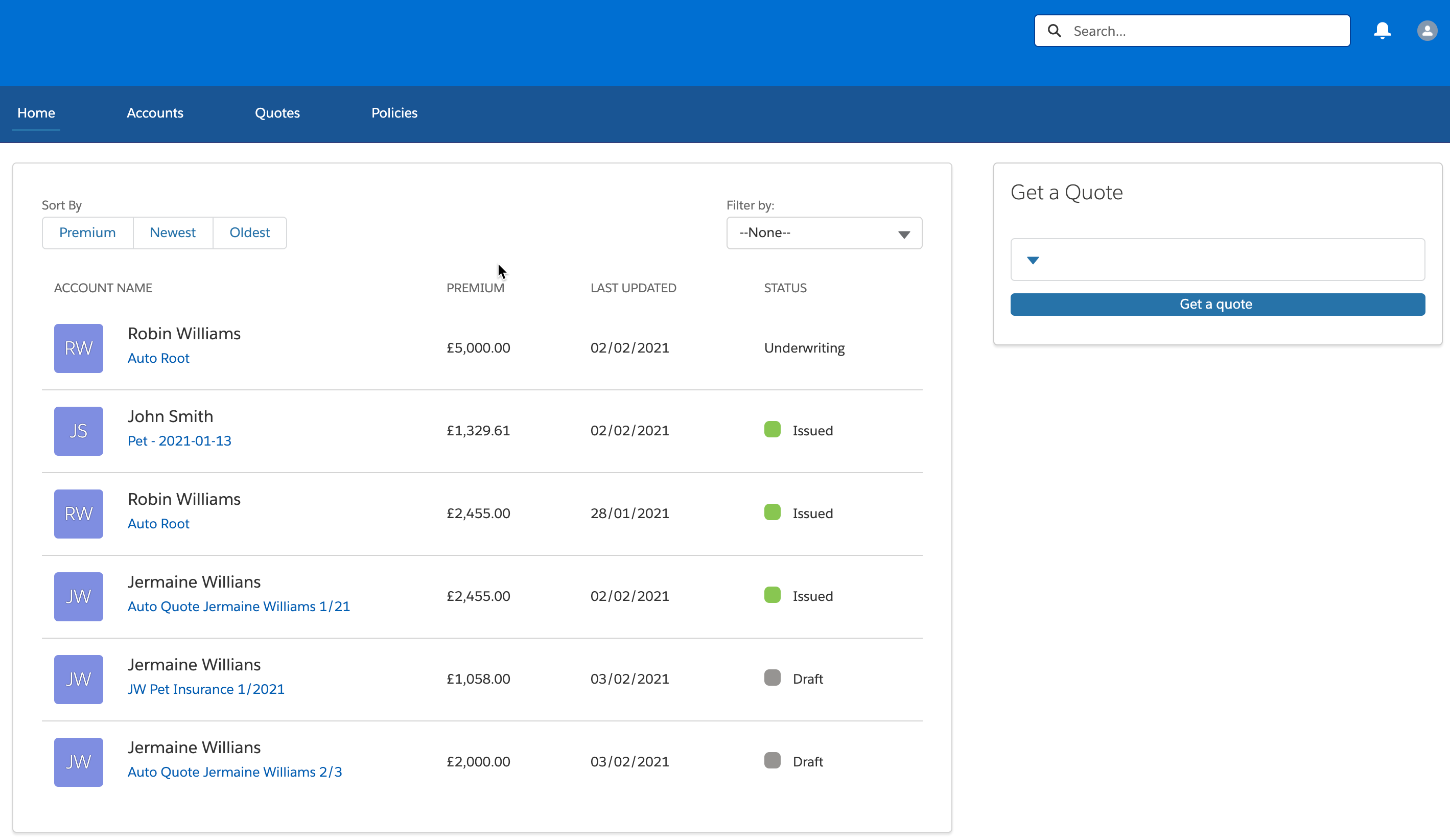
Brokers can do the following things on this page:
-
See a list of recent quotes
-
Sort and filter the list of quotes
-
Click any quote name to see its details
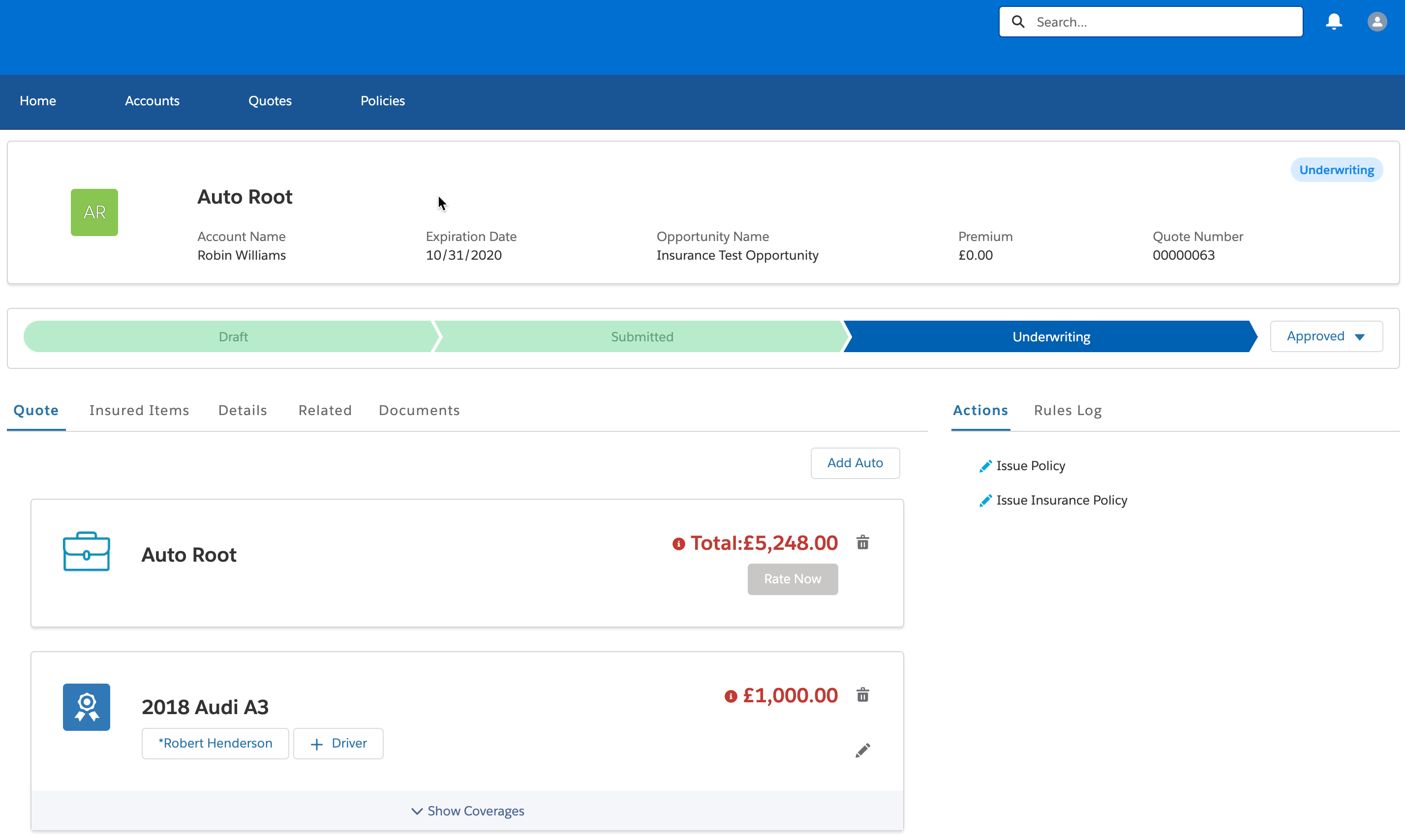
The Quote detail page looks like this:
Brokers can do the following things on this page:
-
View the root insurance product for the quote (and any coverages attached to it)
-
View and edit the insured items on the quote
-
View and edit quote details
-
View and edit related records attached to this quote
-
View documents attached to the quote
-
Do any actions available in the Action panel
-
View any rules that have run in the Rules Log panel
-
Move the quote from one state to the next on the colored component above the tabs
-
-
Generate a new quote
Manage Accounts
A broker can click the Account tab to see and manage their accounts. The Accounts page looks like this:
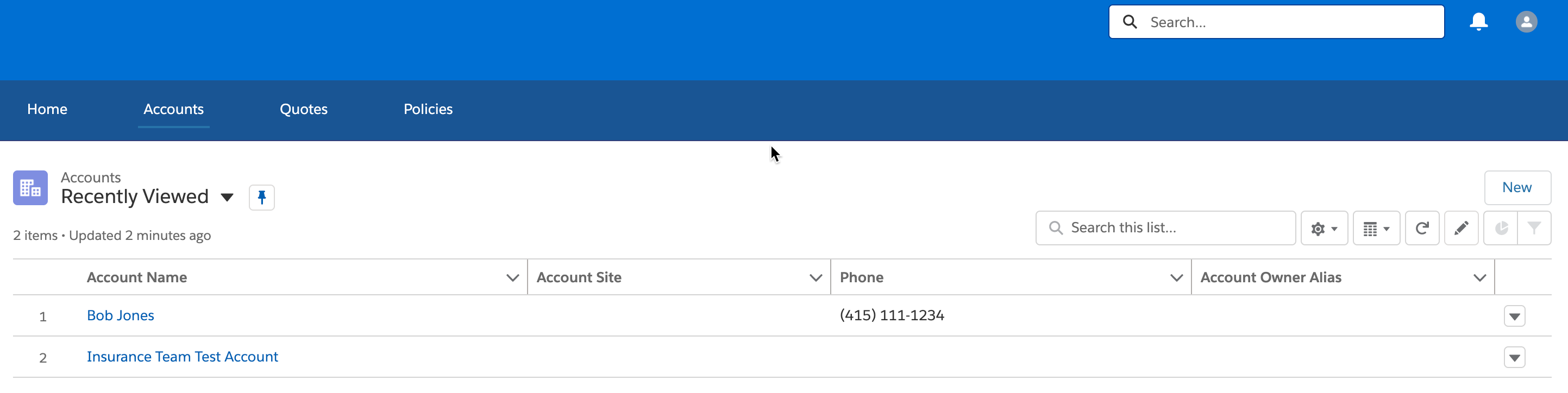
Broker can do the following things on this page:
-
Sort and filter the list of accounts
-
Search for a specific account or accounts
-
Click an account to see details
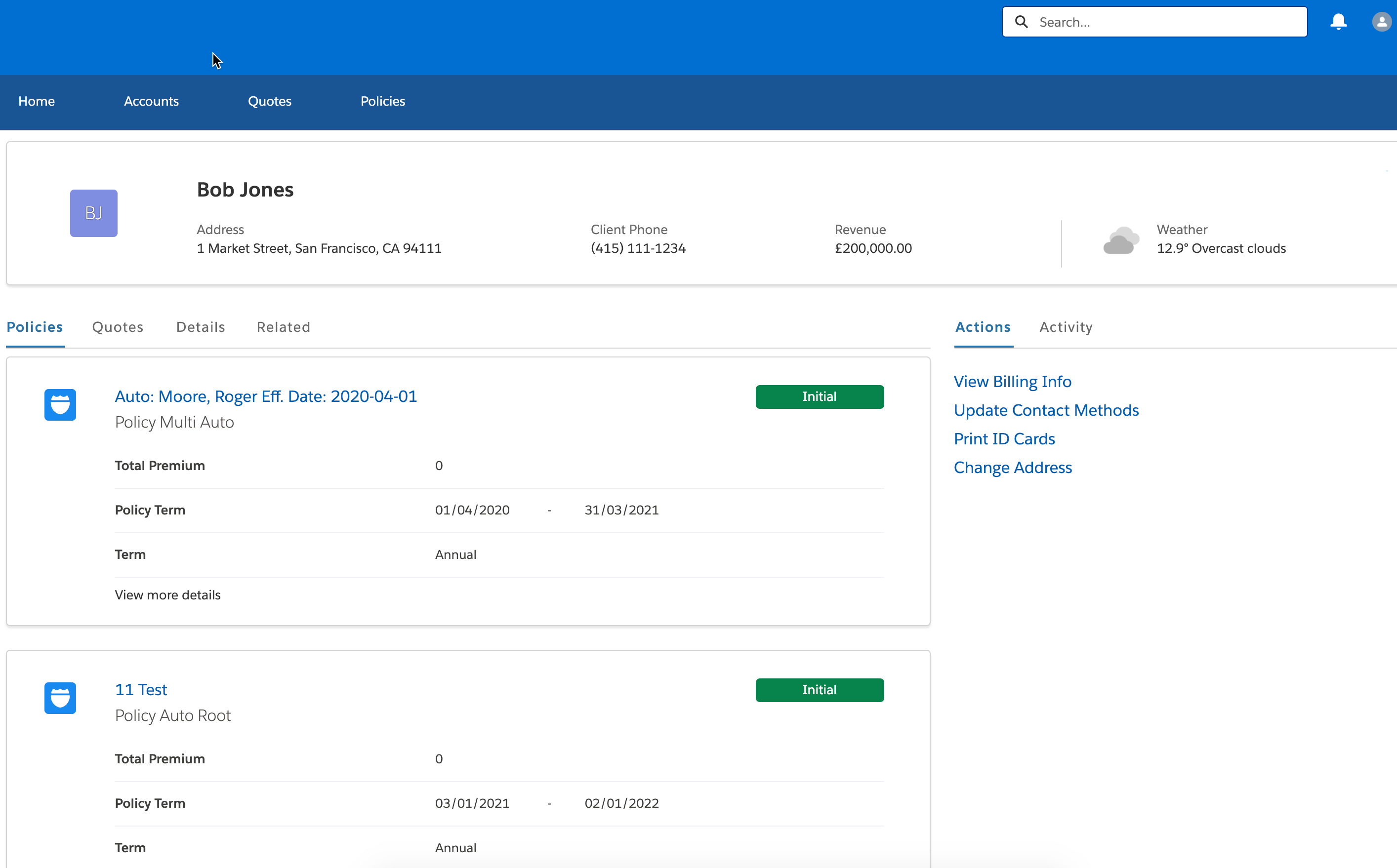
The Account detail page looks like this:
Brokers can do the following things on this page:
-
View quotes attached to this account
-
View policies attached to this account
-
View account details
-
View related records
-
Do things available on the Actions panel
-
See recent activity for the account on the Account panel
-
Create, Update, and Manage Quotes
A broker can click the Quotes tab to see a list of quotes, go to quote details, create new quotes, update and manage existing quotes, and issue policies. The Quote page looks like this:
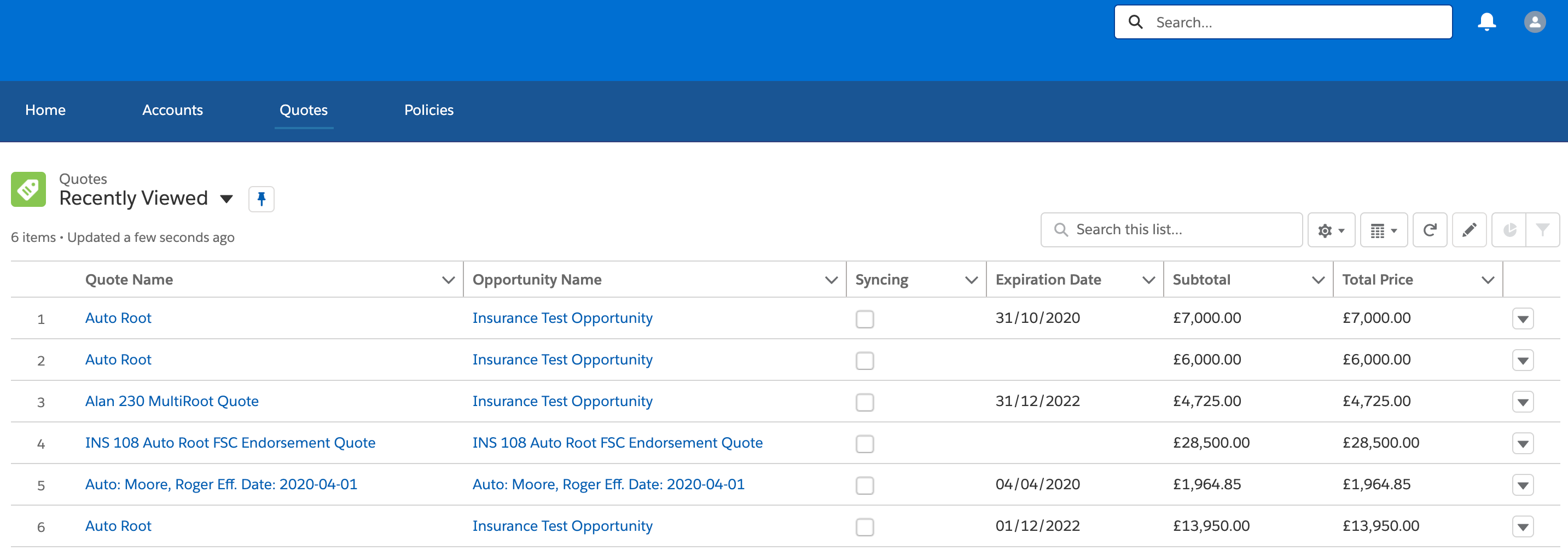
Brokers can do the following things on this page:
-
Sort and filter the list of quotes
-
Search for a specific quote or quotes
-
Click a quote to see details
This Quote Detail page is the same page displayed when you click a quote name from the Home page.
Manage Existing Policies
A broker can click the Policies tab to view, update, and manage existing policies. The Policies page looks like this:
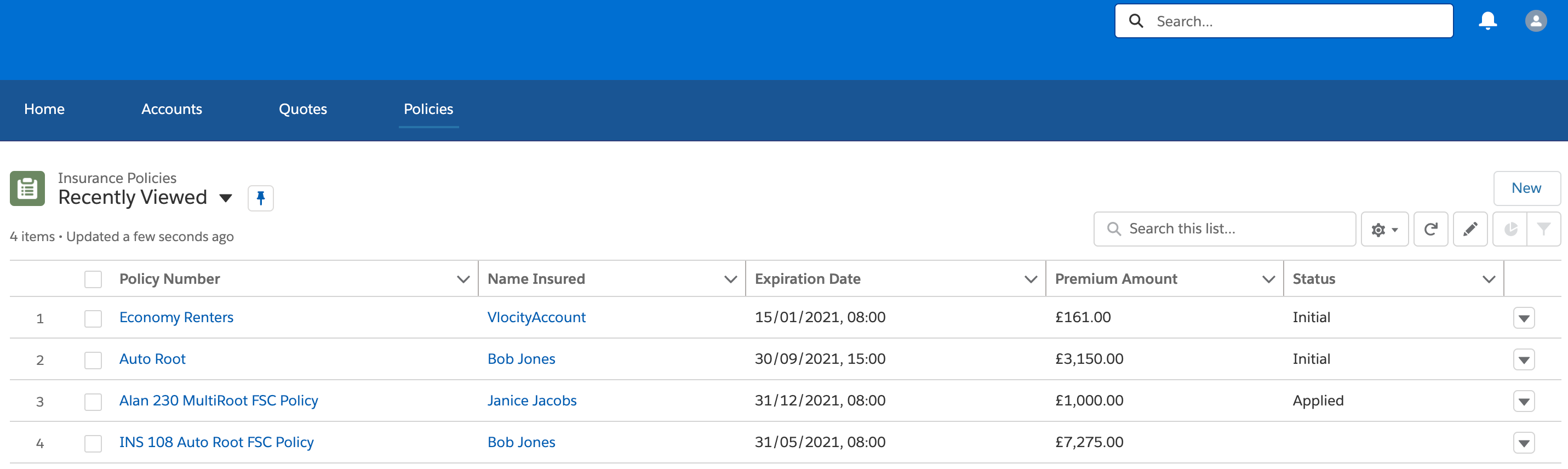
Brokers can do the following things on this page:
-
Sort and filter the list of policy
-
Search for a specific policy or policies
-
Click a policy to see details
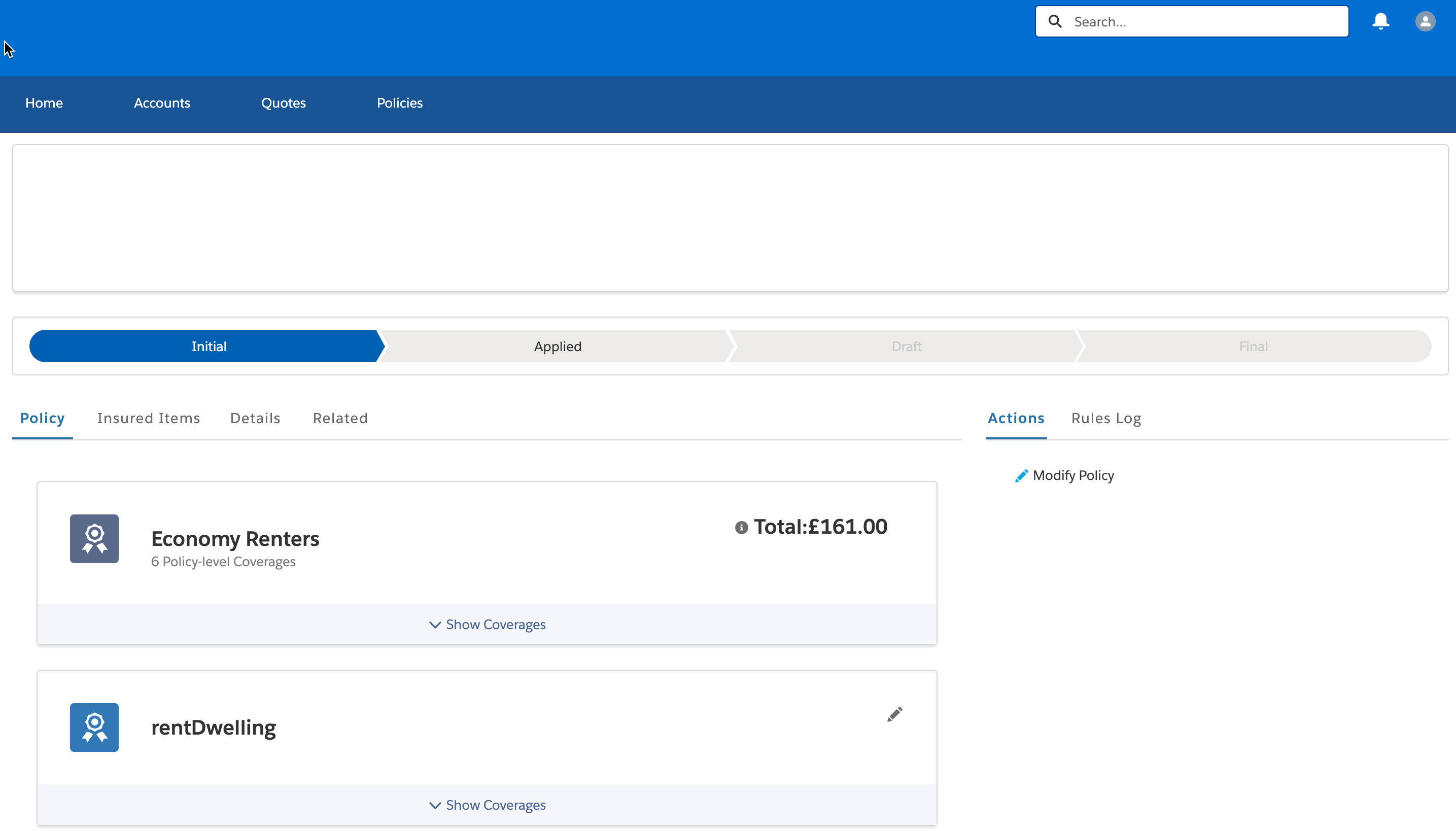
The Policy detail page looks like this:
Brokers can do things on this page:
-
View the root insured item and its coverages
-
View insured items and their coverages
-
Modify the policy
-
View the rules log
-
Move the quote from one state to the next on the colored component above the tabs
-
Broker Experience Template
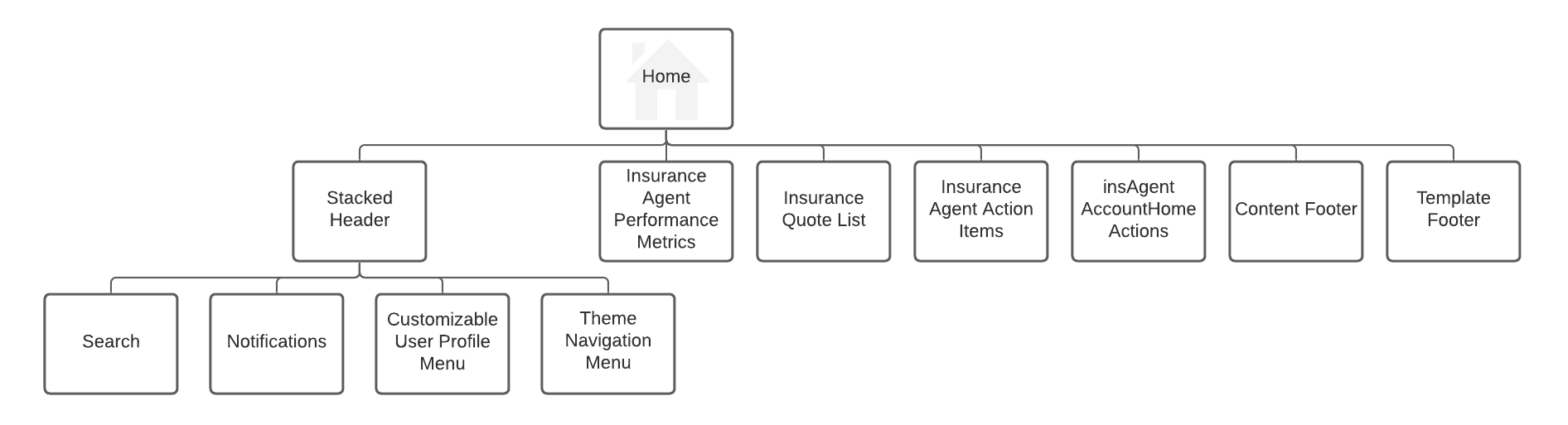
This template includes a number of standard Salesforce Experience components. It also includes some custom-built Vlocity Insurance components.
The following maps show the structure of the Broker Experience template. Here's the Home page and the header and footer component map:
Here's the map of the Account pages:
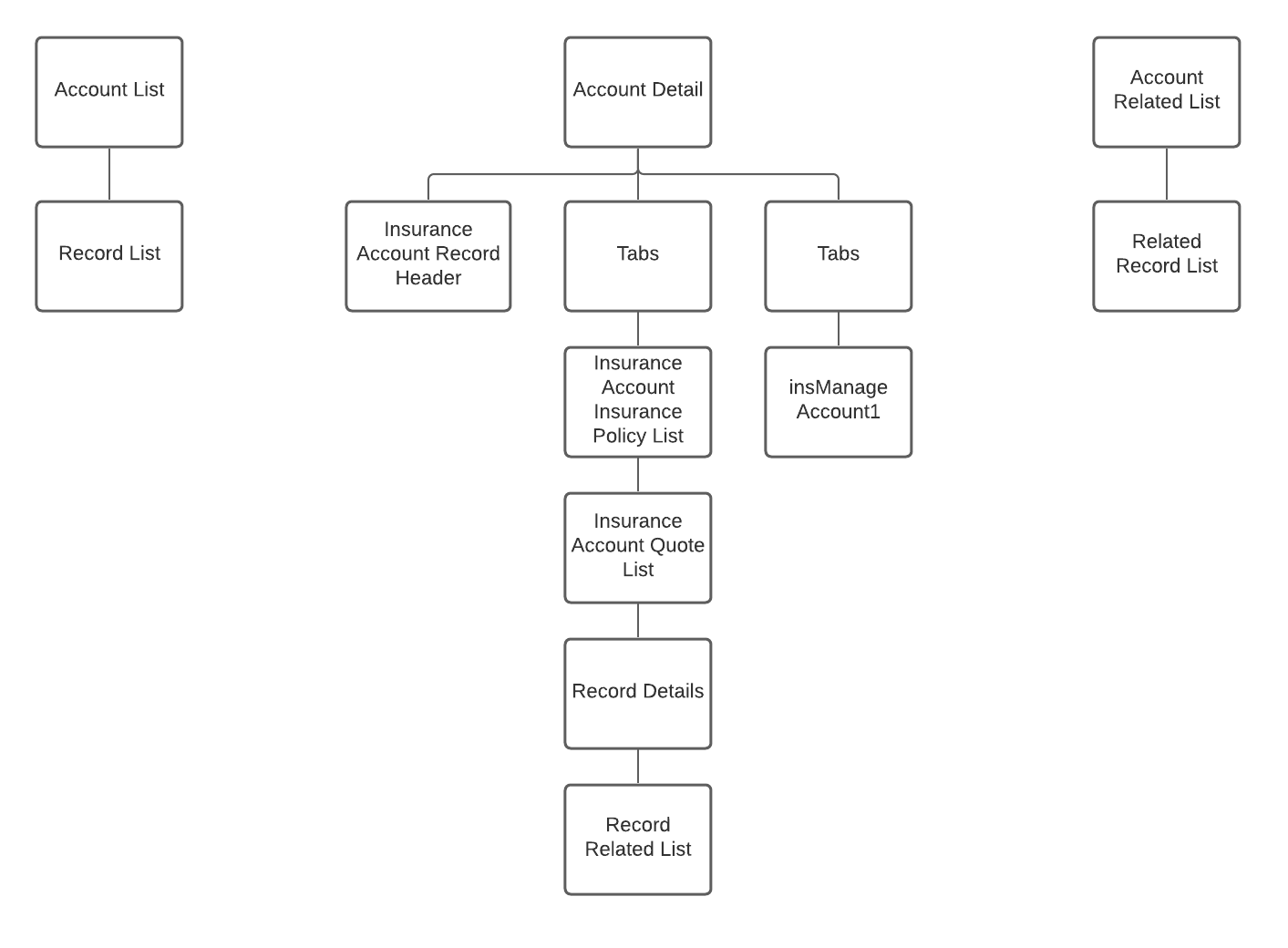
Here's the map of the Insurance Policy pages:
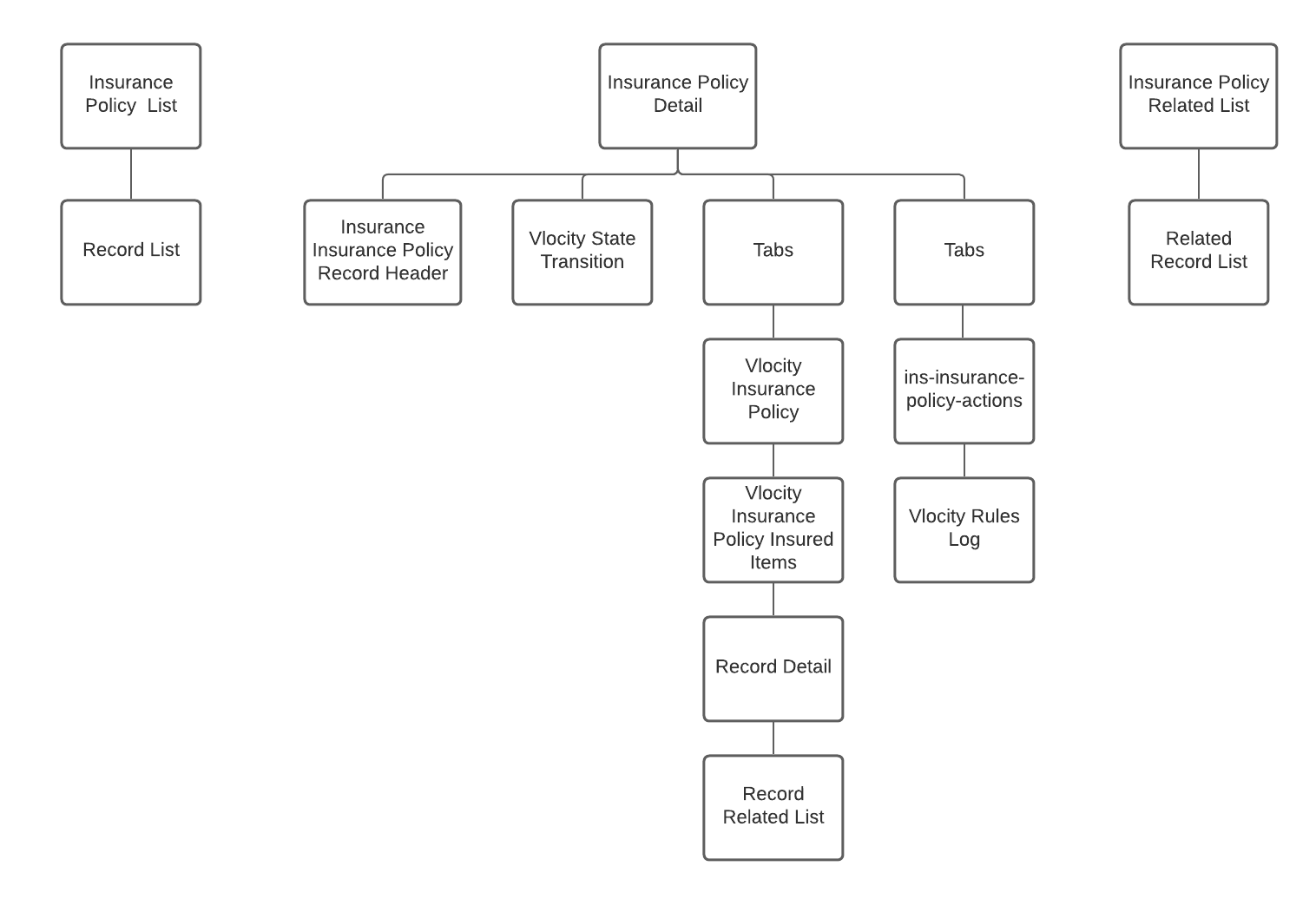
Here's the map of the Quote pages:
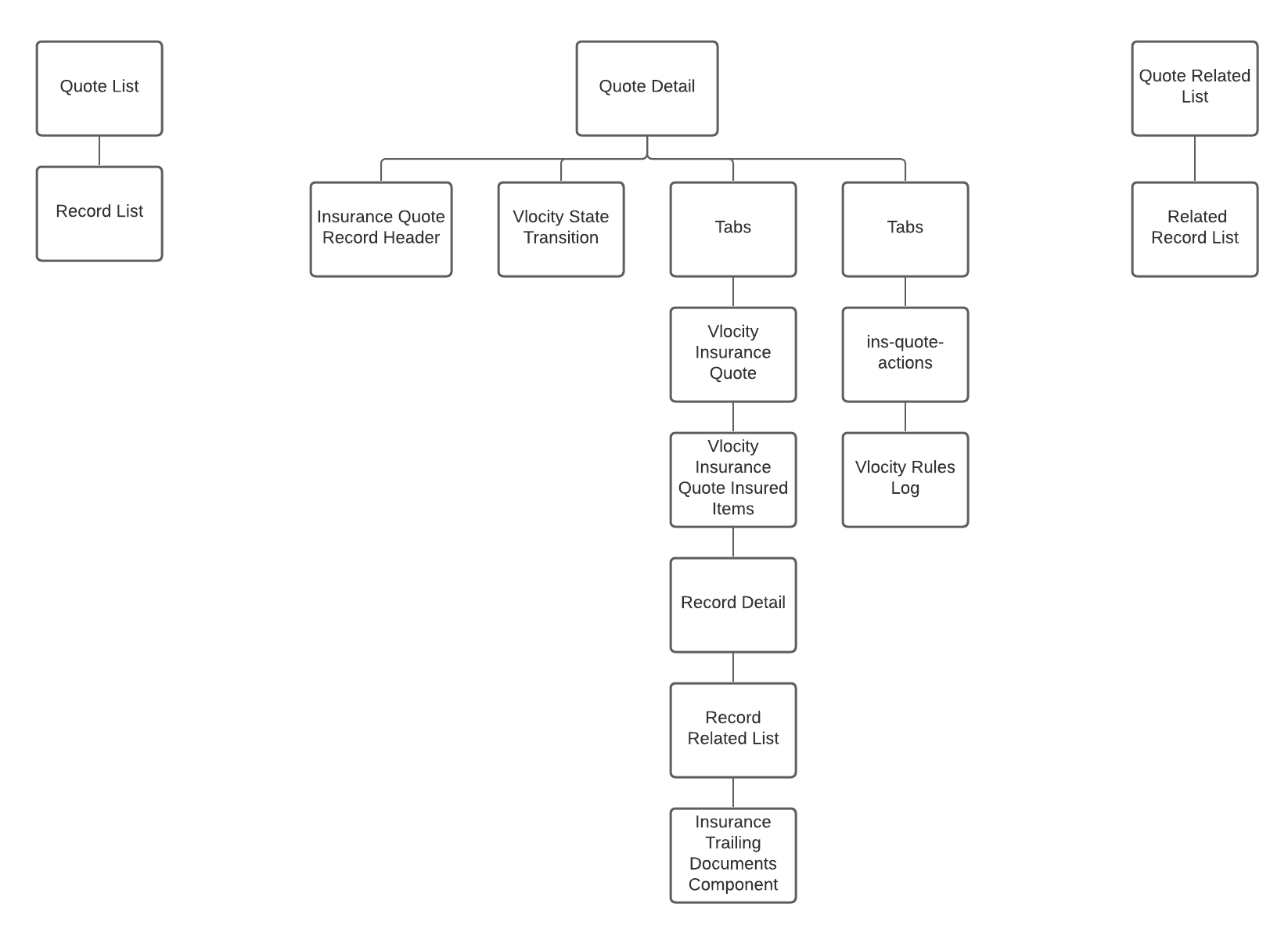
You can use this structure as the template provides it. Or you can change it to fit your business needs. To learn how to work in the Experience Builder, see Edit Pages and Components in the Experience Builder.
- Broker Digital Experience Site Component Catalog
The Broker site contains a bunch of components to get you started with providing your brokers with functionality they can use to create quotes, issue policies, and manage policies.
