
You are here:
Claims First Notice of Loss
When policyholders, brokers, and insurance agents first notify an insurance provider about a loss, they use a First Notice of Loss (FNOL) flow. The FNOL flow kicks off claims processing, and supports the use of photos, police reports, and any other necessary files that support a claim.
The First Notice of Loss (FNOL) flow is set up by insurance providers, and used by policyholders or their brokers or insurance agents who need to open a claim against a policy.
We recommend that you set up one or more OmniScripts for FNOL. On the front end, these OmniScripts act as the flow that policyholders see when they're notifying their insurer that they're opening a claim.
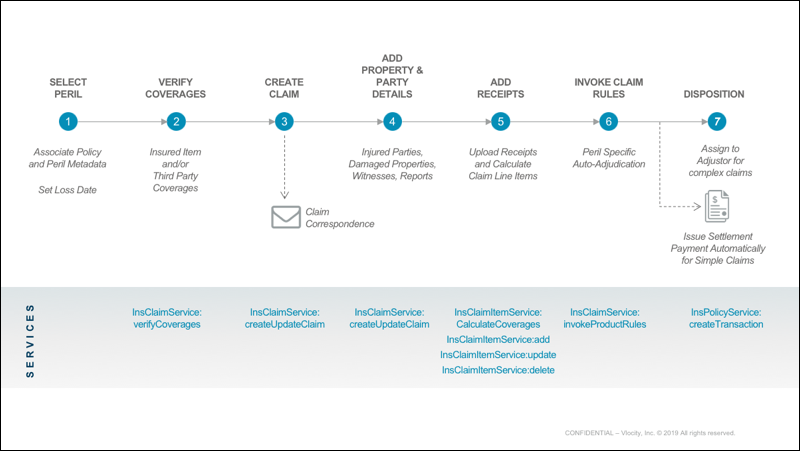
The OmniScript FNOL flow takes in a bunch of information from the policyholder about the claim. On the back end, it uses the InsClaimService:verifyCoverage service to determine if the policyholder had coverage in force on the date of the loss. Then it uses the InsClaimService: createUpdateClaim service to create the initial claim record.
Here's how a typical FNOL OmniScript flows:
Configure a FNOL Flow
You can create many FNOL flows to meet the needs of your business. Most FNOL flows do specific tasks that advance the goal of creating and populating a claim record.
To do this, most FNOL flows include the following building blocks:
-
Extract Information About the Policy
-
Gather Data About the Loss
-
Verify Whether the Loss is Covered
-
Create the Claim Record
-
Add More Details to the Claim
-
Upload Supporting Photos and Documents
-
Run Rules
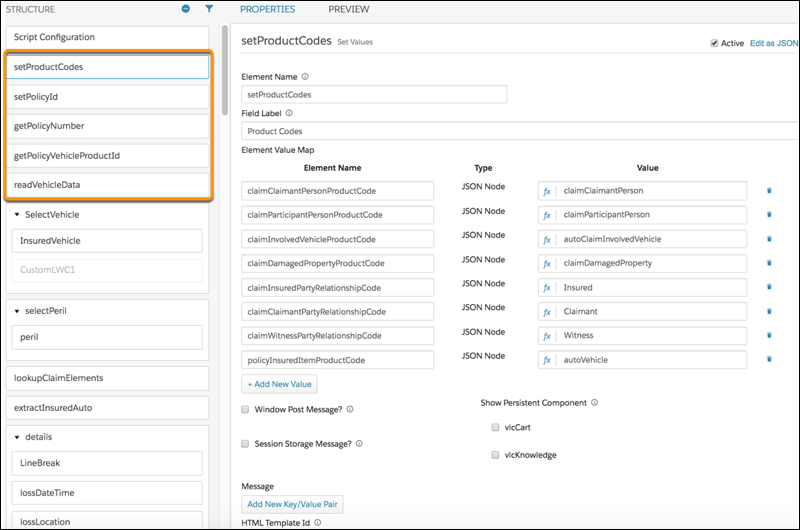
Extract Information About the Policy
When a policyholder files a claim, your flow needs to extract information about the policy and the insured items on that policy, to be used later in the loss flow.
This step applies whether the policyholder enters information directly into a FNOL flow that they log into, or if they call their insurance agent or broker, who pulls up the policyholder's account.
Gather Data About the Loss
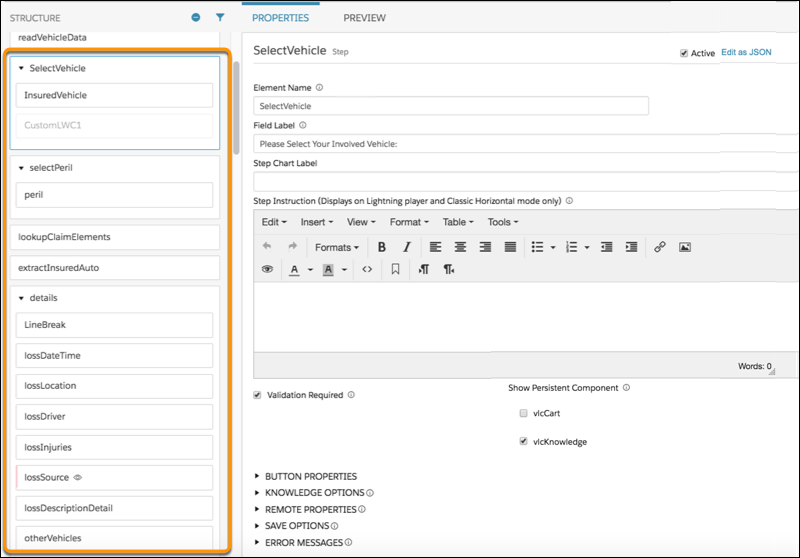
After extracting information about the policy, the flow needs to gather initial information about what happened--what kind of loss this is, what insured items and/or insured parties were damaged or hurt, whether third parties were involved, and what the date and time of the loss was.
Verify Whether the Loss is Covered
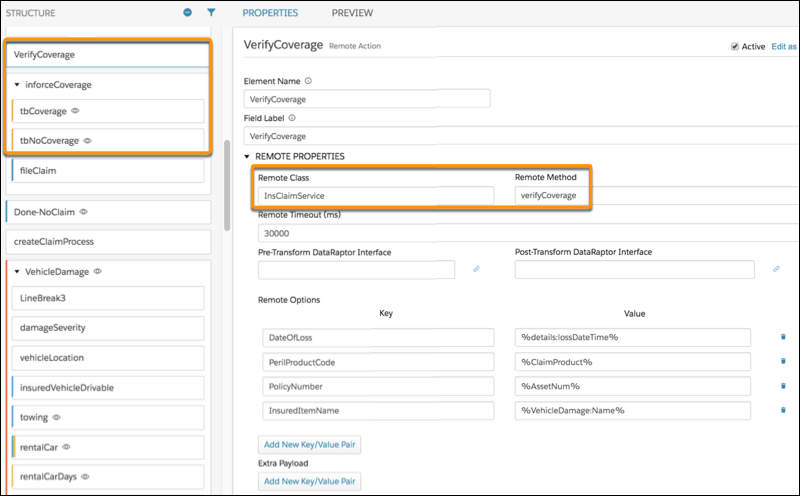
The InsClaimService: verifyCoverage service takes the data about the loss and determines whether the policyholder had coverage in force on the date of the loss.
Create the Claim Record
If the policyholder is covered, now it's time for the flow to create the initial claim record in Vlocity.
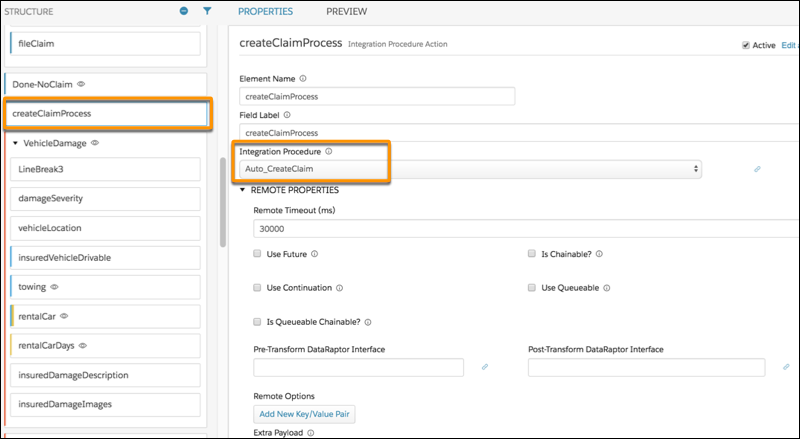
Whether you use a remote option in an OmniScript, or you create an Integration Procedure to do more with the data, the InsClaimService:createUpdateClaim service creates the claim record.
Add More Details to the Claim
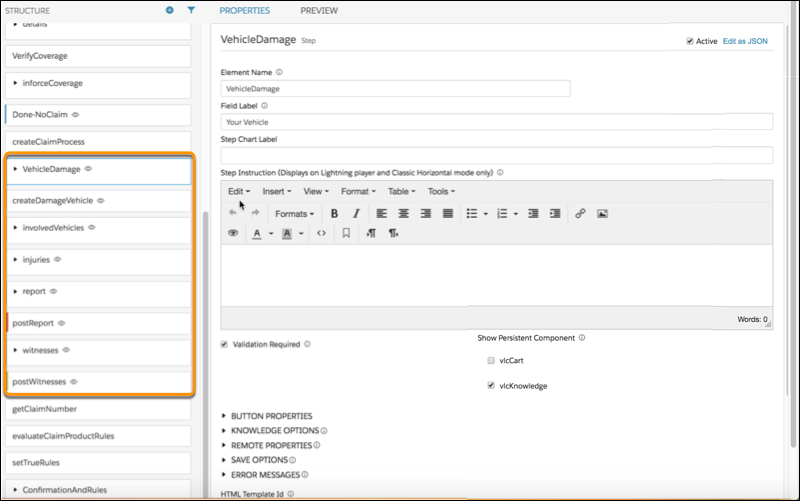
Now that the claim record exists, the user can enter a lot more details about the claim. These can include:
-
Damaged insured items
-
Injured insured people
-
Third-party damaged property
-
Third-party injured people
-
Additional third parties, such as witnesses to the incident
Upload Supporting Photos and Documents
In the case of many Property & Casualty lines of insurance, supporting documents are required (or at least useful). In Vlocity, supporting documents are often called trailing documents.
You can specify specific trailing documents such as:
-
Photos
-
Police Reports
-
Estimates for repairs
-
Receipts
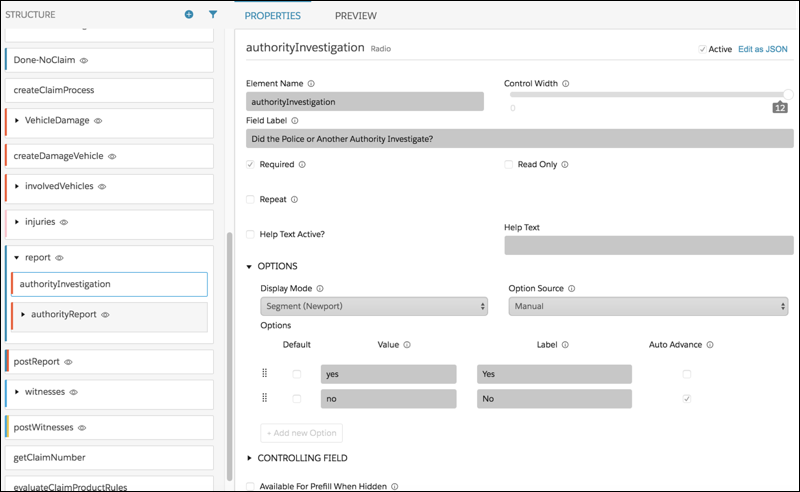
In this example, the OmniScript has a step that lets a user tell whether or not there is a police report, then enter that report:
Run Rules
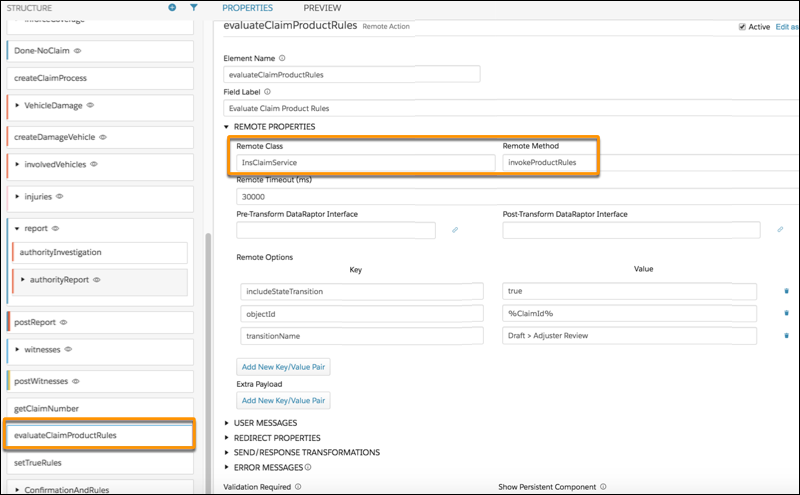
The InsClaimService:invokeProductRules service runs the rules for the claim that will determine how the claim will be handled next.
For example, the underwriting (workflow) rules run by this service can add claim line items (loss and expense) to coverages, and set the status of the claim.
To learn how to set up rules that run in FNOL flows, see Create Claim Product Models.
