You are here:
Create an Underwriting Rule
Use underwriting rules to automate quoting, policy, and claims management business processes.For quotes and policies, apply underwriting rules to specific types of insured items or parties, and trigger unique messaging and actions based on whether each rule passes or fails.

- From the root product spec page, click the Rules tab.
- In the Underwriting section, click Add Underwriting Rule.
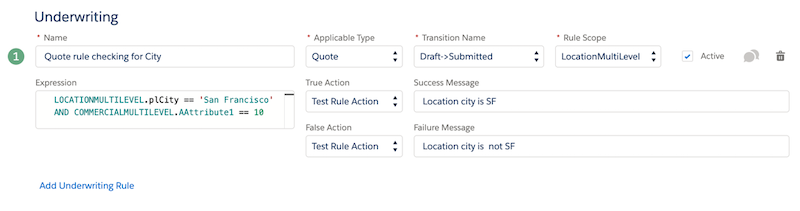
- Enter a unique Name for the underwriting rule.
- Enter the Applicable Type of object the rule runs for: Asset, Contract, or Quote, or for Insurance Industries Extension, InsuranceClaim__c, ClaimCoverage__c, or InsurancePolicy.
-
Enter a Transition Name that specifies the object’s transition from one state to another if the rule evaluates to true.
For example, a quote can move from Approved > Issued. The transitions available come from the your object's state model.
-
To run the rule for a particular type of insured item or insured party in a quote or insurance policy, enter Rule Scope.
The rule scopes available come from the insured items added to the root product.
For example, if a root product includes Auto and Driver as insured items, an underwriting rule for that product can have a rule scope of either Auto or Driver. If you add a rule that evaluates the monetary value of an automobile, define its Rule Scope as Auto so that it runs just for automobiles, not for drivers.Rule scope is available as of Winter '23. To see Rule Scope on a product spec page, you must install product model cards (VlocityInsProductModelCards). These cards are included in the Insurance Cards DataPacks installed by the Vlocity Installation Assistant, or you can install and activate them manually in Vlocity Cards.
- To invoke a Vlocity Action based on whether the rule passes or fails, select a True Action, a False Action, or both. The actions available depend on the selected Transition Name.
- To trigger a message based on whether the rule passes or fails, enter a Success Message, a Failure Message, or both.
-
Enter an Expression that evaluates characteristics of the applicable type of object.
Whether the expression evaluates to true or false, the appropriate Action is triggered, and the defined Message is displayed.
 Important Make sure the expression uses eligible fields within rule scope. No validation is performed on the expression, so if it references fields that are out of scope, it won’t work as expected.
 -
To enter a description of the rule, click the bubble icon and enter text in the pop-up. Your notes save automatically.
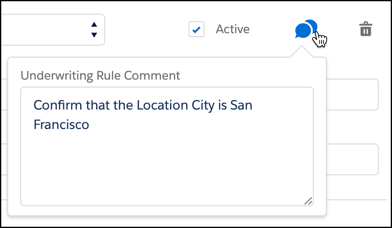 Your notes save automatically.
 -
To start applying the rule to the applicable object, select the Active checkbox.