
You are here:
Creating Bulk Renewals
The renewal business process begins once a customer (individual or group) is sold. But plan designs often change, so renewals must take into account when benefit plans are retired and what new plans take their place.
Renewal management is the art and science of creating new renewal packages, which include opportunities, quotes, and quote line items. Renewal packages come from the previous year’s contracted benefits, which consist of contract and contract lines items (plans), before a customer’s renewal date. Renewal dates are usually 90 days before the in-force plan expires.
Renewals happen throughout the year, with certain peak months requiring most of the work. Some renewals require approvals from underwriters before they can be seen by brokers and customers. Customers are usually notified of their new plans 30-60 days prior to their new plan's effective date. Customers and their brokers can then view and decide to keep the renewal plan or not. Customers can accept the plan as-is, add to it with new benefits, or shop for alternative plans.
-
Set Up a Scheduled Apex Job for Bulk Renewals
Create a job that references the RenewContractBatchJobScheduler Apex class and runs on a schedule that aligns with your renewal dates.
-
Configure Custom Settings for Bulk Renewals
You need to configure two custom settings to make batch renewal generation work: RenewContractBatchJobProcess and RenewContractBatchJobQuery.
-
Tag contracts up for renewal so that your scheduled Apex job can renew them in bulk.
Configure Custom Settings for Bulk Renewals
You need to configure two custom settings to make batch renewal generation work: RenewContractBatchJobProcess and RenewContractBatchJobQuery.
-
From Setup, enter Custom Settings in the Quick Find box, then click Custom Setting.
-
Next to Custom Class Implementation, click Manage, then click New.
-
Enter the following values:
-
Name: RenewContractBatchJobProcess
-
Class Name: HealthInsuranceContractRenewalProcess
-
-
Click Save & New.
-
Enter the following values:
-
Name: RenewContractBatchJobQuery
-
Class Name: HealthInsuranceContractRenewalQuery
-
Tag Contracts for Renewal
Tag contracts up for renewal so that your scheduled Apex job can renew them in bulk.

The Contract Name field cannot be empty on any contract that's tagged for automatic batch renewal generation.
-
On the Contracts page, choose All Contracts in the list view dropdown.
-
Check all the contracts you want to renew.
-
Click Tag for Renewal at the top right of the page.
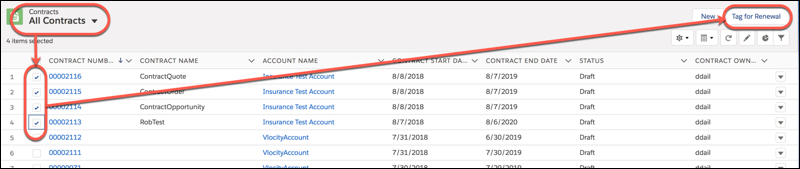
When the scheduled Apex job executes, the renewals that correspond to the selected contracts are created. To see them, go to the Opportunities page and choose the All Renewals view.
- Set Up a Scheduled Apex Job for Bulk Renewals
Create a job that references the RenewContractBatchJobScheduler Apex class and runs on a schedule that aligns with your renewal dates.
