
You are here:
Introduction to the Intelligent Sales Mobile App
The Intelligent Sales mobile app provides all the power of the desktop app on the go. Schedule and execute visits, and view important details about inventory projections, product transfers, and more—all from your mobile phone.
Required Editions
Available in: Lightning Experience Available in: Enterprise and Unlimited editions with Health Cloud or Life Sciences Cloud |
The Intelligent Sales mobile app has seven main pages where you perform your core tasks.
Home Page
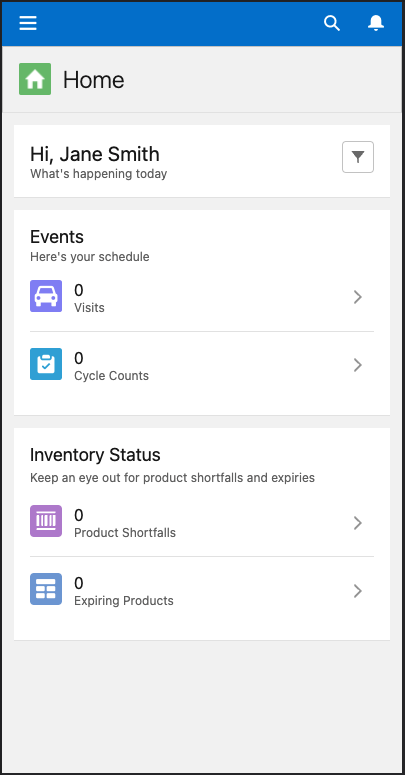
The Intelligent Sales home page is where you start your day. The page displays all the important information you need to know, such as:
- The visits you’re scheduled for
- The cycle counts you have to perform
- The products you’re running short on for your visits
- The products expiring in the near future
You can filter this information based on the time period you prefer. You can filter for the current day, or the next 7, 14, 30, or 90 days. Navigating to an item of interest on this page is as easy as tapping its card.
My Visits
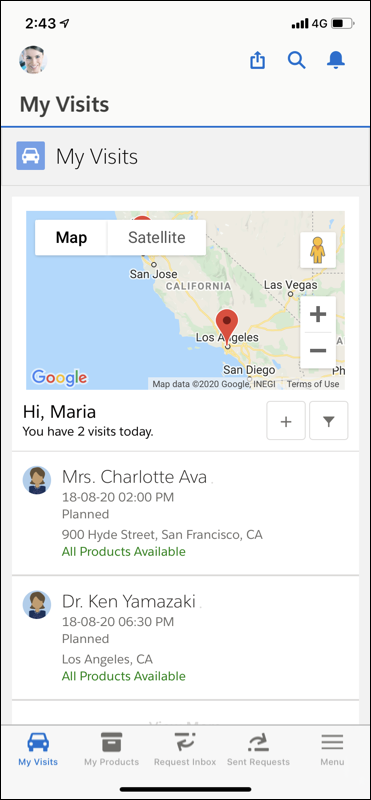
The My Visits page shows your scheduled visits. Change the filter to see the visits for today, or the visits scheduled for the next 7, 14, 30, or 90 days. If any of these visits have shortfalls, that’s also indicated on this page. And if you set the filter to Today, you also see a map that shows the locations you’re scheduled to visit. You can even schedule visits on the go by tapping the + button to launch the visit creation flow.
The My Visits page is also where you begin visit execution. Here’s what you can do when you tap a visit card:
- Get directions to the visit location.
- See information about the account you’re visiting, such as open cases and open orders.
- View and edit the products assigned to that visit. A caution sign on a product card indicates that you’re running short on some product. But you don’t have to worry, you can raise a transfer request from here.
- See the tasks that you perform during the visit.
- Start and end the visit.
My Products
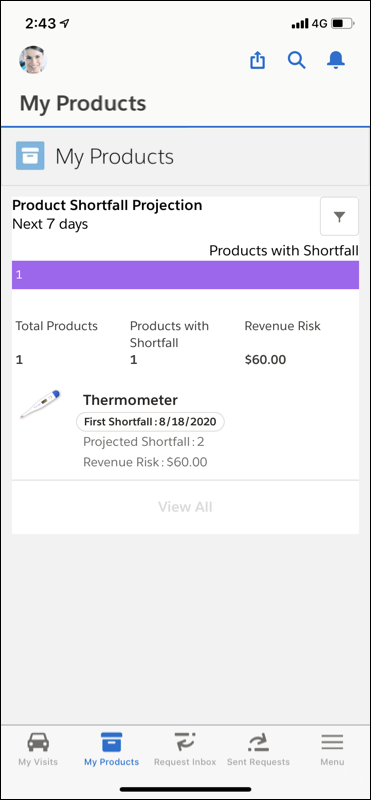
The My Products page shows product information for your scheduled visits. See what sort of product shortfall you’re projected to have, what products you’re running low on, and by how much. You can also see what revenue is at risk from that shortfall and when the first shortfall is projected to happen. Just like the My Visits page, you can filter this information for visits scheduled to happen for today, or the next 7, 14, 30, or 90 days.
If you have a shortfall for a product, tap that product card to view the inventory page for that product, and, if necessary, raise a transfer request.
Request Inbox
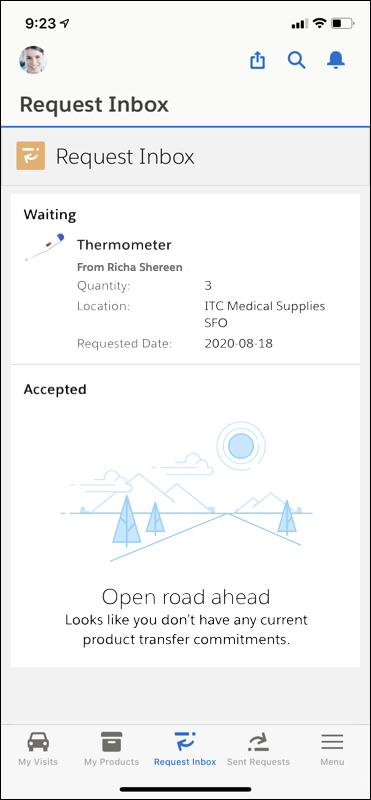
The Request Inbox page shows the transfer requests you receive. The page is sectioned into two parts—Waiting and Accepted. The Waiting section is where you see requests that are waiting for a response, and the Accepted section has the requests that you accept. But if you reject a request, you can’t access it from the mobile app anymore.
Sent Requests
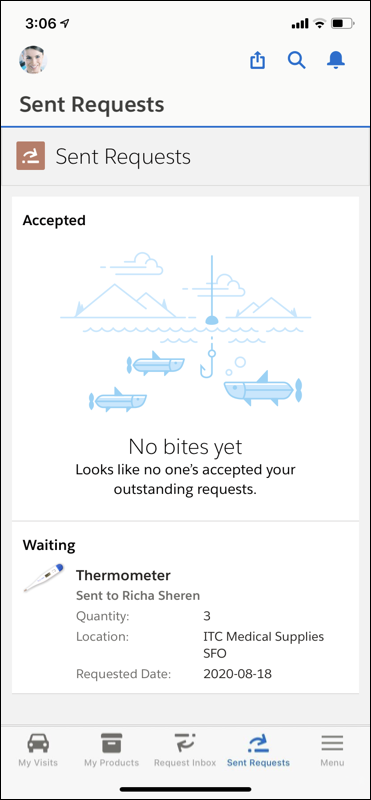
The Sent Requests page shows the transfer requests you send to other people. The page is sectioned into two parts—Accepted and Waiting. View your accepted requests in the Accepted section. View requests that are still waiting for a response in the Waiting section.
After you receive a product from a request, this page is where you mark the request as received. You can receive products only on the mobile app.
Cycle Counts
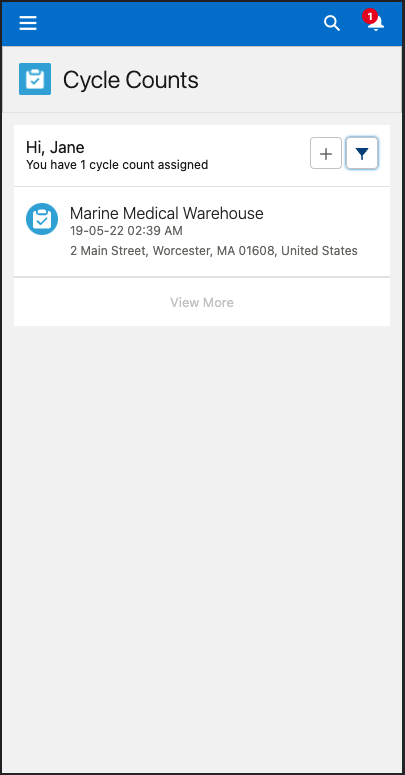
View the cycle counts assigned to you on the Cycle Counts page. This page is similar to the My Visits page, with one exception: you don't see a map like you do on the My Visits page. The Cycle Counts page is where you start and end your cycle counts. You can also schedule ad hoc cycle counts on the go from this page by tapping the + button.
Expiring Products
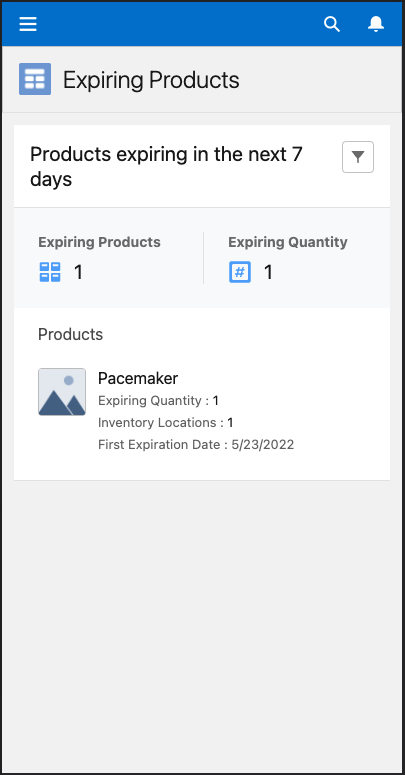
The Expiring Products page is where you see all the products in your inventory that are expiring in the near future. The Expiring Products count tells you how many product types are set to expire, and the Expiring Quantity count tells you how many total pieces of product are set to expire. The card for each expiring product tells you what quantity of that product is expiring, how many inventory locations are affected, and when the first expiry is expected to happen. You can filter the products you see by today, or the next 7, 14, 30, or 90 days.
Tapping the card for a product on this page shows you the list of inventories where pieces of that product type are expiring. And tapping an inventory shows you the serial numbers of the expiring product pieces at that inventory, grouped by expiry dates.
