
You are here:
Create and Manage Presentations
Use a centralized content management hub to manage presentations throughout their lifecycle. Create presentations by uploading source files, or assemble new presentations from existing pages in your org. Make sure that field users can access relevant content by linking presentations to specific products and messages and distributing presentations to specific territories. To help ensure compliance and consistency, manage version control and activation schedules.
Required Editions
| Available in: Lightning Experience |
| Available in: Enterprise and Unlimited Editions with Life Sciences Cloud, Life Sciences Cloud for Customer Engagement Add-on license, and the Life Sciences Customer Engagement managed package. |
Intelligent Content in the Admin Console
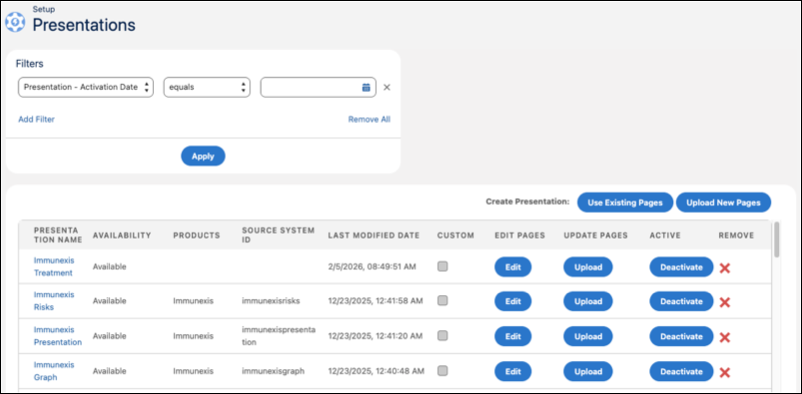
You manage presentations under Intelligent Content in the Admin Console. The Presentations page provides a centralized view of all of the presentations in your org. In the list of presentations, you can:
- Filter to find the presentation that you need.
- Remove filters to see all presentations.
- Get details about presentations, such as the presentation’s name, whether it’s active, the products that are linked to it, and when it was last updated.
- See the custom presentations that sales reps created in the content library, and activate or deactivate custom presentations.
- Create presentations.
- Click Edit to update the products and messages associated with presentation pages in bulk.
- Click Upload to update presentation files and manage content versions.
- Activate presentations to make them available in the content library.
- Deactivate presentations so that users can no longer see them in the content library.
- Remove presentations.
Create Presentations
You can create presentations in one of two ways.
- Upload PDFs or HTML source files.
- Select and combine existing pages into a new presentation.
Edit Presentations
Open a presentation from the list and click Edit. When you edit an existing presentation, you can:
- Update presentation settings including the status, activation dates, topics, territory alignment, and so on.
- Manage the pages in the presentation by adding, reordering, or removing pages.
You can also update existing presentations by editing the products and messages assigned to each page individually or in bulk. Or, you can upload new versions.
Control Presentation Availability
To make the presentation available for your field users only within a certain period, select dates for activation and deactivation. Activating the presentation makes it available in the content library only within that range. If you don't set the activation schedule, the presentation is available until you deactivate it. If you no longer need a presentation, you can also remove it from the list.
- Create Presentations by Uploading Pages
Upload source files and create presentations. Each page in the presentation file is stored as a unique presentation page record. - Create Presentations from Existing Pages
Create presentations by selecting and combining from pages from existing presentations. Assembling presentations by reusing pages makes maintaining content easier and makes your presentations more consistent. - Monitor the Presentation API Job Queue
Monitor the status of presentations that are uploaded to Life Sciences Cloud for Customer Engagement via the content management REST API. - Distribute Presentations to Territories
Assign relevant territories to presentations so that only the sales reps for those territories can access them in the content library. - Edit Products and Messages for Individual Pages
Individual pages can be reused across presentations. View page details and file versions. Update the products and messages associated with each page, and select whether the page is mandatory for sales reps to present. - Edit Products and Messages for Pages in Bulk
Easily update multiple pages in a presentation. Assign new products and messages to all presentation pages, or make several pages mandatory at once. - Reorder Presentation Pages
After you upload presentation files, you can reorder the pages to customize the content or improve engagement. - Update and Manage Presentation Versions
Create new versions of existing presentations. Upload new presentation files, remove old content, or reorder the pages. - Remove Presentations
Remove presentations from your org when you no longer need them.
