
You are here:
Make the Verify Caller Identity Flow Available to Users
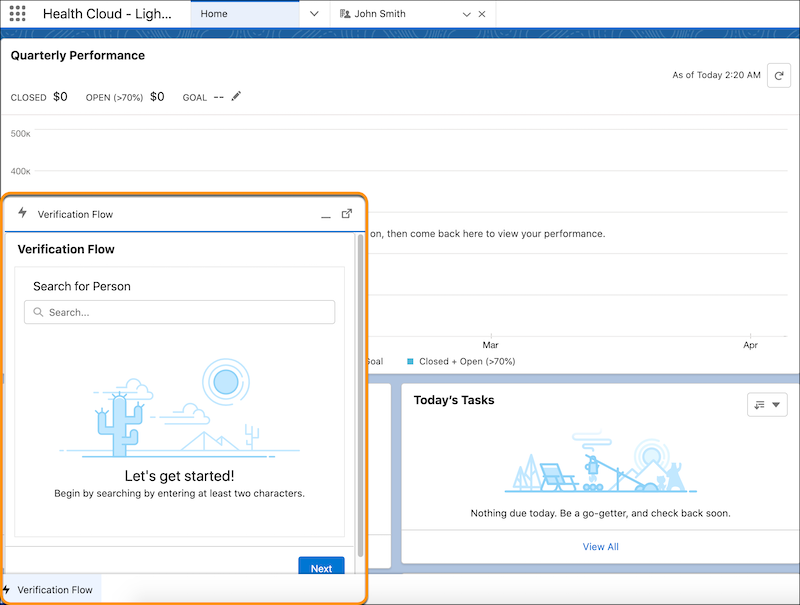
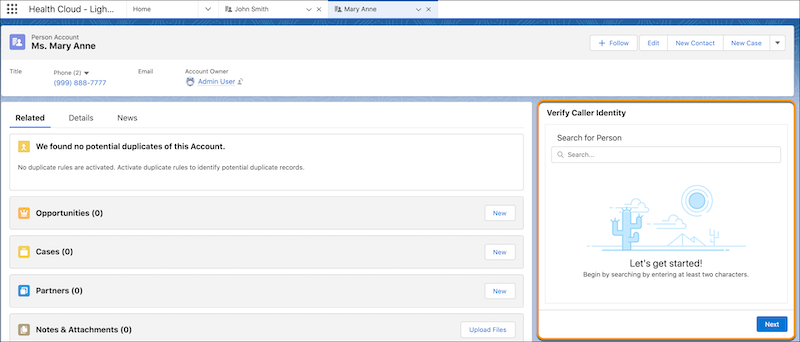
To enable users to use the identity verification process, embed the flow in the utility bar of your Lightning app or add the flow to a Lightning record page.
-
To embed the flow in the utility bar of a Lightning App:
- From Setup, in the Quick Find box, enter App Manager, and select App Manager.
- Edit the app to which you want to add the flow component.
- In the Lightning App Builder, select Utility Items (Desktop Only).
- Click Add Utility Item and select Flow.
- Enter a label for the flow, select the relevant flow in the Flow field, and click Save.
-
To add the flow to a Lightning record page:
- In the Identity Verification admin setup assistant, click Add Flow.
- From the Setup menu on the record page, select Edit Page.
- Drop the Flow component on the desired area on the page.
- Select the relevant flow in the Flow field.
- Save and activate your changes.
Did this article solve your issue?
Let us know so we can improve!
