
You are here:
Explore the Proposal Builder (Beta)
The Proposal Builder is a nimble tool that enables sales reps to prepare proposals with easy. Instead of skipping across multiple records and pages to prepare a proposal, the Proposal Build works as an unified tool where sales reps can decide the primary details, add the required ad products, and select the targeting criteria of the proposal.
Required Editions
| Available in: Lightning Experience |
| Available in: Enterprise, Performance, and Unlimited editions with Media Cloud - Growth or Media Cloud - Advanced |

Ad Brief Details
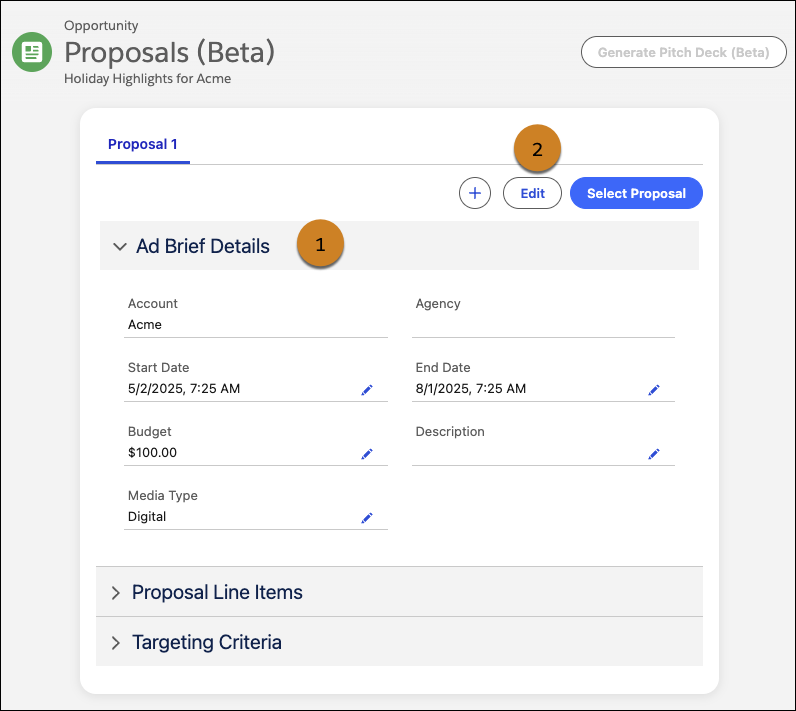
On the Ad Brief section of the Proposal Builder, sales reps enter information that define the high-level scope of the proposal.
| Callout | Description |
|---|---|
| 1 | On the Ad Brief section, sales reps can decide the proposal's primary details such as period, budget, and media type. |
| 2 | To make changes on the Ad Brief section, sales reps must edit the proposal. |
Proposal Line Items
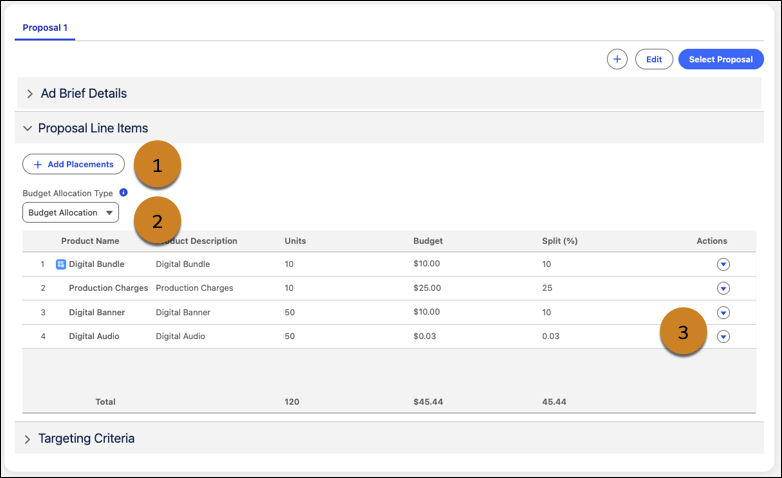
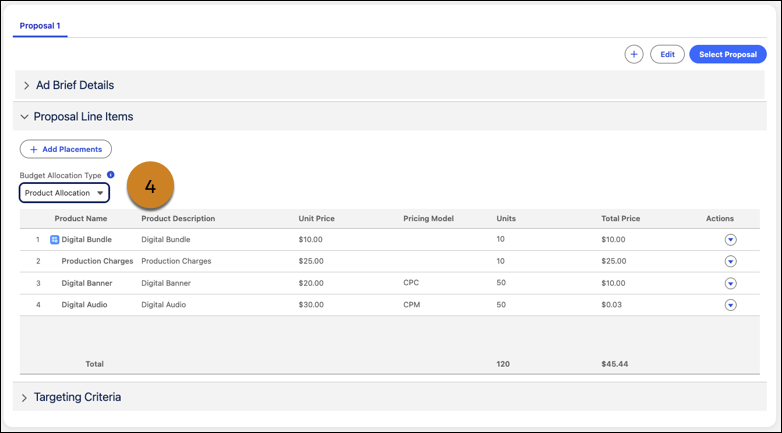
On the Proposal Line Item section of the Proposal Builder, sales reps configure the tactical details of the proposal's ad products, including the budget allocation.
| Callout | Description |
|---|---|
| 1 | Sales reps use the Ad Placement button to open a modal from which they can add one or more ad products to the proposal. When adding ad products to a proposal for the first time, sales reps must select the price book that they want to use to decide the price of the ad products in the proposal. The price book that you select for the first ad product is used to decide the price of all subsequent ad products that you add to the proposal. You can't change the price book for the proposal after it is selected for the first ad product. |
| 2 and 4 | Sales reps can choose to allocate the budget of the ad product in two ways:
|
| 3 | Sales reps can use a set of quick action to manage tasks such as removing ad product from the proposal. |

Targeting Criteria
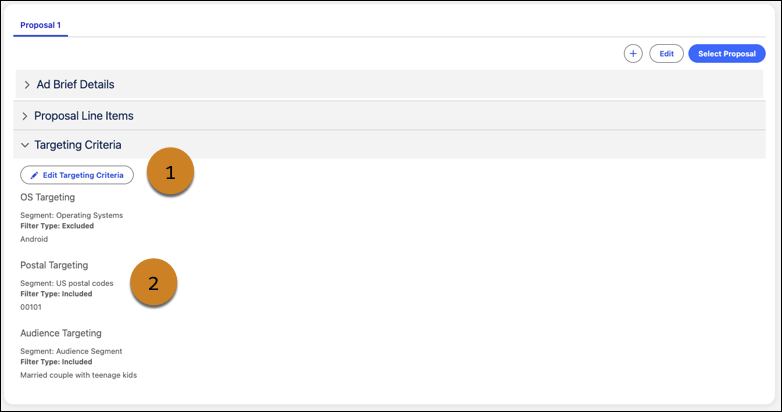
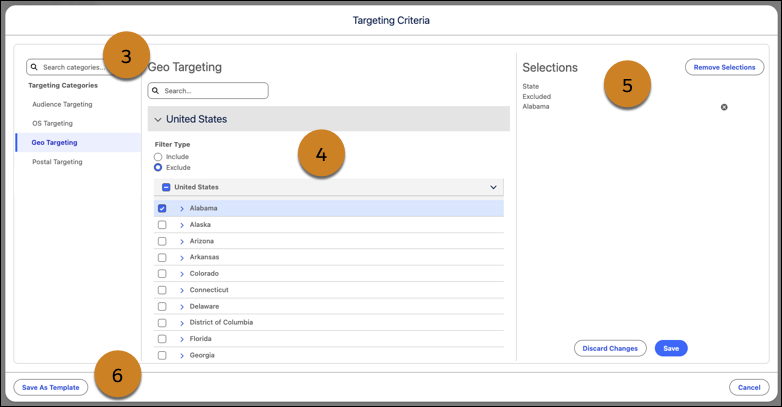
On the Targeting Criteria section of the Proposal Builder, sales reps can configure the targeting criteria of the proposal.
| Callout | Description |
|---|---|
| 1 | Sales reps can add and edit the targeting criteria for the proposal. |
| 2 | After the targeting criteria is configured, sales reps and other team members can view the targeting criteria configuration. |
| 3 | While configuring the targeting criteria, sales reps can easily search for the targeting categories that they are looking for. |
| 4 | After selecting a targeting category, sales reps can navigate across the segments in the targeting categories and select the values that they want to use in the criteria. For each segment, sales reps can decide the filter type. For example, if the selected segment value is Alabama and the filter type is Exclude, it means that the targeting criteria excludes Alabama. |
| 5 | After selecting the targeting values and filter type, sales reps can review their selections and save them. Sales reps can remove one or more selections, or remove all the selected values for a category. |
| 6 | After configuring the targeting criteria, sales resp can save the criteria as a template. The sales reps can apply the targeting criteria template to ad placements in media plans. |

Actions
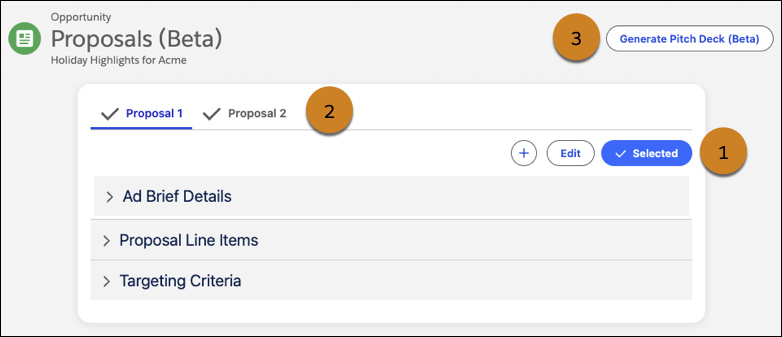
Sales reps can use a set of actions to manage tasks related to proposals.
| Callout | Description |
|---|---|
| 1 | After proposals are ready, sales reps can select the proposals that they want to use to generate a pitch deck. |
| 2 | The check mark next to proposals indicate that the proposals are selected for pitch deck generation. |
| 3 | Sales reps use the Generate Pitch Deck button to open a new tab within Salesforce where they can generate pitch decks for the advertisement campaign. On the new tab, sales reps can select the format of the pitch deck and the design document template used to generate the pitch deck. |
Proposal Builder Customizations
Admins can customize the columns that are displayed on the table and the quick actions that are available on the Line Item Details section of the Proposal Builder based on the requirements of the sales team. See Proposal Builder Customizations.
