
You are here:
Enable Features for Manufacturing Cloud
Turn on settings in Setup to enable Manufacturing Cloud features. To get started with certain features, you must set up some prerequisites and additional configurations.
Required Editions
| Available in: Lightning Experience |
| Available in: Enterprise, Unlimited, and Developer Editions |
| User Permissions Needed | |
|---|---|
| To enable features: | Customize Application |
To enable the features for Manufacturing Cloud, first assign yourself the System Administrator user profile. Then, assign the required permission set licenses and permission sets to your User record.

Note This topic covers the settings of key features in Manufacturing Cloud. If you’re using
additional features and other products, enable them separately.
-
To manage your run-rate business by using sales agreements, turn on Sales Agreements
Foundations.
- From Setup, in the Quick Find box, enter Manufacturing, and then select Sales Agreements.
- Turn on Sales Agreements Foundations.
-
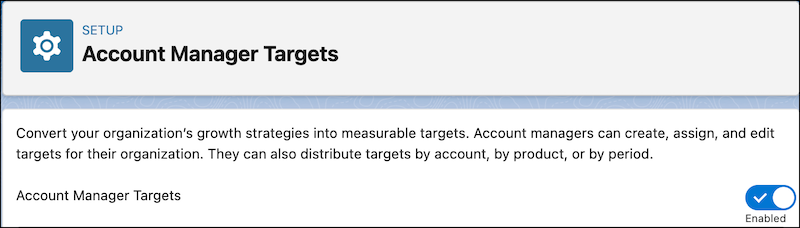
To help account managers to create targets for revenue, quantity, and other targets and
allocate them to team members, turn on Account Manager Targets.
- From Setup, in the Quick Find box, enter Account Manager Targets, and then select Account Manager Targets.
- Turn on Account Manager Targets.
-
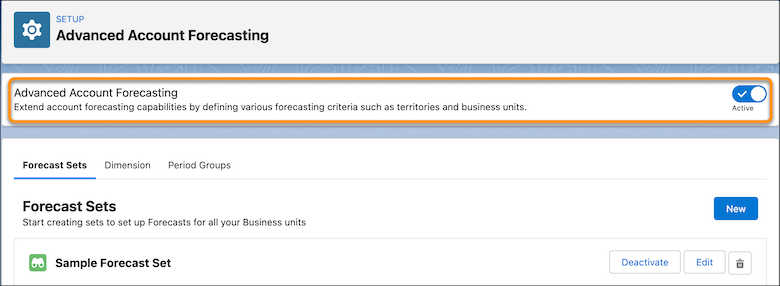
To generate holistic, configurable forecasts for your entire book of business, turn on
Advanced Account Forecasting.
Also, enable Data Pipelines to use the Data Processing Engine to aggregate data and calculate forecasts.
- From Setup, in the Quick Find box, enter Advanced Account Forecasting, and then select Advanced Account Forecasting .
- Turn on Advanced Account Forecasting.
-
To help your account managers track forecast numbers for their accounts, turn on Account
Forecasting.
 Important We recommend that you use the newer version of forecasting called Advanced Account Forecasting instead of Account Forecasting. Enabling both Advanced Account Forecasting and Account Forecasting in your org can cause forecast data disruption or unforeseen errors.
- From Setup, in the Quick Find box, enter Account Forecasting, and then select Account Forecasting.
- Turn on Account Forecasting.
-
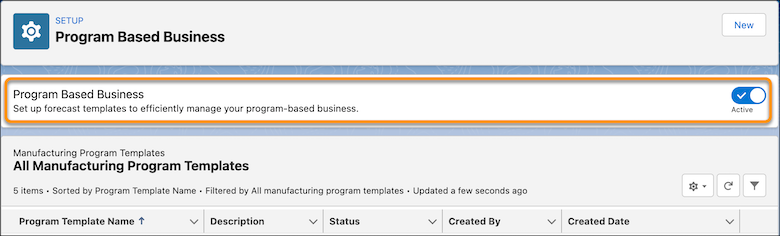
To help users use program-based business features and derive forecasts from their
customer’s forecasts, turn on Program Based Business.
Also, enable Advanced Account Forecasting to create forecast sets, and Data Pipelines to use the Data Processing Engine templates to generate manufacturing program component forecasts.
- From Setup, in the Quick Find box, enter Program Based Business, and then select Program Based Business.
- Turn on Program Based Business.
-
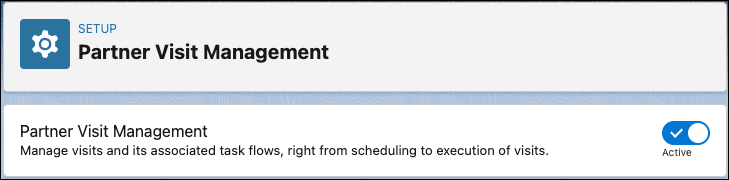
To help users plan and perform visits to partners and distributors, turn on Partner Visit
Management.
- From Setup, in the Quick Find box, enter Partner Visit Management, and then select Partner Visit Management.
-
Turn on Partner Visit Management.
-
To give customer service representatives and service technicians access to the Service
Console for Manufacturing and the Asset Service Console for Manufacturing, turn on Service
Console for Manufacturing.
Manufacturing Cloud includes a predefined console app for the Service Console for Manufacturing. However, you must configure the console’s components to meet your business needs. To learn more, see Set Up Service Console for Manufacturing.
- From Setup, in the Quick Find box, enter Service Console for Manufacturing, and then select Service Console for Manufacturing.
- Turn on Service Console for Manufacturing.
-
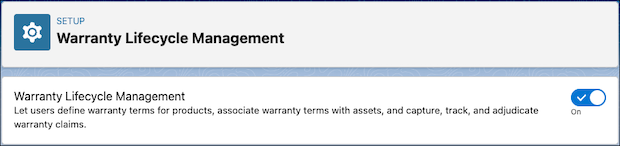
To define warranty standards and terms, and process warranty claims, turn on Warranty
Lifecycle Management.
- From Setup, in the Quick Find box, enter Warranty Lifecycle Management, and then select Warranty Lifecycle Management.
- Turn on Warranty Lifecycle Management.
-
To use features that help you manage asset service operations, turn on Asset Service
Lifecycle Management.
Turn on this setting to use Product Service Campaign and other features that help you manage asset service operations. For more details, Asset Service Lifecycle Management.
- From Setup, in the Quick Find box, enter Asset Service Lifecycle Management, and then select Asset Service Lifecycle Management Settings.
- Turn on Asset Service Lifecycle Management.
-
To monitor your asset fleet activities, turn on Fleet Management.
- From Setup, in the Quick Find box, enter Fleet, and then select Fleet Management.
- Turn on Fleet Management.
-
To configure interactive timelines that visualize information about customers and assets,
turn on Timeline.
After you turn on Timeline, you can’t turn off the feature.
- From Setup, in the Quick Find box, enter Timeline, and then select Timeline.
- Turn on Timeline.
-
To set up and configure a search experience to help users search for inventory stock based
on multiple criteria, turn on Criteria-Based Search and Filter.
For more details, see Asset Service Lifecycle Management.
- From Setup, in the Quick Find box, enter Criteria-Based Search and Filter, and then select Criteria-Based Search and Filter.
- Turn on Criteria-Based Search and Filter.
-
To access Knowledge in the Service Console for Manufacturing, turn on Lightning
Knowledge.
To enable Lightning Knowledge, you must have one article type. For more details, see Set Up and Configure Lightning Knowledge.
- From Setup, in the Quick Find box, enter Knowledge, and then select Knowledge Settings.
- On the Knowledge Settings page, click Edit.
- Select Enable Lightning Knowledge.
-
To create Experience Cloud sites and collaborate with partners, turn on Digital
Experiences.
For more details, see Enable Digital Experiences.
- From Setup, in the Quick Find box, enter Digital Experiences, and then select Digital Experiences.
-
On the Settings page, select Enable Digital Experiences.
If enhanced domains are enabled in your org, 'you can view your digital experiences domain. It includes your My Domain name in the format MyDomainName.my.site.com for production orgs.
- If enhanced domains aren’t enabled in your org, select a domain name, and click Check Availability to make sure that it’s not already in use.
- Save your changes.
-
To build guided, branded applications and workflows, turn on Omnistudio.
- From Setup, in the Quick Find box, enter Omnistudio, and then select Omnistudio Settings.
- Turn on Standard Omnistudio Runtime.
-
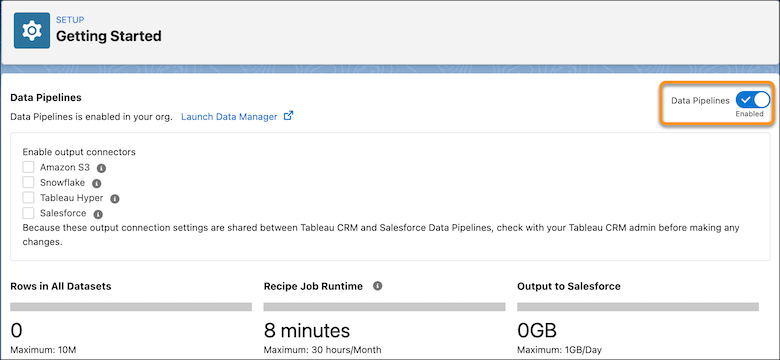
To run and manage Data Processing Engine definitions, turn on Data Pipelines.
- From Setup, in the Quick Find box, enter Data Pipelines, and then select Get Started.
- Turn on Data Pipelines.
-
To help users to automate complex decision-making by using expression sets and lookup
tables, turn on Business Rules Engine features.
- From Setup, in the Quick Find box, enter Business Rules Engine Settings, and then select Business Rules Engine Settings.
- Turn on Industries Cloud Common Decision Tables Access.
-
To streamline the usage of data in applications and procedures, turn on Context
Service.
- From Setup, in the Quick Find box, enter Context Service Settings, and then select Context Service Settings.
- Turn on Context Definitions.
-
To store the account and contact information of individual people in account records, turn
on Person Accounts.
See Person Accounts.
Did this article solve your issue?
Let us know so we can improve!
