
You are here:
Create Estimates and Orders with Pre-Work Estimation
Service technicians can use the Pre-Work Estimation app page in the Salesforce mobile app to create service estimates, track customer approvals, and create orders.
Required Editions
Available in: Lightning Experience Available in: Enterprise, Unlimited, and Developer Editions |
| User Permissions Needed | |
|---|---|
| To create document templates, create or import OmniScripts, and generate documents: | OmniStudio Admin AND DocGen Designer |
| To create or import OmniScripts and generate documents: | OmniStudio Admin AND DocGen Runtime User |
| To generate documents using existing OmniScripts: | OmniStudio User AND DocGen Runtime User |

Note To use the Pre-Work Estimation app, we recommend that you use the Mobile Only app. On the
home screen of the Salesforce app, tap Menu near the bottom of your
device. Then tap App Launcher and Mobile
Only.
- Open the Salesforce mobile app.
-
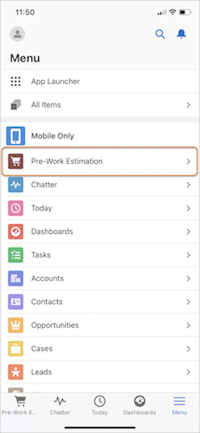
Tap Menu, then tap Pre-Work Estimation.
-
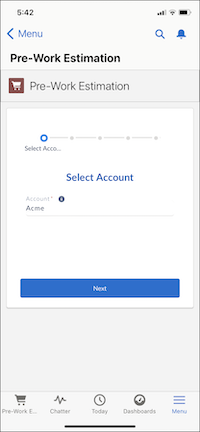
Type and select an account, then tap Next.
-
Select a contact for the account, then tap Next.
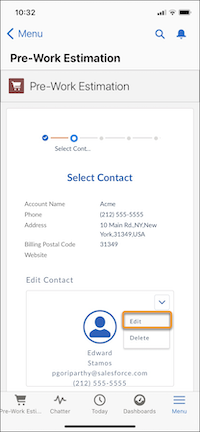
 Tip To edit a contact’s details, including their email address, use the menu on their contact card. You can also add a contact.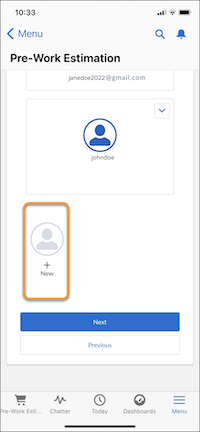
-
Enter a product or service name, then tap Search Product.
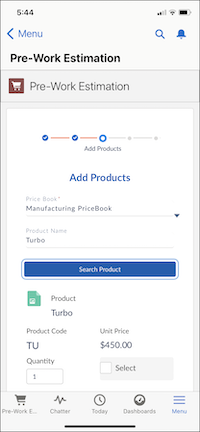
- To select the products you want to include in the estimate, enter a quantity, and then tap Select.
- Tap Add Products.
- Repeat the steps to add more products or services. You can also add the labor charges or installation charges for the parts and accessories.
- Tap Next.
- Review the list of added products.
-
Tap Confirm and Create Order.
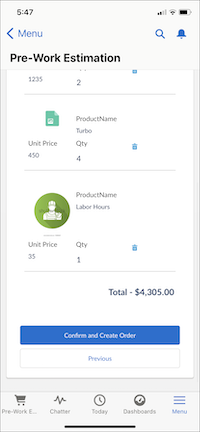 Note To edit a product quantity, tap Previous and search for the product again. To overwrite the existing value, enter the new product quantity. Don’t worry, you won’t lose any of the other products and details that you’ve added to the order. We only update products that you overwrite.
 - To preview the draft order details, tap View Order Details.
-
To send an email to the contact with the order details, tap Email
PDF. This button is displayed only after the order PDF generation is
complete.
Note If you don’t specify a contact, or select a contact without specifying their email address, the Email PDF button doesn’t show.
Did this article solve your issue?
Let us know so we can improve!
