
You are here:
View Agreement Terms Data in the Sales Agreements Table
The sales agreement table shows the metric values for products or categories across various schedules in the sales agreement. Track specific sales agreement term values by viewing the terms for a metric group or for all schedules. Easily compare metrics for products across various schedules with minimum scrolls. Filter sales agreement data by products or categories, or by time period. Use keyboard shortcuts to quickly navigate through your data and perform key actions.
Required Editions
| Available in: Lightning Experience |
| Available in: Enterprise, Unlimited, and Developer Editions |
| User Permissions Needed | |
|---|---|
| To view sales agreement terms: | Manufacturing Sales Agreements Psl permission set |
The sales agreement table includes these features:
- Frozen Columns: The Product Name, Metric, and Total columns stay visible while you scroll across various schedules in the agreement. This feature ensures that you don’t lose context of the product and metrics, and don’t make data entry errors.
- Merged Product Name Cells: The cells with the product names are merged so you can easily identify the metrics for each product.
- Keyboard Shortcuts: You can quickly perform key actions such as editing a cell, saving your changes, and redoing your changes. See Keyboard Actions for Sales Agreement Data.

Get an Enhanced View for the Sales Agreement Table
Swiftly track and maintain your sales agreement data by using the enhanced view of the sales agreement table. The enhanced view for the sales agreement table is enabled by default.
The enhanced view comes with these features.
- Frozen Columns: The Product Name, Metric, and Total columns stay visible while you scroll across various schedules in the agreement. This feature ensures that you don’t lose context of the product and metrics, and don’t make data entry errors.
- Merged Product Name Cells: The cells with the product names are merged so you can easily identify the metrics for each product.
- Keyboard Shortcuts: You can quickly perform key actions such as editing a cell, saving your changes, and redoing your changes. See View Agreement Terms Data in the Sales Agreements Table.
If needed, you can switch to the legacy view for sales agreement data. To use the legacy view on a sales agreement’s record page, turn on Legacy View on the Agreement Terms tab. The legacy view for sales agreements doesn’t include the features that come with the enhanced view for sales agreements.
Use Display Names for Sales Agreements Products
If key account managers specify display names for products or categories in sales agreements, then the display names are shown in the sales agreement table. If they don't specify display names, then the default names for the products or categories are shown.
Key account managers can add a product multiple times to a sales agreement by giving each instance a unique display name. For duplicate products, they must select one of the product instances as the primary product to be used for actuals calculation.
View Sales Agreement Data for a Metric Group
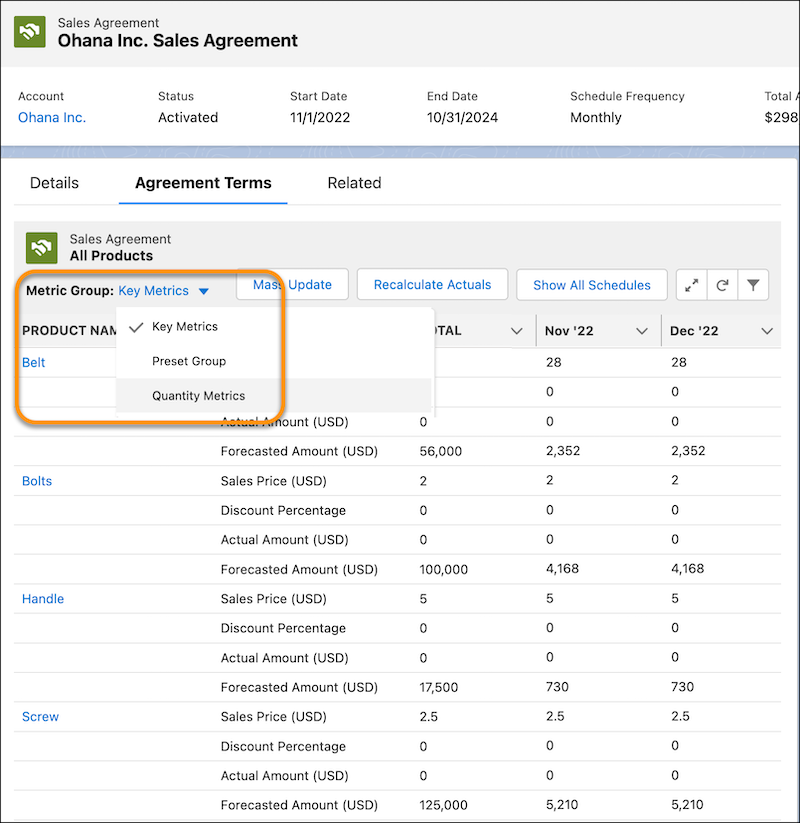
Use metric groups to view the agreement terms for specific metrics. Your admin can create metric groups that include selected metrics based on your business needs.
For example, to view forecasts specific to the revenue measures that are part of a group, select Revenue Metrics.
View Sales Agreement Data for All Schedules
The sales agreement table shows the agreement terms for only eight periods, by default. You can choose to view agreement terms for all schedules.
View Attributes for a Sales Agreement Product
Click a product name in sales agreements table and view the attributes, pricing, and other key details of products in sales agreements in a single panel.
Easily track customers' preferred product configurations and differentiate between the same products with different attributes in an agreement. You can also track critical quantity and revenue metrics for products and categories in the panel.
View Revised Sales Agreement Data
After you add or update the products or categories in an activated sales agreement, view the agreement terms for all items, items with edits, and recently added items. Switch the views on the Agreement Terms tab.
-
On the Agreement Terms tab of an updated product-based sales agreement, choose one of these
options.
- All Products
- Products with Edits
- Recently Added Products
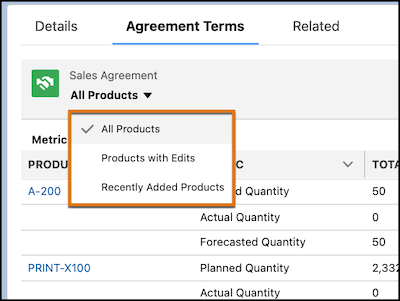 The agreement terms grid shows the metrics for the selected products.
 -
On the Agreement Terms tab of an updated category-based sales agreement, choose one of
these options.
- All Categories
- Categories with Edits
- Recently Added Categories
The agreement terms grid shows the metrics for the selected categories.
View Adjustments in Sales Agreement Values
After setting up tracking for sales agreement adjustments, you can view the previous and updated values, user details, and any adjustment notes when users modify metric values in the Agreement Terms grid or through mass update processes.

Get an Expanded View of Sales Agreement Data
Get a larger, focused view into the agreement terms of a sales agreement by opening the terms on a separate window.
 .
.
Filter Sales Agreement Data
Filter the agreement terms in the sales agreement table to quickly locate specific products, schedules, or metrics. You can apply multiple filter conditions to narrow results by product-related attributes, schedules, and time periods.
-
On a sales agreement’s record page, on the Agreement Terms tab, click
 .
.
- To filter agreement terms by product-related fields, such as products or other product attributes, search for and select the required values. You can also filter using any field from Sales Agreement Product Schedules, including custom fields.
- To filter agreement terms by schedules, select one or more schedules to display only the relevant periods in the agreement terms grid.
-
To filter agreement terms by time period, select an option.
Option Description Range Shows the forecast for a specified range. Set Periods Shows the forecast for up to eight selected periods. When no specific time period filter is applied, the system automatically defaults to the Current Period.
- Apply the filter.

| Filter By | Output |
|---|---|
| Product Category: Power Tools | Shows only Industrial Drills. All products in other categories, such as Hand Tools, are hidden. |
| Metric: Sales Price | Shows only the Sales Price rows for each product. Quantity based metrics are hidden. |
| Schedules: Jan, Feb, Mar | Shows only the data for the first three months of the year. |
| Time Period: Current Periods | Shows data for the current month and the subsequent 7 months. |
The sales agreement table can display up to 20 product lines per page, allowing users to review and update large agreements more efficiently with fewer page loads. If you are in the Legacy View, this feature is not available, and only 5 product lines per page are shown.
Keyboard Actions for Sales Agreement Data
Navigate through your sales agreement data and quickly perform key actions by using your keyboard. Use shortcuts to save changes, undo changes, edit a cell, and so on. To use keyboard actions, you must use the enhanced view for sales agreements.
Review the list of keyboard commands for the actions that you can perform on the sales agreement data.
| Action | Command |
|---|---|
| Save your changes | Ctrl + S (Windows/Linux) Cmd + S (macOS) |
| Undo your changes | Ctrl + Z (Windows/Linux) Cmd + Z (macOS) |
| Redo your changes | Ctrl + Y (Windows/Linux) Cmd + Shift + Z (macOS) |
| Cycle actions on the Agreement Terms tab | Tab or Tab + Shift (Windows/Linux) Tab or Tab + Shift (macOS) |
| Edit a cell | Enter (Windows/Linux) Return (macOS) |
| Stop editing a cell or exit the expanded view | Escape (Windows/Linux) Escape (macOS) |
| Move to the cell above | Arrow key ↑ (Windows/Linux) Arrow key ↑ (macOS) |
| Move to the cell below | Arrow key ↓ (Windows/Linux) Arrow key ↓ (macOS) |
| Move to the next cell | Arrow key → (Windows/Linux) Arrow key → (macOS) |
| Move to the previous cell | Arrow key ← (Windows/Linux) Arrow key ← (macOS) |
