You are here:
Create a Sample Request
Create a sample request with all the required details.
Required Editions
Available in: Lightning Experience Available in: Enterprise, Unlimited, and Developer Editions |
| User Permissions Needed | |
|---|---|
| To create a sample request: | Manufacturing Sample Management User |
-
From the App Launcher, select Sample Requests, and click New.
The New Sample Request page appears.
-
Provide values for these fields.
Field Values Name A unique name for the sample request. Owner Name Auto-populated based on the logged-in user. Requested Date The date on which the sample request is created. Status Status of the request. Available values are predefined. Account The account associated with the sample request. Auto-populated when the sample request is created from a record page. Contact The account contact for the request. Auto-populated when the sample request is created from a record page. The selected contact must be related to the Account selected on this sample request; otherwise, the system displays an error. Sales Representative Sales representatives associated with this sample request. Usage Type The intended usage of the requested samples. Price Book The price book that's used for pricing the samples in the request.
Price book is optional for sample request. If the request is for a free sample leave this field blank. To associate some cost related to the sample, choose the relevant price book. Sales price will be populated from list price corresponding to price book and sample product
Stage The stage of the sample request based on user-defined statuses. See Field Customization for Sample Management Opportunity The related opportunity. Auto-populated when the sample request is created from an Opportunity record. Lead The related lead. Auto-populated when the sample request is created from a Lead record. Visit The related visit. Auto-populated when the sample request is created from a Visit record. Purpose The business purpose of the sample request. Additional Information Any additional details related to the sample request or customer feedback, such as a summary of the customer’s evaluation, their intent to purchase, and other relevant notes. Delivery Method The method used to deliver the samples. Options are user defined. See Field Customization for Sample Management Expected Delivery Date The expected delivery date for the samples. If provided, this date must be chronologically after the Requested Date. Shipping Address The address where the samples will be shipped. Billing Address The billing address associated with the request. The Shipping Address and Billing Address fields on a Sample Request do not automatically populate with the associated Account's address. You must manually enter the address details into both fields. Both fields are editable. If the addresses are identical, copy the address into both fields manually. -
Click Save to create the sample request.
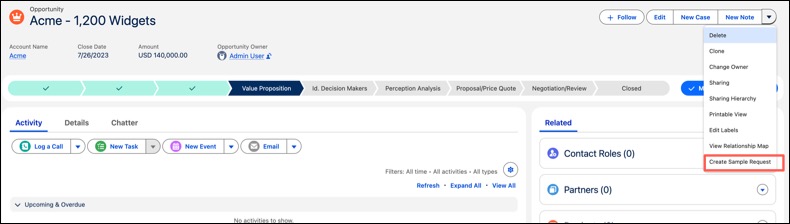
To create a Sample Request from an existing record page, open the related list on the record page and click Create Sample Request. The New Sample Request page opens with the record-based details prepopulated.
For example, to create a request from an Opportunity, navigate to the related list on the Opportunity record and click Create Sample Request.