Advanced search is a database search that allows for a more detailed search than the
standard text-based quick search. Quick search searches predefined fields of the list items and
compares their values to the search term, whereas, an advanced search helps define search
operators and values. This feature enables the user to search for values greater than a given
value or different from a given value.
Required Editions
Available in: Lightning Experience in Professional, Unlimited, and
Enterprise Editions that have Consumer Goods Cloud enabled.
Define at least one AdvancedSearchObject on the list object you want to filter.
Make sure that the profileId for the AdvancedSearchAttributes is set to Default.
Define one or more AdvancedSearchAttribute objects.
If you want, define default values or default operators for your search attributes.
When using the list in a UI, make sure it’s searchable.
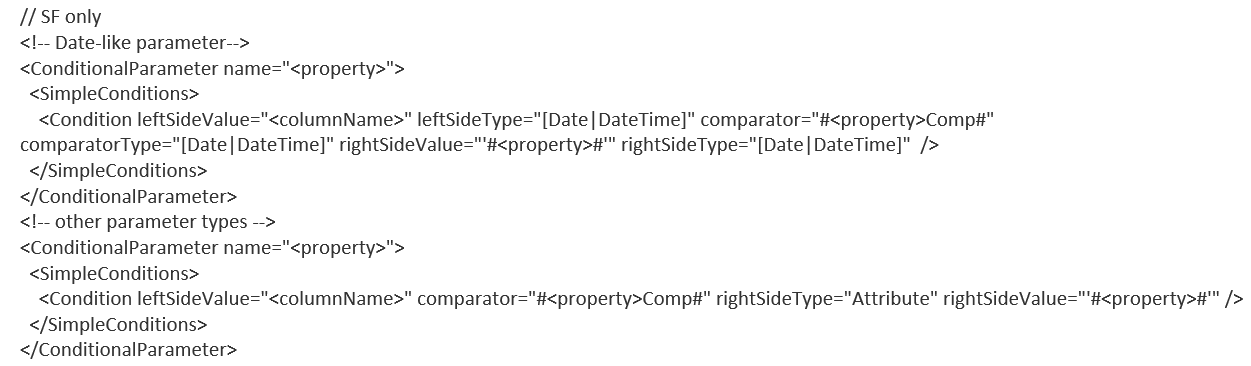
To support advanced search, design your list's data source:
In modeled data sources, add conditions for each advanced search attribute.
Note Don’t
use the ISO date handling macros around leftSideValue or rightSideValue.
The
framework takes care to convert the date properly.
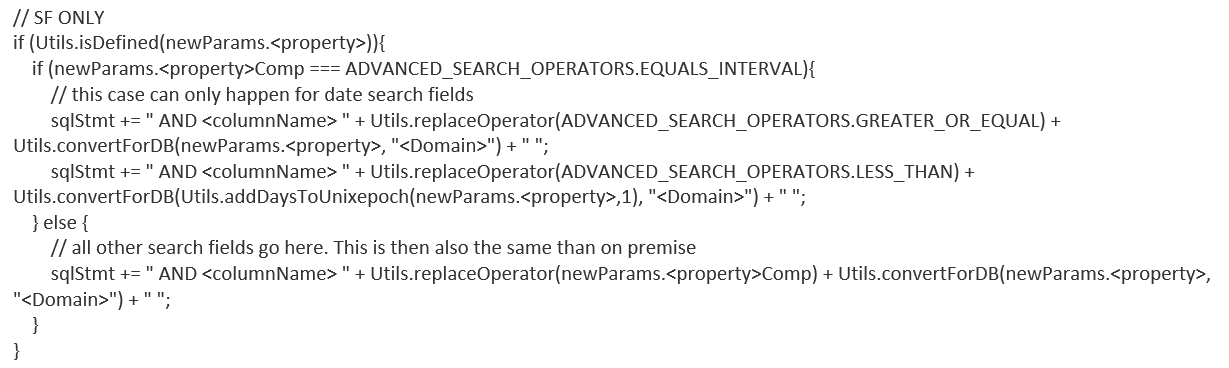
In external or version 1.0 data sources, include
checks
for each advanced search property, and then add these details:
To support favorites handling, include this action in your start application process
contract after the user has been loaded.
In the load method of your list object, set the AdvancedSearchObject by calling
this.addAsoInformation({asoName: <NameOfTheASOYouWantToUse}).
This method is asynchronous.
When a lookup is defined as a parameter type:
The lookup process must show the user a list of possible values. The itemSelected event
must be used to pass the information about the selected value to the calling process.
The lookup process must return the necessary load parameters for the actual
LU
object.
The return values of the lookup process are used as parameters in the data source of the
LU.
Therefore, the names must match.
When you reload the
LO from
the business logic, the advanced search is executed again and filters the list
correctly.
When you change one item and save only this item, the advanced search isn’t executed
again. The changed item remains in the list even if it doesn’t match the advanced
search.
Did this article solve your issue?
Let us know so we can improve!
Loading
Salesforce Help | Article
Cookie Consent Manager
General Information
Required Cookies
Functional Cookies
Advertising Cookies
General Information
We use three kinds of cookies on our websites: required, functional, and advertising. You can choose whether functional and advertising cookies apply. Click on the different cookie categories to find out more about each category and to change the default settings.
Privacy Statement
Required Cookies
Always Active
Required cookies are necessary for basic website functionality. Some examples include: session cookies needed to transmit the website, authentication cookies, and security cookies.
Functional Cookies
Functional cookies enhance functions, performance, and services on the website. Some examples include: cookies used to analyze site traffic, cookies used for market research, and cookies used to display advertising that is not directed to a particular individual.
Advertising Cookies
Advertising cookies track activity across websites in order to understand a viewer’s interests, and direct them specific marketing. Some examples include: cookies used for remarketing, or interest-based advertising.