Author Disclosures by Using Microsoft 365 Word
Author disclosure reports directly in Microsoft 365 Word by using the Salesforce Disclosure and Compliance Hub for Microsoft 365 Word add-in. You can access data in Salesforce while authoring a disclosure.
Required Editions
| Available in: Lightning Experience |
| Available in: Enterprise, Performance, Unlimited, and Developer Editions with the Net Zero Cloud Growth license. To edit Word documents, you need a Microsoft 365 license |
| User Permissions Needed | |
|---|---|
| To use the Disclosure and Compliance Hub: | Disclosure and Compliance Hub User |
| To generate disclosure reports using the Disclosure and Compliance Hub plugin for Microsoft 365: | Disclosure and Compliance Hub plugin for Microsoft 365 |
Before you author disclosures by using Microsoft 365 Word, to generate disclosure reports with the Salesforce Disclosure and Compliance Hub add-in for Microsoft 365 Word, select Microsoft 365 Word for Get Disclosure and Compliance Hub Plugin.
Set Up Your External Authentication
To access an external system from Salesforce, you must configure your authentication settings.
- Go to your Salesforce profile and select Switch to Salesforce Classic.
- From your profile, click My Settings.
- In the Quick Find box, enter Authentication, and select Authentication Settings for External Systems.
- Click New.
- Select Start Authentication Flow on Save.
-
Save your changes.
The external system prompts you to log in. After successful login, the external system grants you an OAuth token for accessing its data from this org.
- Click Switch to Lightning Experience.
Link Your Microsoft Azure and Salesforce Accounts
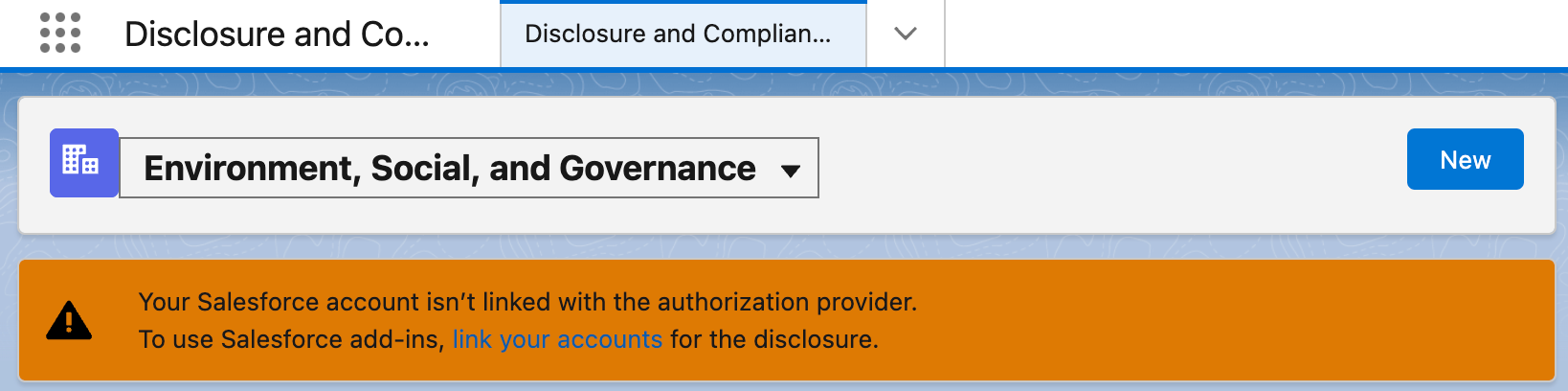
To use the Salesforce Disclosure and Compliance Hub to author disclosures in Word, link your Microsoft Azure account with your Salesforce account.
- From the App Launcher, find and select Disclosures and Compliance Hub.
-
Click
link
your accounts.
Add Salesforce Disclosure and Compliance Hub for Microsoft 365 Word Add-in in Microsoft 365 Word
Author disclosures using Microsoft 365 Word by adding the Salesforce Disclosure and Compliance Hub for Microsoft 365 Word add-in from Microsoft AppSource or from the Microsoft 365 admin center.

Get the Add-in from Microsoft AppSource
Search and add the add-in from Microsoft AppSource.
- Log in to your Microsoft 365 account.
- Go to the Salesforce Disclosure and Compliance Hub Connector for Word page.
- Click Get it now.
- Enter your details, and click Get it now.
-
Click Open in Word.
The add-in panel opens within the Microsoft 365 Word document.
Get the Add-in from Microsoft 365 Admin Center
If your Salesforce admin deployed and assigned the add-in to users in the Microsoft 365 admin center.
- Log in to your Microsoft 365 account.
- Open a new Word document.
- Click File | Get Add-ins | More Add-ins.
- Click Admin Managed.
-
Select Salesforce Disclosure and Compliance Hub for Microsoft 365
Word, and click Add.
The add-in panel opens within the Microsoft 365 Word document.
Create a Disclosure to Use Microsoft 365 Word
To create a disclosure report by using Microsoft 365 Word, create a disclosure where the disclosure definition version authoring mode is Microsoft 365 Word.
Required Editions
| User Permissions Needed | |
|---|---|
| To generate the draft disclosure response document via generative AI: | Use Einstein to Generate Draft Response Document |
Before you begin, be sure to turn on the Einstein generative AI features.
- To generate the draft disclosure response document with Einstein generative AI, turn on Einstein to Generate Draft Response Document.
- To generate responses by using the Information Library as the preferred content source for generative AI, turn on Draft Responses from Information Library Content.
- From the App Launcher, find and select Disclosures and Compliance Hub.
- From the Disclosures and Compliance Hub menu, select Disclosures and Compliance Hub.
- Click New.
- Enter the disclosure name, status, and the dates that the disclosure covers.
- Select the disclosure category and type.
-
Select the disclosure definition and version where the authoring mode is Microsoft 365
Word.
The disclosure definition version links to the global key that’s associated with the DOCX template.
-
Enter the disclosure details.
For the disclosure definition version, select the version where the authoring mode is Microsoft 365 Word.
-
Take one of these actions.
- To replicate responses from a previous year’s disclosures, select the disclosure from the Replicate Responses From list.
- To automatically generate the first draft of responses for ESG disclosures in a Microsoft 365 Word document with Einstein generative AI, select Generate Draft Response Document from Einstein.
- Save your changes.
Author Disclosures in Microsoft 365 Word
Respond to disclosure questionnaires and manage responses in Microsoft 365 Word. As you enter information, your work is saved, so you can stop and resume as needed.
- From the App Launcher, find and select Disclosures and Compliance Hub.
- From the Disclosures and Compliance Hub menu, select Disclosures and Compliance Hub.
- In the In Progress section, to open the questionnaire, click Launch External Document.
-
Enter your responses in the Word document.
If you want to use a response that’s in Information Library, search for it in the Salesforce Disclosure and Compliance Hub for Microsoft 365 Word add-in. Insert the response into the document.
When inserting content from Information Library into Word, text formatting such as left indent, right indent, and strikethrough isn't maintained.
- To save your changes, close the document.
