
Match Procurement Data to Emission Factors
To convert spent amounts into scope 3 emissions and to categorize the emissions into greenhouse gas (GHG) categories, match procurement data to emissions factor data.
Required Editions
| Available in: Lightning Experience |
| Available in: Enterprise, Performance, Unlimited, and Developer Editions |
| User Permissions Needed | |
|---|---|
| To manage procurement categories and map them to standard procurement emission categories: | Scope 3 Procurement Hub User |
| To get insights into your environmental, social, and governance data within Net Zero Cloud with Einstein generative AI: | Use Einstein for Net Zero Cloud |
| To apply an emissions factor to the Scope 3 GHG category via Einstein generative AI: | Use Einstein for Scope 3 Procurement Hub |

- From the Scope 3 Hub, click Procurement Data Management, and then locate the scope 3 procurement summary to match.
-
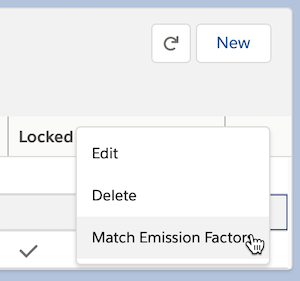
In the action dropdown menu, select Match Emission Factors.
-
Select the procurement emissions factor set item and the spending categories to group
the emissions factors by.
Values are shown if the dataset has values in these columns. Select all categories for the most detailed matching, or just spending category 1 for more general matching.
-
Click Next.
If either spending category 2 or spending category 3 is included for grouping, then the matching screen is filtered to show a single spending category 1 value. If only spending category 1 is included for grouping, then all spending category 1 values are shown.
The rows represent unique combinations of the spending categories represented in the data. Each unique grouping of categories appears only one time.
-
Select one or more rows, and then take one of these actions.
- To let generative AI review and match the procurement summary data to emissions
factors, enable Let Einstein assign GHG categories and Emission
Factors, and then click Update Selected Rows.
To manage scope 3 procurement hub in Net Zero Cloud with generative AI, turn on Einstein for Scope 3 Procurement Hub. See Enable Einstein for Net Zero Cloud.
This feature uses Einstein Generative AI and consumes Einstein Requests. Einstein Generative AI Features are provided on a separate infrastructure with different security protections and physical hosting locations than the Services. See Salesforce Trust and Compliance Documentation.
- To manually match the procurement summary data to emissions factors, select a Scope 3 GHG Category, an emissions factor name, and then click Update Selected Rows.
Unsaved changes appear highlighted.
- To let generative AI review and match the procurement summary data to emissions
factors, enable Let Einstein assign GHG categories and Emission
Factors, and then click Update Selected Rows.
- Apply emissions factors in batches until all rows are updated.
- After matching all rows for the spending category 1 filter, match the next spending category until all categories are matched.
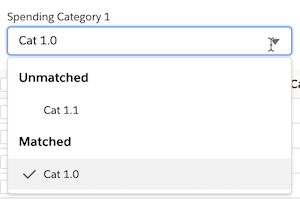
- Monitor your progress with the progress bar at the bottom of the screen. You can also use the spending category picklist groupings to determine the spending category values that are unmatched.
-
Monitor your progress with the progress bar at the bottom of the screen.
You can also use the spending category 1 picklist groupings to determine which spending category 1 values must still be matched.
-
If necessary, filter rows to show all rows, only matched rows, or only unmatched rows.
The row filter works with the spending category filter.
-
Save your changes at any time.
Saving a matched row updates all scope 3 procurement item records within the dataset that match the shown grouping of spending category fields.
- You can exit and return to continue matching later if desired.
- To leave the page without saving your changes, click Cancel.
- Save your changes.
