
You are here:
Open Audit Trail
You can open Audit Trail from the App Launcher, the navigation menu, or the Service Console.
Required Editions
| Available in: Lightning Experience |
| Available in: Enterprise, Professional, Starter, and Unlimited Editions |
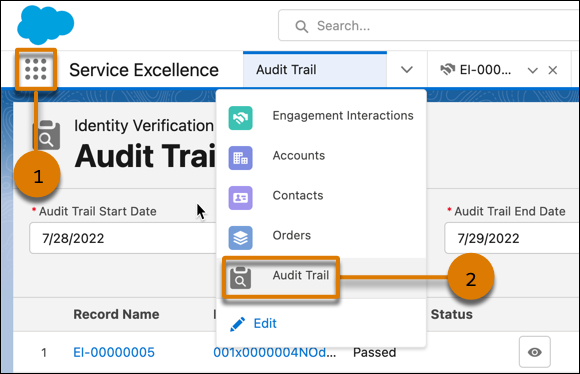
- To open Audit Trail from the App Launcher (1), search for and select Audit Trail.
-
To open Audit Trail from the navigation menu, add Audit Trail (2) to the navigation
menu, and then open Audit Trail from the menu:
- In the navigation menu, click Edit.
- Click Add More Items.
- Search for and select Audit Trail.
- Click Add 1 Nav Item.
- Click Audit Trail.
-
To open Audit Trail from the Servie Console, add Audit Trail to the Service Console
app:
- From Setup in Lightning Experience, in the Quick Find box, enter App Manager, and then select App Manager.
- Click Edit next to the Service Console app.
- In the Navigation Items section, move Audit Trail to the Selected Items list and click Save.
- In the User Profiles section, verify that the user profiles who need access to Audit Trail are in the Selected Profiles list.
Did this article solve your issue?
Let us know so we can improve!
