You are here:
Create a Customer Interaction Record With Data Mapper
Create records once a customer interaction is complete by configuring a Data Mapper to run after users click the Launch Console button. For example, you can create a new record from any object and populate data collected from the interaction launcher into the record.
- In your org, go to the Vlocity Data Mapper Designer and click New to create a new Data Mapper Load. See Create an Omnistudio Data Mapper Load.
-
In the Create: Vlocity Data Mapper Bundle window, configure
these properties:
-
Data Mapper Bundle Name: In upper camel case, enter a name for the Data Mapper such as CreateInteractionAccountDm. This name is used in the Interaction Creation Bundle Name field in your Interaction Launcher widget.
-
Interface Type: Select Load.
-
Input Type: Select JSON.
-
Output Type: Select SObject.
-
- In the OBJECTS tab, click the +Add Object button to add an sObject. This is the object record an Interaction Launcher creates at the end of an interaction. Find and select the NS__CustomerInteraction__c object. Replace the NS variable with the namespace of the Vlocity package you are using. For more information on finding the namespace of your package, see Viewing the Namespace and Version of the OmniStudio for Vlocity Package.
-
In the FIELDS tab, click the + link
to add a field, from the Interaction Launcher, to populate the object:
-
In the Input JSON path, enter recordId. This refers to the object record ID identified and verified in the Interaction Launcher when the interaction is Object Based. See Create a Vlocity Interaction Launcher.
-
In the Domain Object Field, enter a field from the dropdown. This field is found on the object set in the Input JSON path. For example, to populate the AccountId, select the NS__AccountId__c object field.
-
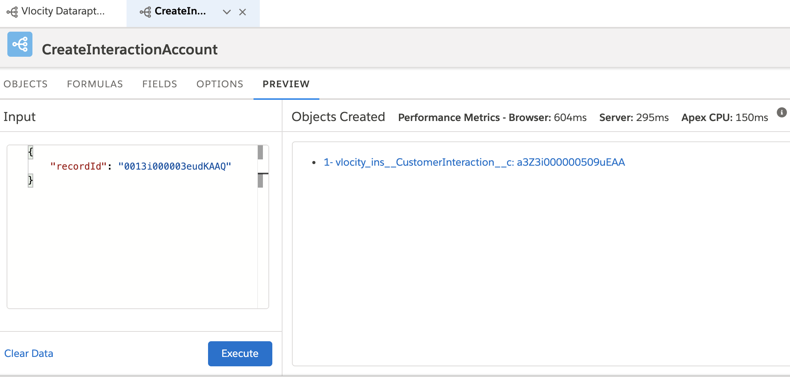
- To test your Data Mapper Load, in the PREVIEW tab: