
You are here:
Calculate Volume or Tiered Discounts with Cumulative Pricing
Determine the discount of a product based on the quantity purchased. Automatically calculate discounts on volume and tier-based quantities, including discounts from past orders.
Required Editions
| Available in: Lightning Experience |
| Available in: Enterprise, Unlimited, and Developer Editions of Revenue Cloud where Salesforce Pricing is enabled |
| User Permissions Needed | |
|---|---|
| To create, update, and delete pricing procedures: | Salesforce Pricing Design Time User |
Calculate bulk laptop purchases by using the Volume Discount element within the pricing procedure.
Create a Price Adjustment Tier Records
- Create a price adjustment tier record.
-
Specify these details.
- Price Adjustment Schedule: Standard Price Adjustment Tier
- Product: Laptop
- Tier Type: Percentage
- Tier Value: 10
- Lower Bound: 100
- Upper Bound: 299
- Effective From: 01-01-2025
- Product Selling Model: One Time
- Click Save & New.
-
Create another price adjustment tier record with these details.
- Price Adjustment Schedule: Standard Price Adjustment Tier
- Product: Laptop
- Tier Type: Percentage
- Tier Value: 25
- Lower Bound: 300
- Effective From: 01-01-2025
- Product Selling Model: One Time
- Save your changes.
- Close the tabs for the new price adjustment tiers that you created.
- On the Details tab, on the Standard Price Adjustment Tier page, select Active.
- Save your changes.

Important We recommend refreshing the Volume Discount Entries decision table to
make sure that the price adjustment tier records are available for pricing.
Create a Constant for a Volume Based Adjustment Variable
- Create a pricing procedure. To create a pricing procedure, follow the first 5 steps in Configure Your Pricing Procedure.
-
On the Pricing Procedure builder canvas, click
 .
.
- On the Resource Manager panel, click Add Resource.
-
In the Add New Resource page, specify these details.
- Resource Type: Constant
- Resource Name: VolumePriceAdjustmentScheduleId
- Data Type: Text
-
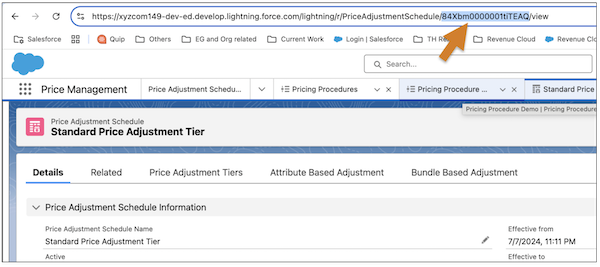
Default Value: Enter the price adjustment tier ID from the browser.
You can locate the value of your variable by going to the associated record. For example, to locate a price adjustment schedule ID, open the price adjustment schedule record page. The price adjustment schedule ID shows in the browser’s URL.
- Save your changes.
Add the Volume Discount Element
-
Click
 to add the Pricing Setting element and map these variables.
- Input Variables
- Line Item: LineItem
- Output Variables
- Price Waterfall: price_water_fall
- Net Unit Price: NetUnitPrice.
- Subtotal: ItemNetTotalPrice
- Input Variables
-
Add the List Price element to fetch the base price of the product.
Under Lookup Table Details, select the Price Book Entries decision table and map these variables.
- Input Rule Variables
- Product: Product
- Price Book: PriceBooks
- Product Selling Model: ProductSellingModel
- Input Variables
- Quantity: LineItemQuantity
- Output Variables
- List Price: ListPrice
- Subtotal: ItemNetTotalPrice
- Input Rule Variables
- To provide discounts on laptops when they’re purchased in bulk, add the Volume Discount element.
-
Search for and add the Volume Discount Entries decision table and
map these variables.
- Input Rule Variables
- Price Adjustment Schedule: VolumePriceAdjustmentScheduleId
- Lower Bound: LineItemQuantity
- Upper Bound: LineItemQuantity
- Product: Product
- Product Selling Model: ProductSellingModel
- Effective From: EffectiveDate
- Effective To: EffectiveDate
- Input Variables
- Quantity: LineItemQuantity
- Input Unit Price: InputUnitPrice
- Output Variables
- List Price: NetUnitPrice
- Subtotal: ItemNetTotalPrice
- Input Rule Variables
-
Click
 and select Include in Output.
- Finally, set your preferences to view pricing information, profile access, and rank information.
- Save your procedure.
-
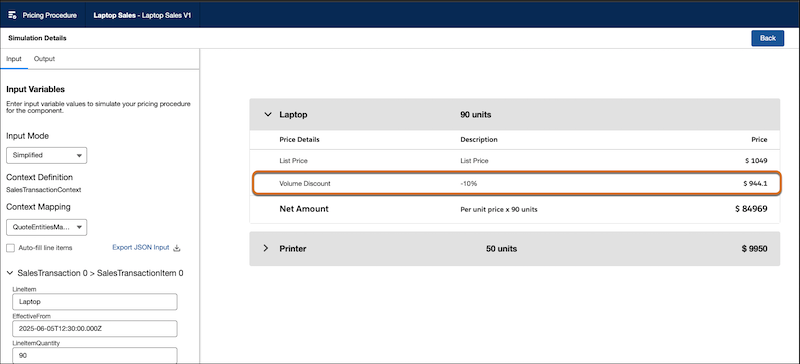
Click Simulate to test your procedure. Enter the input values for
your laptop product and click Simulate again.
The price waterfall shows the volume discounts used to calculate the final price of the laptops, confirming that your procedure is working as expected.
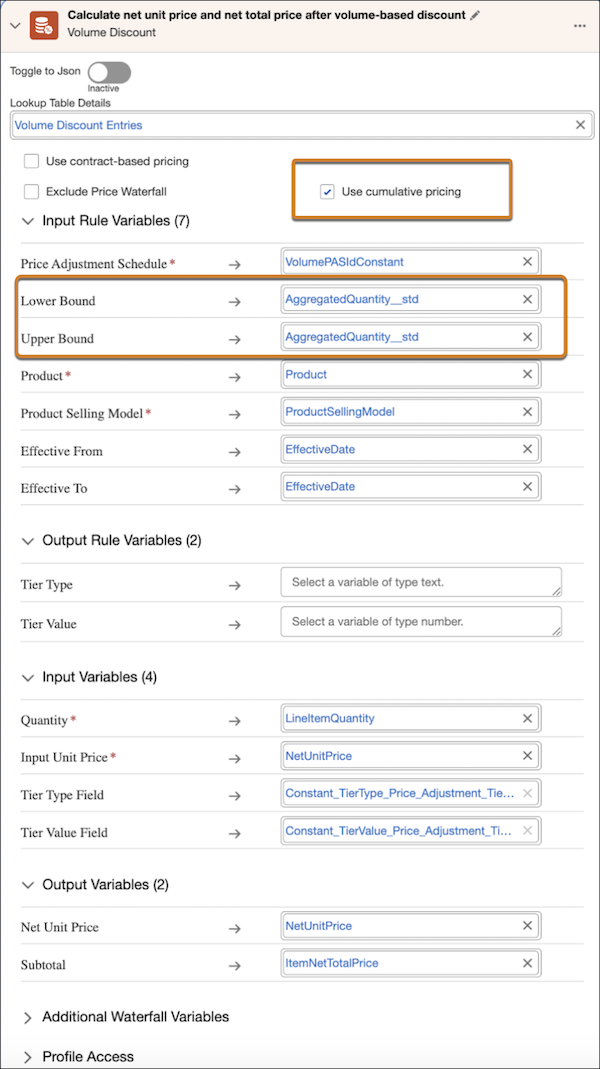
Using the same example, go back to the Volume Discount element and select Use Cumulative Pricing. Here, map the Lower Bound and Upper Bound input variables to the AggregatedQuantity_std context tag.
On simulation, provide values for the AggregatedQuantity_std variable to calculate the cumulative price of the laptop.
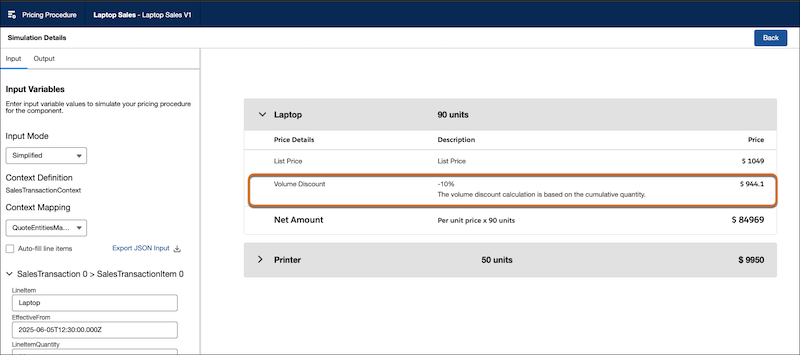
Important Cumulative discounts calculate only when a quote is associated
with a pricing contract that has the aggregation strategy set to Cumulative.
Did this article solve your issue?
Let us know so we can improve!
