You are here:
Build Pricing Rules with Formula-Based Pricing
Perform functions and mathematical calculations to generate the price of a product. Solve complex pricing scenarios by defining multiple formulas within a single Formula-Based Pricing element.
Required Editions
| Available in: Lightning Experience |
| Available in: Enterprise, Unlimited, and Developer Editions of Revenue Cloud where Salesforce Pricing is enabled |
| User Permissions Needed | |
|---|---|
| To create, update, and delete pricing procedures: | Salesforce Pricing Design Time |
Formula-based pricing offers a dynamic approach to price calculation that moves beyond static price lists and discounts. Businesses can define sophisticated pricing rules by using custom formulas and functions within pricing procedures. By leveraging various factors such as product attributes, customer segments, and real-time market conditions, organizations can create highly flexible and responsive pricing strategies.
Formula-Based Pricing is a powerful tool for implementing complex pricing models. It enables greater adaptability to changing business needs and market dynamics compared to traditional, less agile pricing methods.
Let’s use the Formula Based Pricing element to calculate the final cost for an order of 5 printers at US $200 each by applying a $40 discount, a 10% delivery charge, a 5% per-unit bulk discount, and a $20 rebate.

- Configure a pricing procedure.
-
 To add the Pricing Setting element, click , and map these variables.
- Input Variables
- Line Item: LineItem
- Output Variables
- Price Waterfall: price_water_fall
- Net Unit Price: NetUnitPrice.
- Subtotal: ItemNetTotalPrice
- Input Variables
-
Add the List Price element to fetch the base price of the product.
Under Lookup Table Details, select the Price Book Entries decision table and map these variables.
- Input Rule Variables
- Product: Product
- Price Book: PriceBooks
- Product Selling Model: ProductSellingModel
- Input Variables
- Quantity: LineItemQuantity
- Output Variables
- List Price: ListPrice
- Subtotal: ItemNetTotalPrice
- Input Rule Variables
-
Add the Formula-Based Pricing element, specify your formulas, and map the
variables.
You can add up to five formulas.
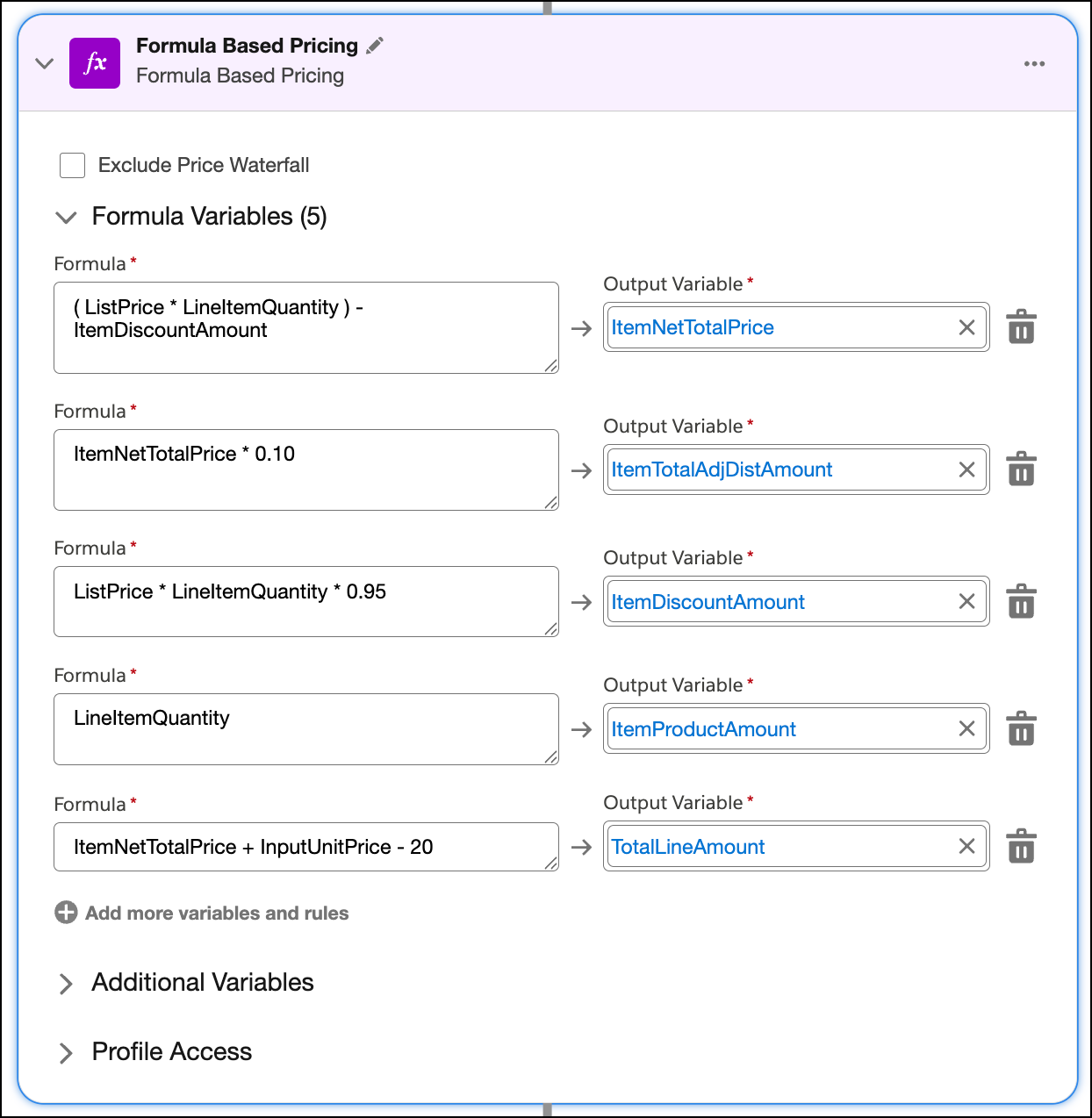
Scenario Formula Output Variable Formula Logic Calculate the base cost and promotional discount (ListPrice * LineItemQuantity) - ItemDiscountAmount
ItemNetTotalPrice Calculates the net price of each line item. Adjust delivery charges ItemNetTotalPrice * 0.10
ItemTotalAdjDistAmount Adds a 10% delivery charge. Provide bulk purchase discounts ListPrice * LineItemQuantity * 0.95
ItemDiscountAmount Applies a 5% per unit discount. The quantity of the purchased product LineItemQuantity ItemProductAmount Adds item quantities. Add rebate to the final amount ItemNetTotalPrice + InputUnitPrice - 20 TotalLineAmount Applies a flat discount of $20. Apply renewal uplift IF(SalesTransactionActionType == "Renew", NetUnitPrice * 1.05, NetUnitPrice) ItemNetTotalPrice Checks if the transaction is a renewal. If true, increases net unit price by 5%. Apply location and volume discounts IF(Region == "US", IF(Qty > 100, 0.8, 0.9), 1.0) DiscountMultiplier Checks if the customer is in the US. If yes, applies a 20% discount for orders over 100 units, or 10% otherwise. -
To test your procedure, click Simulate. Enter the input values
for your printer product, and click Simulate again.
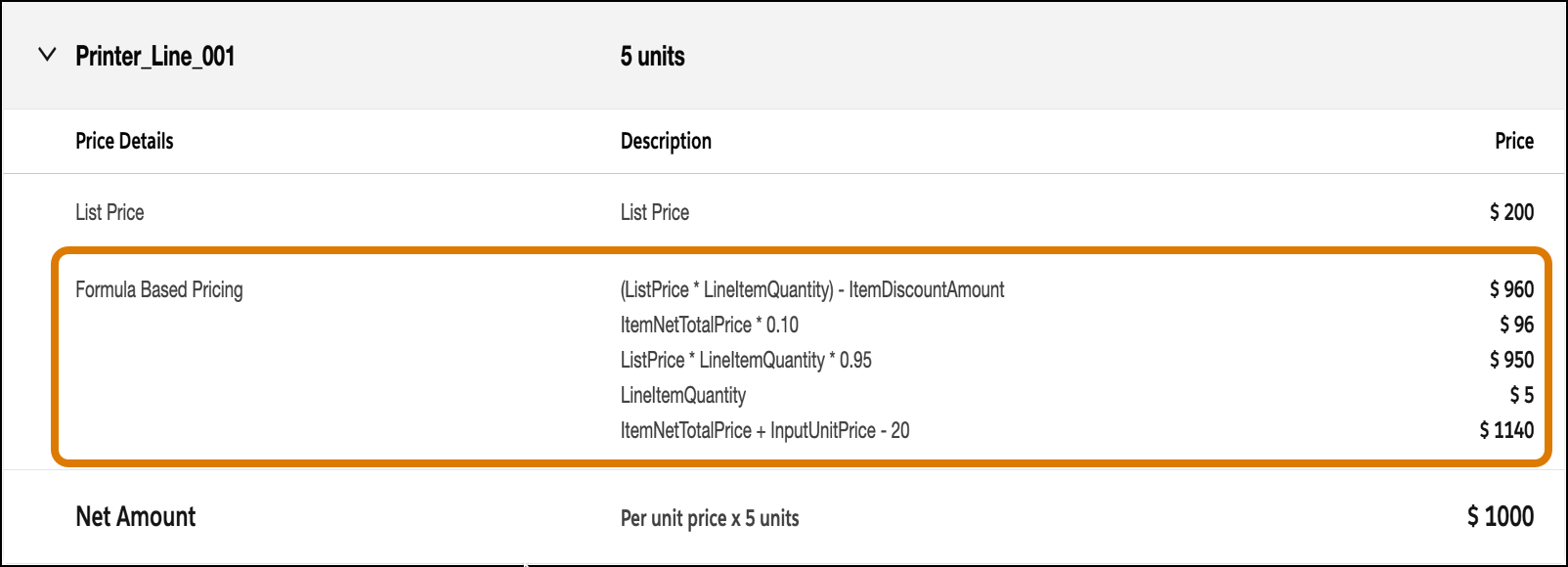
The price waterfall shows the formulas used to apply discounts and determine the price of the printers, confirming your procedure is working as expected.