
You are here:
Add Components to a Configurable Product Bundle
You can add multiple groups, multiple product components, or one product classification component under a product group in configurable bundles.
Required Editions
| View supported products and editions. |
| User Permissions Needed | |
|---|---|
| To add components to the product bundle: | Manage Product Catalog |
| To use the Structure tab: | ARC Access permission set |
- Groups are mandatory components in a configurable product bundle. Child components must be added only under Groups and not directly under the root product.
- Product groups are structured hierarchically, where a root group acts as the parent and can contain multiple child groups. While a root group can include multiple child product groups, multiple product components, or a single product classification, this hierarchy is limited to two levels; child groups can’t contain further nested groups, and these elements can’t be mixed at the same level within a child group. For example, a child group can’t contain both product components and a product classification. A product classification can only be added once per group.
- When you delete a group, all components under the group, such as products and product classifications, are deleted.
- You can add simple and bundled products of type static or configurable as child components of a configurable bundle.
- When adding a child component with a defined unit of measure to a configurable product bundle, the Quantity, Min Quantity, and Max Quantity fields automatically inherit the scaling and rounding method of the child component.
To dynamically add all products based on a product classification to a product bundle, add a product classification component under the group. Product Catalog Management dynamically makes all products based on the classification available at the time of selection at run time. We refer to adding a product classification component to a product bundle as Dynamic Options.
- From the Product Catalog Management app’s home page, click Products.
- From the product list view page, click the bundled product.
- Navigate to the Structure tab.
-
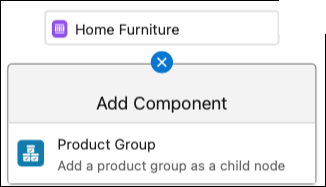
To add a group, click
 under the root product
or the parent group, and select Product Group.
You can add a group under a parent group only when the parent group doesn’t have a product classification component or product components. Product groups are mandatory in a configurable bundle hierarchy.
under the root product
or the parent group, and select Product Group.
You can add a group under a parent group only when the parent group doesn’t have a product classification component or product components. Product groups are mandatory in a configurable bundle hierarchy. -
Specify these details:
-
Enter a group name and description.
Parent Group is the group under which you add a child group. If you’re adding the group under the root product, leave the Parent Group field blank.
- Enter the minimum and maximum number of product components that users can select in the run time.
- Save your changes.
-
Enter a group name and description.
-
To add product components under a group, click under a group, select
Product, and specify these details:
- Select one or more products, and click Next.
-
If necessary, change the default product quantity.
Bundle to Bundle Component Relationship is the default Product Relationship Type for product components

-
To make the component a required component in the bundle, select
Require this component. To add an optional
component to a bundle, deselect Require this component
.
If a component is required, the Structure tab shows a solid line between the parent component and child component. If the component is optional, the Structure tab shows a dotted line between the parent component and the child component.
- To include a component in the bundle by default, select Include component by default.
-
To allow users to change product quantities during run time, select
Allow quantity changes.
If Allow Quantity Changes is deselected, you can’t enter a minimum quantity and maximum quantity.
- Enter the minimum number of product components that users can select in the bundle at run time under Min Quantity.
- Enter the maximum number of product components that users can select in the bundle at run time under Max Quantity.
-
To add a product classification under the group, click under a group, select
Product Classification, and specify these details:
-
Select a product classification, and click Next.
 Note You can select only an active product classification.
 -
If necessary, change the default quantity.
When you add a product classification under a group, you automatically add all the products based on the classification to the run-time cart. The number of products you can select in runtime depends on the group cardinality. The number of selected products you can add depends on the product classification cardinality. Bundle to Product Classification Component Relationship is the default Product Relationship Type for product classification components.
- Ensure that Require this component and Include component by default are deselected for the product classification component.
-
To allow users to change product quantities during run time, select
Allow quantity changes.
If you don’t select Allow Quantity Changes, you can’t enter a minimum and maximum quantity.
- Under Min Quantity, enter the minimum number of product components that users can select in the bundle at run time .
- Under Max Quantity, enter the maximum number of product components that users can select in the bundle at run time .
-
Select a product classification, and click Next.
- Save your changes.
In addition to adding components and building the bundle hierarchy, you can also override attributes, define local product cardinality, define group cardinality, and edit product relationships. After you create a product, you can optionally assign the product to catalog categories and subcategories.
