
You are here:
Create a Qualification Rule Procedure
A qualification rule procedure contains qualification procedure elements that evaluate the rules in a decision table. The procedure accepts a list of categories and products as input and returns the list of products and categories along with their qualification or disqualification information as output.
Required Editions
| View supported products and editions. |
| User Permissions Needed | |
|---|---|
| To create a qualification rule procedure: | Manage Product Catalog |
| To use a decision table: | Rules Engine Runtime |
| To create a context definition: | Context Service Admin |
As part of your qualification rule design, you can choose to use an existing qualification rule procedure. Many organizations have an existing qualification rule that you can add to. Alternatively, you can choose to create a new qualification rule.
Before you begin, ensure that the context tags for all input variables (required and optional) and all output variables in the decision tables are mapped to the right objects in your context definition. See Add Context Mapping.
To create a qualification rule procedure, follow these instructions:
- From the Product Catalog Management app’s home page, click Qualification Rules Procedures.
- From the Qualification Procedures list view page, click New.
-
In the New Qualification Procedure window, specify these details:
- Enter a name for the qualification procedure.
-
Select a usage type. To qualify and disqualify both products and product
categories, select Product Qualification. To qualify or disqualify only product
categories, select Product Category Qualification.
If you’re creating a qualification procedure for Product Discovery, select Product Qualification as the usage type. You can’t select procedures with Product Category Qualification in Product Discovery Settings. To qualify or disqualify categories in Product Discovery, add category-level elements to a Product Qualification procedure.
- Select a context definition. Use the context definition selected on the Product Discovery Settings page.
- Save your changes.
-
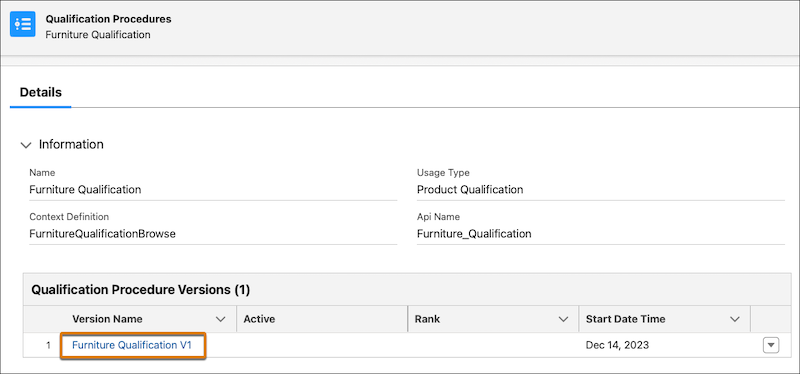
To open your qualification procedure in Expression Set Builder, on the Details tab, in
the Qualification Procedure Versions section, click the name of the qualification
procedure version.
-
For each element that you want to add, perform these steps.
To improve readability, we recommend that you add the elements for product category qualification and disqualification before the elements for product qualification and disqualification.
-
On the Expression Set Builder canvas, click the
 and then select the element. You can also drag an element from the Elements
panel.
and then select the element. You can also drag an element from the Elements
panel.
 Tip You can add multiple elements depending on the available decision tables. Make sure you add the correct decision table to the appropriate element. For example, if you have a qualification decision table Product Qualification DT, then associate the decision table with the Evaluate Qualification element.
 - Find and select the required lookup table, and then select the input and output attributes.
-
Select the element, click
 , and make sure that Include in Output is selected.
-
On the Expression Set Builder canvas, click the
-
Click
 , and enter a rank.
- Enter a start date and time that’s later than or same as the effective from date and time of the context definition.
- Save your changes.
- To check if the variables that you entered are accurate, simulate the qualification rule procedure.
- Activate the qualification procedure.
- Attribute Mapping in Qualification Rule Procedures
In your qualification rule procedures, you must map specific attributes from the context definition to the corresponding decision table fields based on the type of the qualification element. In addition, you must map your custom attributes that must be used to evaluate qualification.
