
You are here:
Manage Local Cardinality
Use local cardinality to define if a product component or products based on a product classification are required, are included in the bundle by default, whether their quantities can be changed, and what the minimum and maximum quantities are.
Required Editions
| View supported products and editions. |
Here are the available cardinality fields:
| Cardinality Fields | Description |
|---|---|
| Require this component | Select if the product component is a required component in the product bundle. Deselect if the product component is an optional component in the product bundle. If Require this component is selected, ensure that you select Include component by default. Ensure that Require this component is deselected for a product classification components. |
| Include component by default | Select if the product component is included in the product bundle by default. Deselect if the product component isn’t included in the product bundle by default. You must select this field if the product component is a required component. Ensure that Include component by default is deselected for product classification components. |
| Allow quantity changes | Select if users can edit the product quantity at run time.
 Note If the product's Quantity Scaling Method is
set to Proportional, selecting this checkbox makes the
quantity editable, but only when configuring the product in the configurator. Once
added to a quote, the quantity field is locked (read-only) in the sales
transaction line editor. This happens because the line editor displays the final
multiplied quantity stored on the quote line item, rather than the editable
per-parent unit quantity. |
| Price Includes Component | Select when the price of the product bundle includes the price of the component. You can’t change component quantities when you select Price Includes Component. |
| Quantity Scaling Method | Defines how the child product quantity changes as the quantity of the parent product changes in the runtime cart. This field can have these values:
|
| Min Quantity | The minimum number of product components or products based on a product classification in the bundle. |
| Max Quantity | The maximum number of product components or products based on a product classification in the bundle. |
| Quantity | The default number of product components or products based on a product classification in the bundle. |
Edit Local Cardinality
To define the default, minimum, and maximum quantity of a product that’s permissible in the product bundle, edit the local cardinality of the product component and the product classification component.
Required Editions
| User Permissions Needed | |
|---|---|
| To edit the local cardinality: | Manage Product Catalog |
| To use the structure tab: | ARC Access permission set |
- From the Product Catalog Management app’s home page, click Products.
- From the Product list view page, click the bundled product that contains the product component or product classification component whose cardinality you want to edit.
- Navigate to the Structure tab.
-
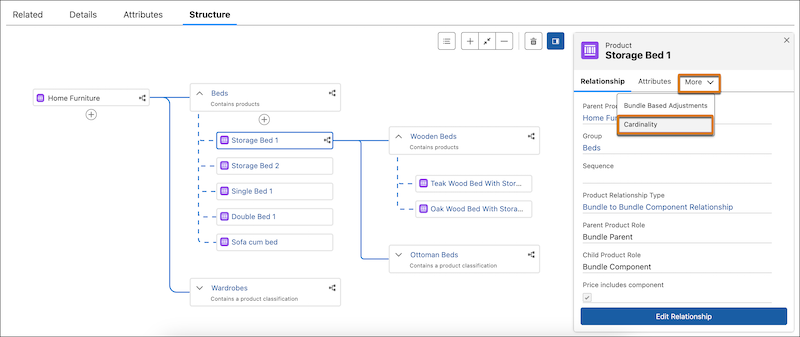
Click the product tile for a product at the first level in the product hierarchy.
The first product in the bundle hierarchy is the root product. The products, groups, and product classifications at the first level are the immediate child components of the root product. You can edit the cardinality of products, groups, and product classifications only at the first level. You can override the cardinality of products, groups, and product classifications only at the second level and beyond.
-
In the right pane, click
 next to More, and click Cardinality.
- Click Edit.
- Edit the local cardinality as necessary.
- Save your changes.
Override Local Cardinality
You can override the cardinality of product components and product classification components that are at the second level and beyond in the product hierarchy. When you override the local cardinality, you update the product component or product classification component cardinality while maintaining a record of the original local cardinality. You can revert to the original cardinality by restoring the default cardinality.
Required Editions
| User Permissions Needed | |
|---|---|
| To override cardinality: | Manage Product Catalog |
| To use the structure tab: | ARC Access permission set |

- From the Product Catalog Management app’s home page, click Products.
- From the Product list view page, click the bundled product that contains the product component or product classification component whose cardinality you want to override.
- Navigate to the Structure tab.
-
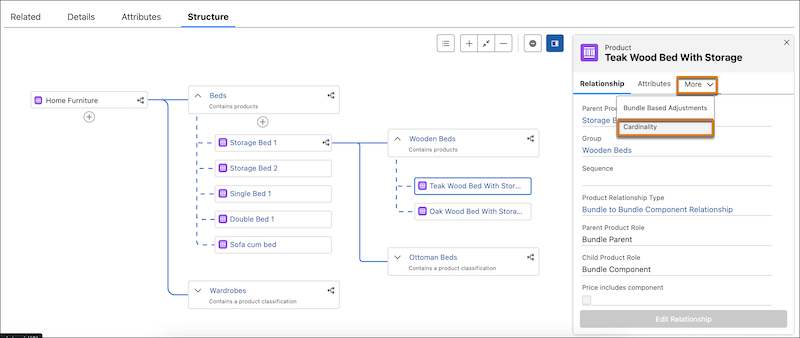
To override the product cardinality, click the product tile for a product at the second
level in the product hierarchy. To override the product classification cardinality, click
the product classification tile under a group at the second level in the product hierarchy
The first product in the bundle hierarchy is the root product. The products, groups, and product classifications at the first level are the immediate child components of the root product. You can edit the cardinality of products, groups, and product classifications only at the first level. You can override the cardinality of products, groups, and product classifications only at the second level and beyond.
-
In the right pane, click next to More, and click Cardinality.
-
Click Override.
Overriding the cardinality overrides the cardinality for the product component or product classification component in the context of the product bundle. The original product component or product classification component cardinality is retained and can be reverted to if necessary.
-
Override the cardinality as necessary.
This example illustrates the local and updated cardinality for the product Teak Wood Beds with Storage at the second level. The local cardinality was minimum quantity 1, maximum quantity 2, and default quantity 1. The updated cardinality is minimum quantity 1, maximum quantity 4, and the default quantity 2.

-
Save your changes.
The overridden cardinality appears in the right pane. You can edit the overridden cardinality as necessary.
If you want to revert to the original product component or product classification component cardinality, click Restore Default Cardinality. Restoring the default cardinality deletes the overridden cardinality and restores the original product component or product classification component cardinality.
