
You are here:
Create Products and Product Bundles in Revenue Cloud
Products are all the items and services that you sell to customers. There are two types of products: simple products and bundled products. Simple products are single-element products with no dependencies on any other products. Bundled products are a group of products that are sold together as one unit.
Required Editions
| View supported products and editions. |
Simple and bundled products are further classified into configurable or static products depending on whether your sales reps need to configure product options during the sales process or not.
Here are a few examples of the various types of products and product bundles:
- Static Simple Product:
- Generic instant coffee.
- A coffee grinder.
- Configurable Simple Product:
- Coffee where a customer can choose medium roast or dark roast.
- T-shirts with small, medium, and large sizes.
- Static Bundle:
- A travel kit that contains a shampoo, conditioner, body wash, hand lotion, and a toothbrush.
- A software support plan that includes 10 hours of technical support and two online training sessions.
- Configurable Bundle:
- A laptop with mouse, keyboard, and monitor but also with optional extended warranty plan and wireless headphones.
- A flatscren TV that come in various sizes, all with standard remote control and sound bar.
Use fields on the product itself to create these various product and bundle types. Refer to this table to understand how the product fields define the product and bundle type.
| Product Type | Configure During Sale | Product | Child Components |
|---|---|---|---|
| None | Not Allowed or None | Static simple product | None |
| Allowed | Configurable simple product | None | |
| Bundle | Not Allowed or None | Static product bundle |
|
| Allowed | Configurable product bundle |
|
Important Things to Note About Static Product Bundles
- You can optionally add Product Group (1) components to the static bundle hierarchy.
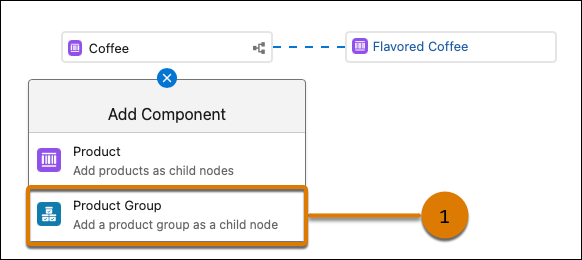
- If you delete a group, all components under the group, such as products and product classifications, are deleted.
- Add only static simple products or static bundled products as child components of static bundled products. You can’t add configurable simple products or configurable bundle products as child components of static bundled products.
- When you add child components to a static product bundle, make sure that the field Include
component by default is selected on the child components. Also ensure that the field Allow
Quantity Changes isn’t selected on the child components.

- If your static simple product is based on a product classification, then all attributes for all components in the static bundle must have default values.
- When adding a child component with a defined unit of measure to a static product bundle, the Quantity, Min Quantity, and Max Quantity fields automatically inherit the scaling and rounding method of the child component.
Important Things to Note About Configurable Product Bundles
- Groups are mandatory components in a configurable product bundle. Child components must be added only under Groups and not directly under the root product.
- Product groups are structured hierarchically, where a root group acts as the parent and can contain multiple child groups. While a root group can include multiple child product groups, multiple product components, or a single product classification, this hierarchy is limited to two levels; child groups can’t contain further nested groups, and these elements can’t be mixed at the same level within a child group. For example, a child group can’t contain both product components and a product classification. A product classification can only be added once per group.
- When you delete a group, all components under the group, such as products and product classifications, are deleted.
- You can add simple and bundled products of type static or configurable as child components of a configurable bundle.
- When adding a child component with a defined unit of measure to a configurable product bundle, the Quantity, Min Quantity, and Max Quantity fields automatically inherit the scaling and rounding method of the child component.
To get started creating products and product bundles, refer to these instructions:
- Create Simple Products
Learn how to create simple products for your product catalog. Simple products are products that aren't bundled with other products. You can create static or configurable simple products. - Configure Product Attributes in Revenue Cloud
Products that are based on a product classification inherit all the attributes from the product classification. You can configure the inherited attributes to make them product-specific. You can override the configured and inherited attributes in the context of a product bundle. - Include or Exclude Picklist Values in a Product Attribute
A product that’s based on a product classification, inherits all the product classification attributes including any included or excluded picklist values. To include or exclude specific picklist values for product attributes of the data type picklist, use Include or Exclude Picklist Values. The included picklist values are available at run time while excluded picklist values are unavailable at run time. - Create Bundled Products
Bundled products are a group of products that are sold together as one unit. You can create static or configurable bundled products. - Product Description Generation in Product Catalog Management
Use Einstein AI or Agentforce to generate detailed product descriptions that enhance product discoverability and minimize the time and manual effort spent on catalog creation. - /apex/HTViewHelpDoc?id=ind.Chunk1403205312.htm#product_catalog_deep_clone_in_product_catalog_management
- /apex/HTViewHelpDoc?id=ind.Chunk397503927.htm#product_catalog_decimal_quantity_support_in_product_catalog_management
- /apex/HTViewHelpDoc?id=ind.Chunk34146578.htm#product_catalog_data_import_by_using_csv_files
