
You are here:
Bulk Export and Import Translation Files
Export Product Catalog Management (PCM) translation data into STF or XLIFF files, add your localized values, and import the files back into Salesforce. Use this method to update large volumes of product, category, and attribute translations at once. After import, reindex the catalog so users see the localized values in product listings and search results.
Required Editions
| View supported products and editions. |
| User Permissions Needed | |
|---|---|
| To translate product and product category data: | Manage Product Catalog |
-
Bulk export translation files.
- From Setup, find and select Export.
- Set Translation Type to Data.
- In Available Objects, select the PCM entities to translate (for example, Product2, Product Category, Product Classification Attribute, Attribute Picklist Value) and move them to Selected Objects.
- Set Export Type to Source.
- Set Format to STF or XLIFF.
- Click Export.
Salesforce emails a ZIP file with the translation files. Each file contains translation elements for the selected PCM objects. -
Edit and import translation files.
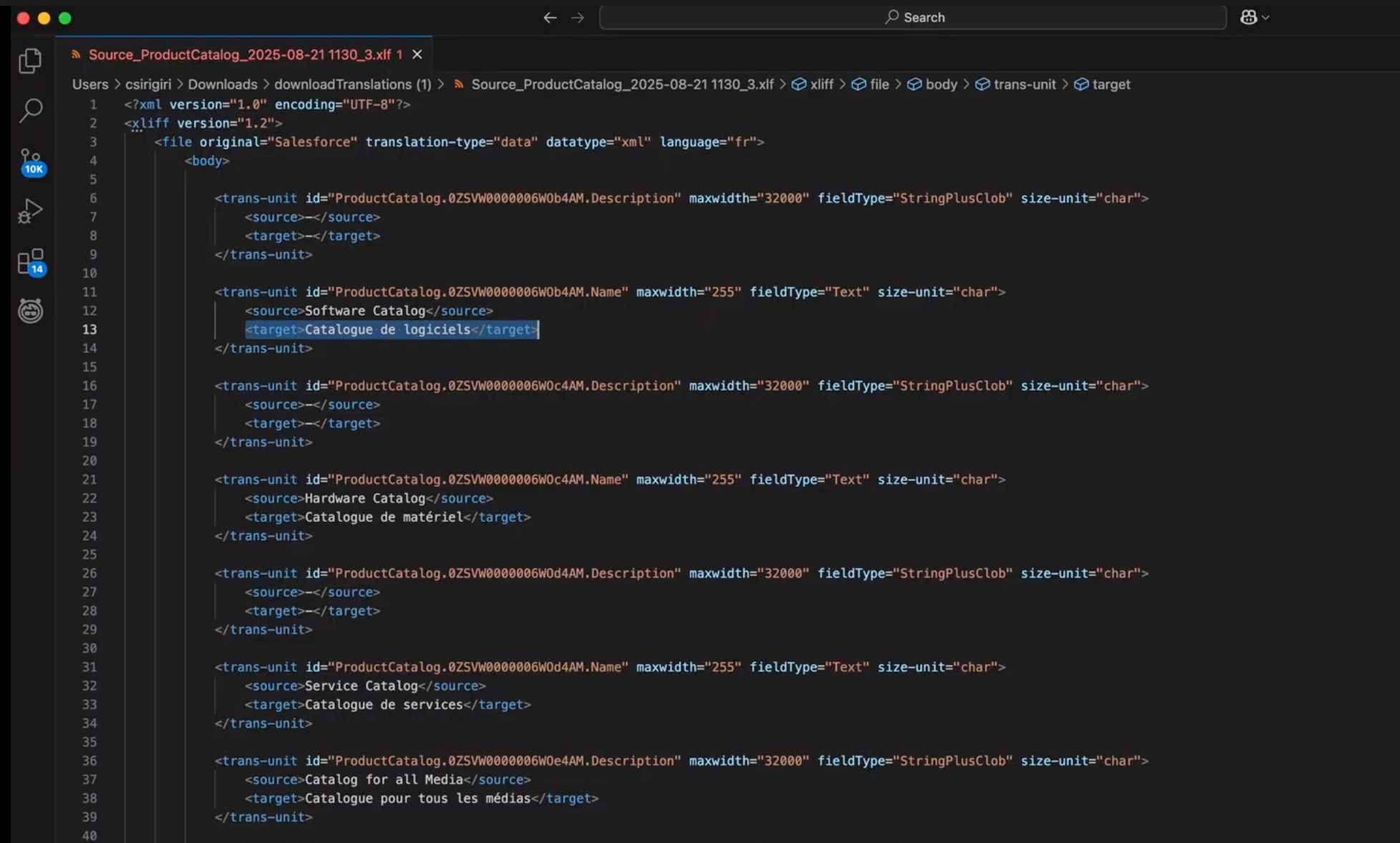
- If you export in XLIFF (.xlf):
- Open the file in a text editor.
- For each <trans-unit>, keep <source> unchanged and add your translation in <target>.
- Make sure the
target-languageattribute matches your language (for example,fr). - Save the file.
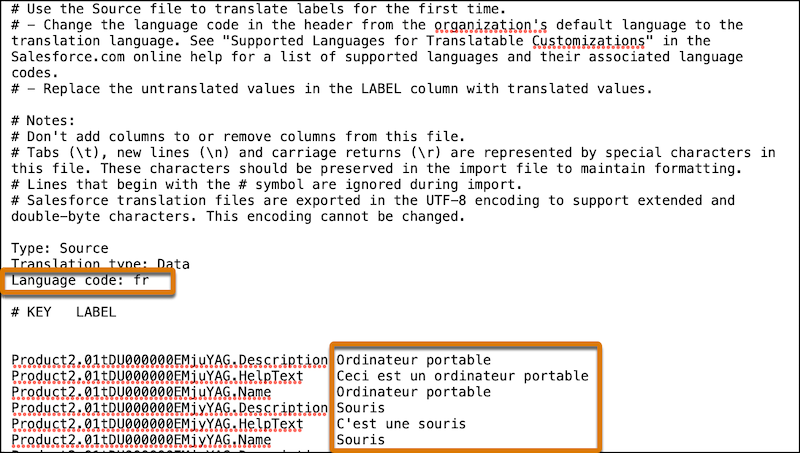
- If you export in STF:
- Open the file in a text editor.
- Add the language code under Translation type: Data.
- For Product2, translate names, descriptions, help text, and enum (picklist) values.
- For Product Category, translate names and descriptions.
- For Product Classification Attributes and Dynamic Picklists, update the relevant values.
- Save the file.
- From Setup, find and select Import.
- Upload the translated file and click Import. See Import Translated Files.
- If you export in XLIFF (.xlf):
-
Reindex the catalog.
After importing translations, rebuild the full index to apply them. See Build an Index in Product Catalog Management.
-
(Optional) Verify translations.
-
In the UI:
- Log in as a user whose org language matches a translation.
- Browse catalogs and confirm product and category names are displayed in that language.
- Search using translated terms (for example, enter portable in French to return translated laptop products).
-
With SOQL:
- Use an approved open-source tool to query Salesforce objects.
- Run SOQL queries for the translation objects to confirm values.
- Product2DataTranslation: Query Name, Description, HelpText, and picklist/enum fields.
- ProductCategoryDataTranslation: Query Name and Description.
- Use the corresponding translation objects for Product Classification Attributes and Dynamic Attributes.
-
Did this article solve your issue?
Let us know so we can improve!
