
You are here:
Constraint and Rule Types in the Visual Builder
The Visual Builder provides point-and-click tools for you to easily define constraints and rules for a constraint model. Use the basic logic constraint, the conditional logic constraint, the message rule, the require rule, the exclude rule, the hide/disable rule, and the preference rule to author complex configurations for products and product bundles in your catalog.
Required Editions
| Available in: Lightning Experience |
| Available in: Enterprise, Unlimited, and Developer Editions of Revenue Cloud with the Revenue Cloud Growth license or the Revenue Cloud Advanced license |
You add expressions to constraints and rules to define the conditions that they enforce.
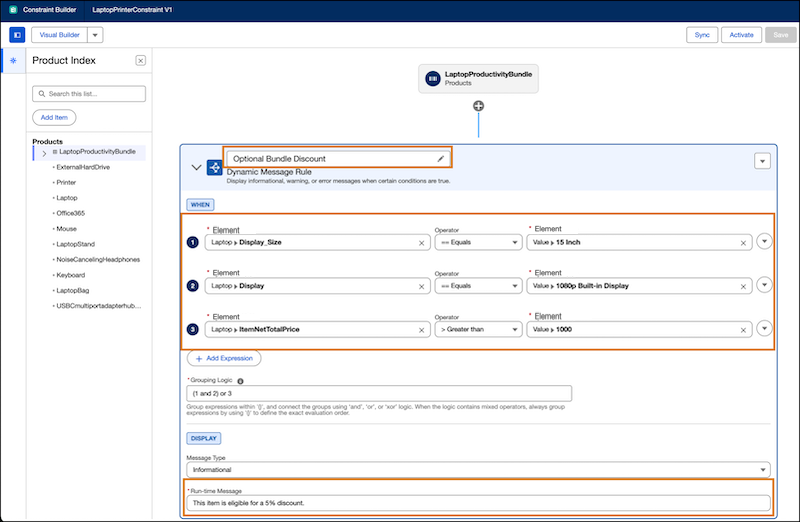
Build an expression by defining these parts: a left-hand side element, an operator, and a right-hand side element. Your choice for each part of the expression dynamically filters the options available to you in the next part. First, select your left-hand side element. Depending on the item you’re building your expression for, you can choose from flexible options such as individual products, product bundles, child products within the product bundle, attributes, fields, variables defined in CML Editor, and sales transaction header. Next, select the operator. For the right-hand side element field, select another dynamic element or parameter to compare against or select the Value option to enter a static value or pick the value from a predefined list.
To create more complex conditions, you can control how multiple expressions relate to each other by grouping them. In the Grouping Logic field, define a syntax that combines your expressions. Group expressions by referencing their numbers within parentheses ‘()’ and connecting them with the logical operators ‘and’, ‘or’, or ‘xor’. For example, the logic "(1 and 2) or 3" requires that either the conditions defined in expressions 1 and 2 are both true, or that the condition in expression 3 is true.
For your grouping logic to be valid, follow these guidelines.
- Use only valid characters: Your logic can contain only expression numbers, parentheses ‘()’, and the operators ‘and’, ‘or’, or ‘xor’.
- Group expressions clearly when there are mixed operators: When the logic contains mixed
operators, always group expressions by using '()' to define the exact evaluation
order.
For example, a grouping logic such as “1 and 2 or (3 or 4) and 5” isn’t valid. To fix it, clarify the intended order of operations. Change the logic to “1 and ((2 or 3) or (4 and 5))” or “(1 and (2 or 3)) or (4 and 5)”.
- Use only numbers that correspond to defined expressions: Make sure that all expression numbers that you use in the logic correspond to an expression. For example, if you have four expressions defined, you can use only the numbers 1, 2, 3, and 4.
- Reference each expression once: Every expression number can be used only once in the logic. Also, make sure that the numbers corresponding to all the defined expressions are a part of the logic.
Add a name to the constraint to make it easy to find when you work with multiple constraints in a model. Add an optional run-time message that configurator users see if their input violates the constraint conditions. Run-time messages are mandatory for the Dynamic Message Rule type.
This dynamic message rule, with the name Optional Bundle Discount, shows an informational message to the sales reps about an optional discount they can apply if the defined conditions are true.
When you define a constraint or rule in Visual Builder, the constraint rules engine generates the Constraint Modeling Language (CML) code for the configuration. You can view and edit the code in CML Editor, and switch between Visual Builder and CML Editor as you work. If you name the constraint in Visual Builder, the name appears as a code comment in CML Editor.
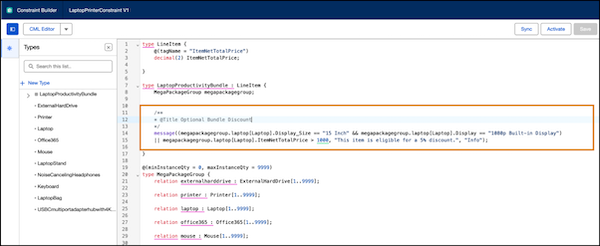
In this example, the code message((megapackagegroup.laptop[Laptop].Display_Size ==
"15 Inch" && megapackagegroup.laptop[Laptop].Display == "1080p Built-in Display") ||
megapackagegroup.laptop[Laptop].ItemNetTotalPrice > 1000, "This item is eligible for a 5%
discount.", "Info"); defines the dynamic message rule that shows an informational
message to the sales reps. The code comment identifies the constraint name as Optional Bundle
Discount.
- Basic Logic Constraint in the Visual Builder
Enforce a specific condition on a product, product bundle, or attribute with the basic logic constraint. Users must adhere to the defined condition to configure the associated product or product bundle successfully. - Conditional Logic Constraint in the Visual Builder
The conditional logic constraint defines a constraint in which, if one or more conditions are true, another condition is also true. If you define a conditional constraint,users must adhere to the defined conditions in order to configure products successfully. - Dynamic Message Rule in the Visual Builder
The dynamic message rule shows a message to users if the specified condition is true. Include a message to provide the user with information about an item, such as a promotional offer on a selected product. - Require Rule in the Visual Builder
The require rule automatically adds a specified product to a configuration if certain conditions are true. Use the require rule to make sure that certain products are sold together. - Exclude Rule
The exclude rule excludes an item from a quote or order when certain conditions are true. For example, use an exclude rule to specify that an order with a laptop can’t include a mouse. - Hide/Disable Rule
Hide or disable a component in a bundle, an attribute, or an attribute value when certain conditions are true, to remove the element from view, or to disable selections for it. - Preference Rule
The preference rule applies a constraint when certain conditions are true, but allows the constrainte engine to override the constraint if the user input violates the constraint conditions. For example, use the preference rule to specify that, when laptop display is 2K, the display size should be 15 inch or larger, but allow the configuration to continue without failing if the user selects a smaller display size, and deliver an error message indicating that display size should be 15 inch or larger.
